> ## Documentation Index
> Fetch the complete documentation index at: https://docs.knotie-ai.pro/llms.txt
> Use this file to discover all available pages before exploring further.
# Billing and invoices
> Create invoices, send them to customers, and track payments in the Partner Portal.
## What Billing & Invoices is for
The **Billing & Invoices** section helps you charge customers for your services.
Typical agency workflow:
1. Create an invoice for a customer.
2. Send it.
3. Track whether it’s paid.
4. Follow up on overdue invoices.
## Where to find it
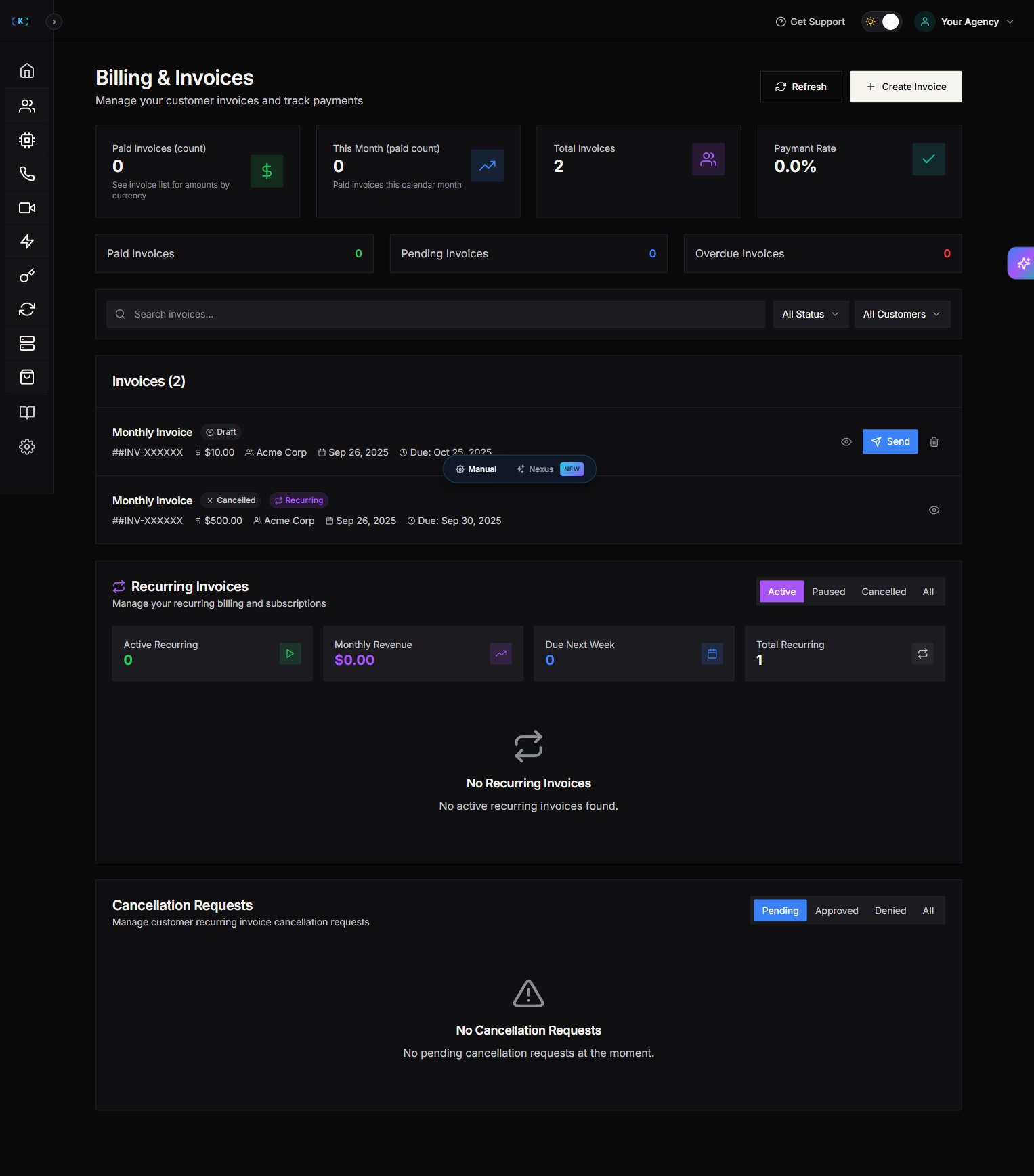
In the Partner Portal sidebar, open **Billing & Invoices**. The page opens straight to your list of invoices.
## Create an invoice
1. Go to **Billing & Invoices**.
2. Click **Create Invoice**.
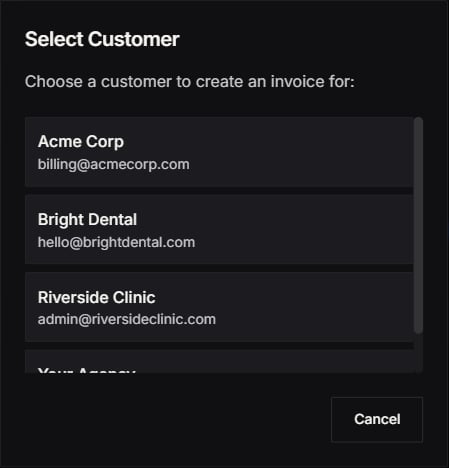
3. Choose the customer.
4. Add line items (your services).
5. Confirm the total and create the invoice.
## Send an invoice
After an invoice is created:
1. Find it in your invoice list.
2. Click **Send**.
3. Confirm the customer email is correct.
## Track invoice status
Invoices move through different statuses, such as:
* **Draft**: created but not sent
* **Sent**: delivered to the customer
* **Paid**: payment completed
* **Overdue**: sent but past due
## Filter and find invoices quickly
Use the filters on the billing page:
* **Search**: find by customer or invoice
* **Status filter**: show only unpaid/paid/overdue
* **Customer filter**: view invoices per customer
If totals look out-of-date, click **Refresh**.
## Recurring invoices and cancellation requests
Some accounts will see tools like:
* **Recurring invoices**: automate repeated billing
* **Cancellation requests**: track customers requesting cancellations
If these appear in your billing page, use them to reduce manual follow-ups.
## Troubleshooting
* **I can’t send an invoice**
* Confirm you’re logged in as the partner owner (or a team member with billing permissions).
* Refresh the page and try again.
* **Customer says they didn’t receive it**
* Verify the customer’s email address.
* Ask them to check spam/junk folders.
## Screenshots