> ## Documentation Index
> Fetch the complete documentation index at: https://docs.knotie-ai.pro/llms.txt
> Use this file to discover all available pages before exploring further.
# AI Gateway
> Create metered, OpenAI-compatible API keys, control which models they can use, and let customers create their own.
## What AI Gateway is
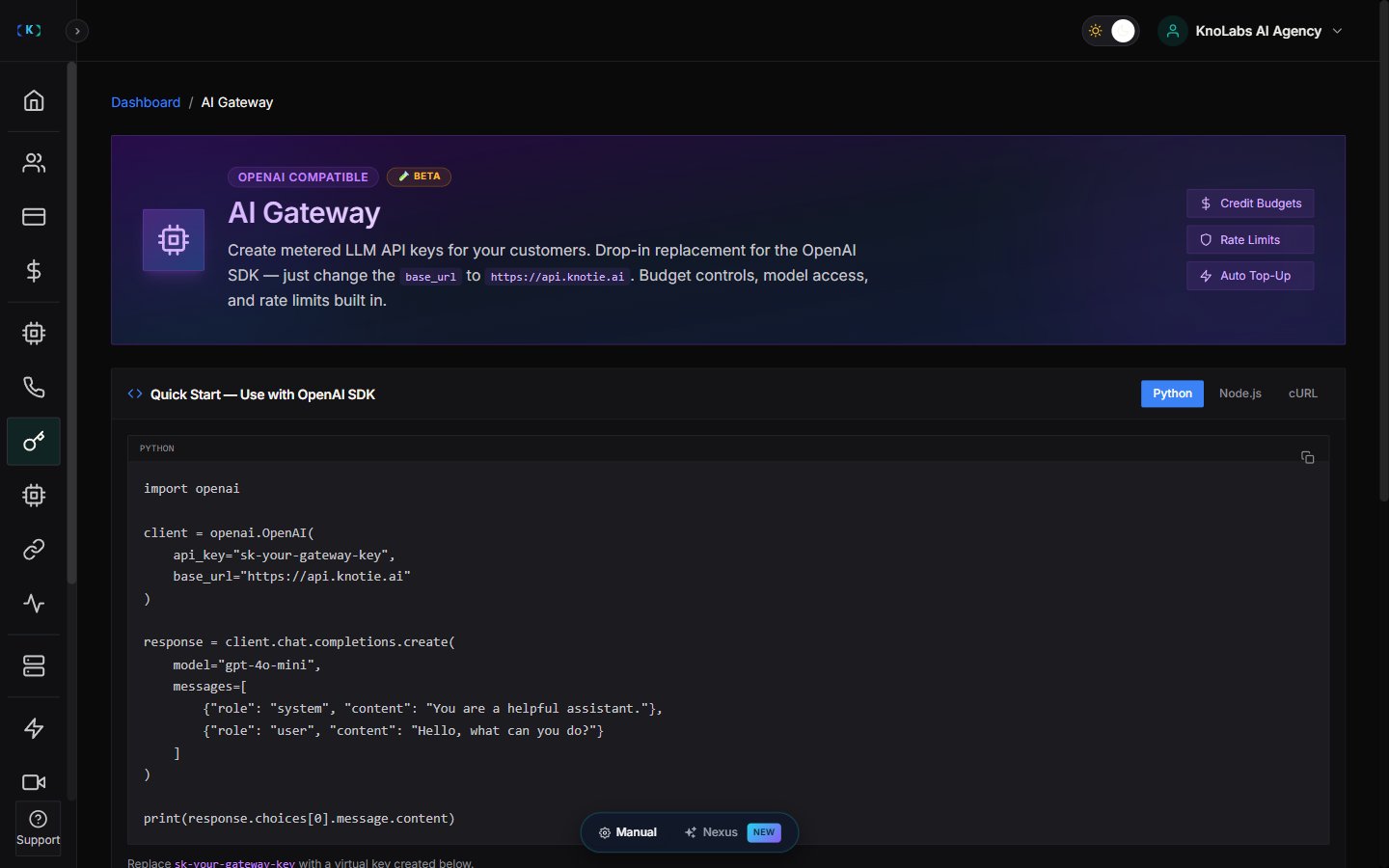
**AI Gateway** is where you create metered AI API keys from the Partner Portal.
It's OpenAI-compatible, so you can use the standard OpenAI SDK and simply point the `base_url` at `https://api.knotie.ai`. The page is marked as **Beta**.
Use AI Gateway when you want to:
* Create your own AI API keys
* Limit each key to specific models
* Fund usage from your **AI Credits**
* Assign a key to a customer and bill their usage back to their **AI Credits**
* Let customers create their own keys from your white-label portal
## Where to find it
In the Partner Portal sidebar:
1. Open **AI Gateway**.
2. The top of the page has a quick-start guide.
3. **AI Gateway Keys** is where you create and manage keys.
4. **Customer Self-Service API Keys** is where you control whether customers can create their own.
 ## Quick start
The page includes ready-made code snippets for Python, Node.js, and cURL. Each one uses your key and `https://api.knotie.ai` as the base URL, so you can be up and running in a couple of minutes.
## Create a key
Click **Create Key** to open the key window.
### Who the key is for
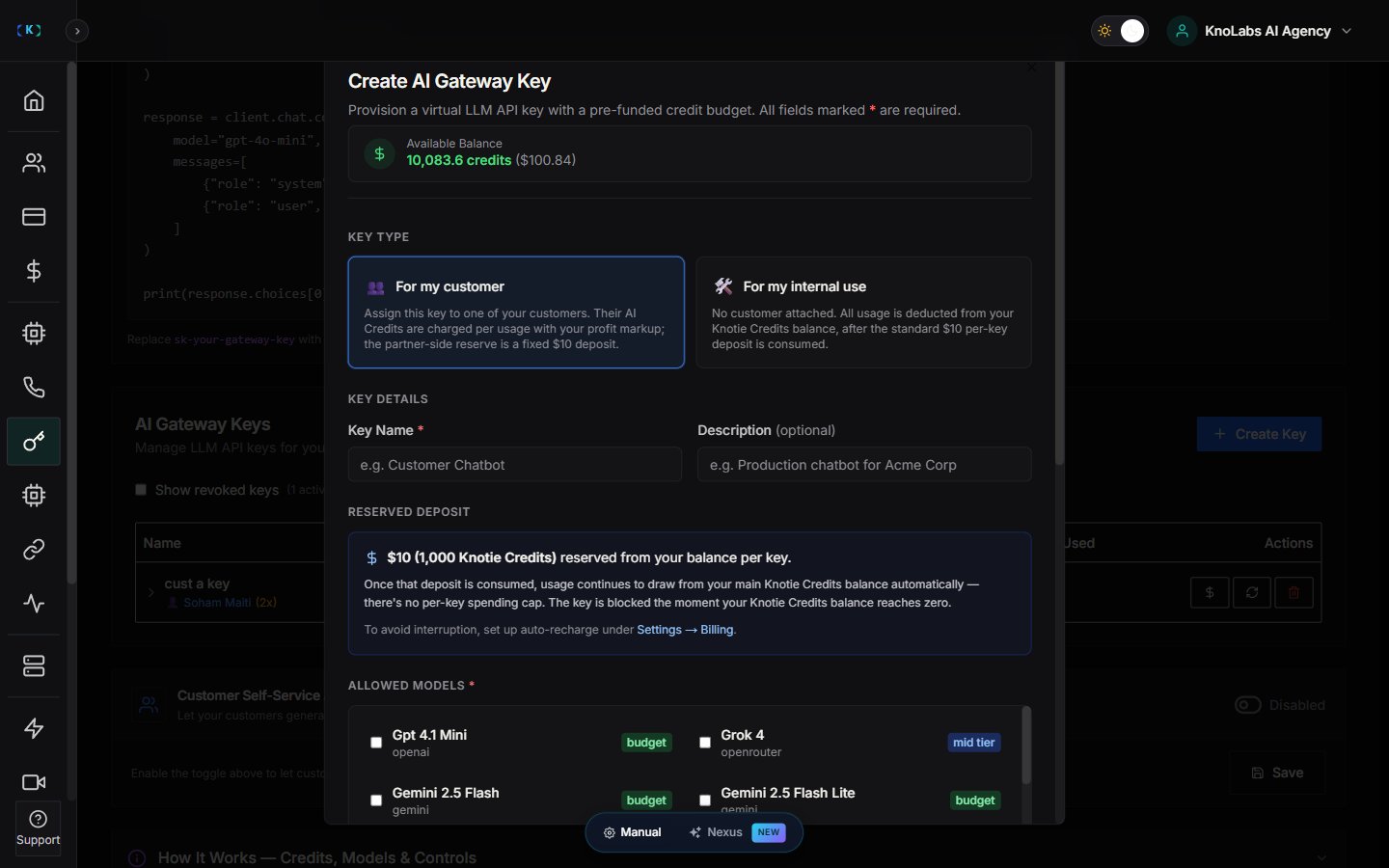
You start by choosing who the key belongs to:
* **For my customer** (the default) — the key is tied to one of your customers, and their AI Credits are charged for usage, with your markup added.
* **For my internal use** — no customer is attached, and all usage comes out of your own AI Credits.
### Key details
* **Key name**
* **Description**
* **Allowed models** — pick one or more models this key is allowed to use
### Reserved deposit
Each key sets aside a fixed **\$10 deposit** (1,000 credits) from your balance. Once that deposit is used up, usage keeps drawing from your main balance automatically — there's no separate per-key cap. The key stops working the moment your balance hits zero, so it's worth setting up auto-recharge in your billing settings to avoid interruptions.
## Quick start
The page includes ready-made code snippets for Python, Node.js, and cURL. Each one uses your key and `https://api.knotie.ai` as the base URL, so you can be up and running in a couple of minutes.
## Create a key
Click **Create Key** to open the key window.
### Who the key is for
You start by choosing who the key belongs to:
* **For my customer** (the default) — the key is tied to one of your customers, and their AI Credits are charged for usage, with your markup added.
* **For my internal use** — no customer is attached, and all usage comes out of your own AI Credits.
### Key details
* **Key name**
* **Description**
* **Allowed models** — pick one or more models this key is allowed to use
### Reserved deposit
Each key sets aside a fixed **\$10 deposit** (1,000 credits) from your balance. Once that deposit is used up, usage keeps drawing from your main balance automatically — there's no separate per-key cap. The key stops working the moment your balance hits zero, so it's worth setting up auto-recharge in your billing settings to avoid interruptions.
 ### Which models you can choose
The models on offer depend on your subscription. They're grouped into tiers — such as budget, mid-tier, and premium — and any model your plan doesn't include simply won't appear as an option.
### Billing a customer
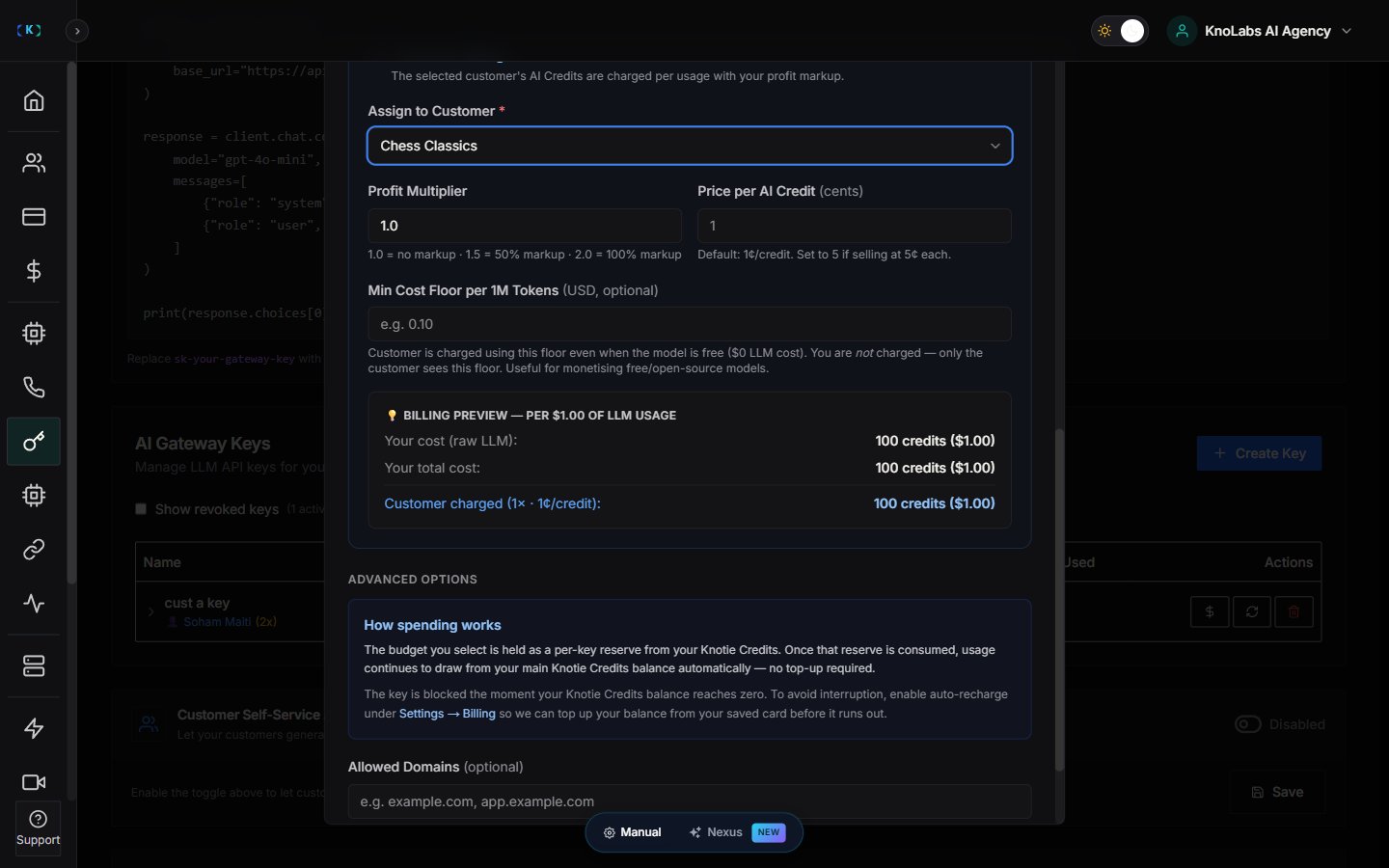
When you assign a key to a customer, a billing section appears where you set how their usage is priced — including your profit multiplier and the price per credit — with a live preview showing your cost and what the customer will be charged. These fields only show up once you've picked a customer.
### Which models you can choose
The models on offer depend on your subscription. They're grouped into tiers — such as budget, mid-tier, and premium — and any model your plan doesn't include simply won't appear as an option.
### Billing a customer
When you assign a key to a customer, a billing section appears where you set how their usage is priced — including your profit multiplier and the price per credit — with a live preview showing your cost and what the customer will be charged. These fields only show up once you've picked a customer.
 ### Restricting to certain domains (optional)
Under **Advanced Options**, you can limit a key to a list of approved domains.
## Managing your keys
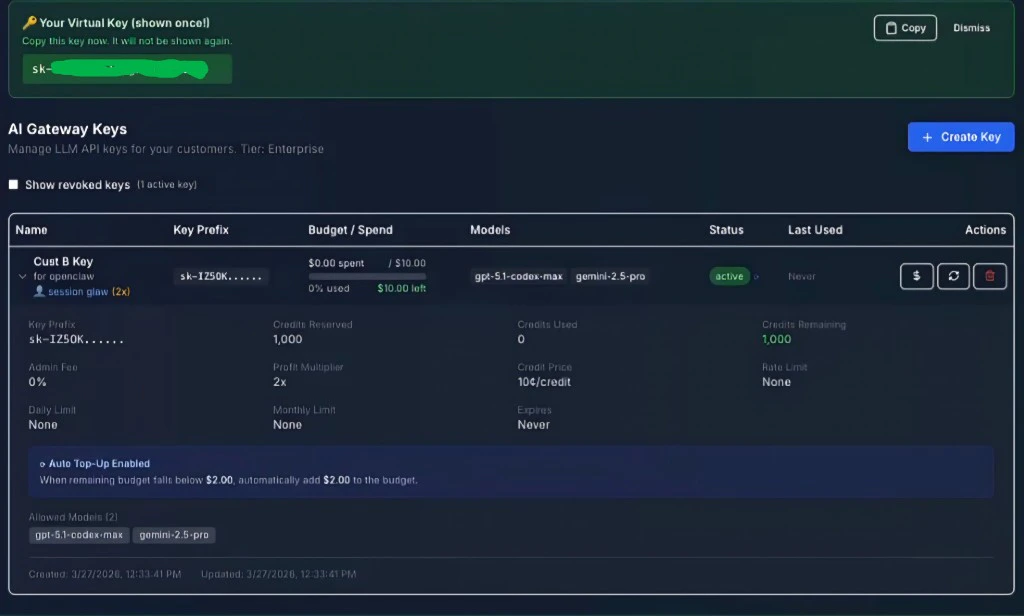
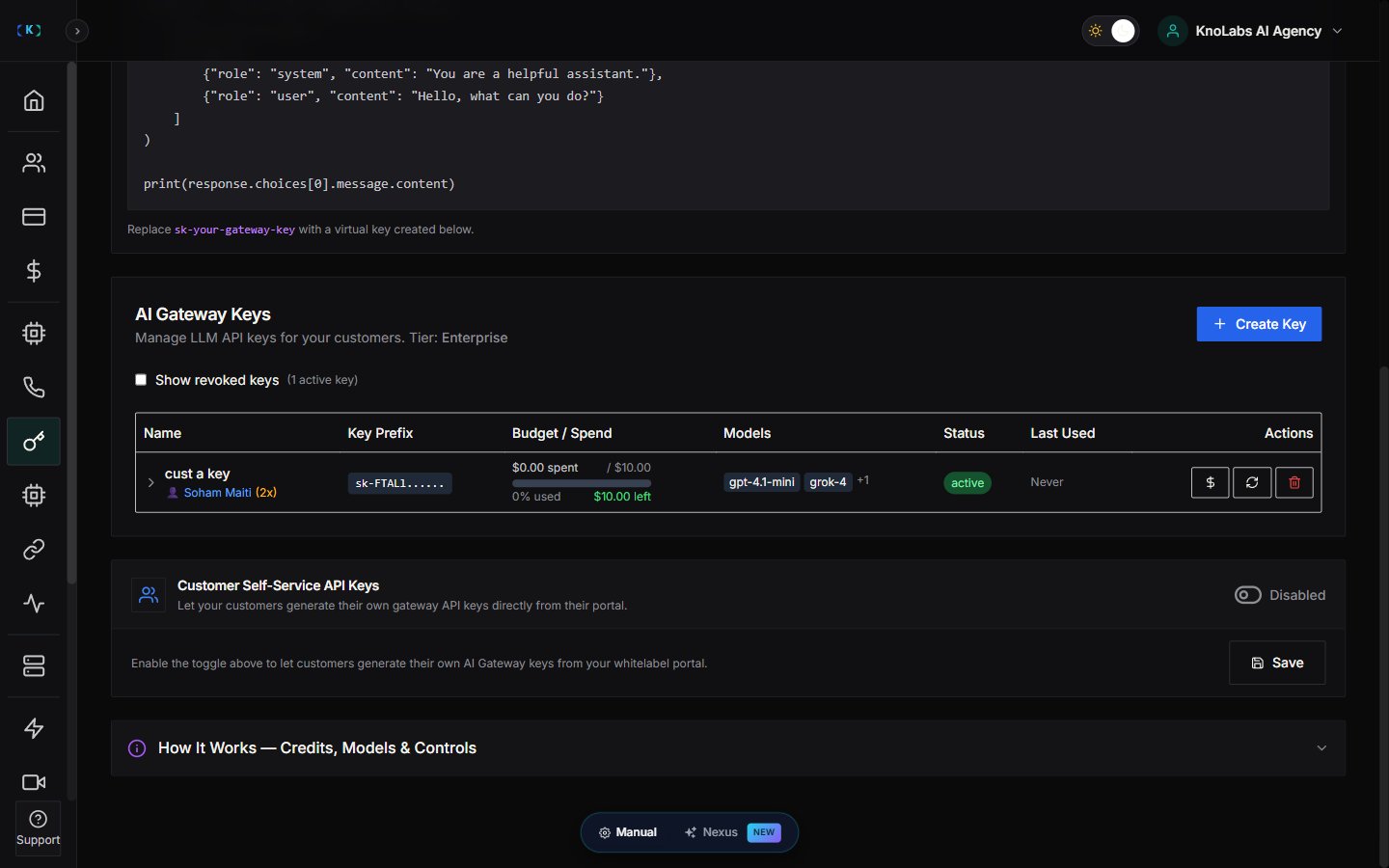
The **AI Gateway Keys** table lists each key with its name, prefix, spend against its deposit, allowed models, status, and when it was last used. For each active key you can:
* **Top Up**
* **Regenerate**
* **Revoke**
A few things to keep in mind:
* Regenerating a key immediately makes the old one stop working.
* Revoking a key can't be undone.
* Revoking refunds any unused deposit back to your balance.
* You can choose to show revoked keys in the table.
Expanding a row shows more detail, including credits reserved, used, and remaining, any admin fee, the pricing settings, rate limits, and the key's expiry and timestamps.
## Copying a new key
When you create or regenerate a key, the key is shown once, in a confirmation banner. Copy it right away — for security, it won't be shown again.
### Restricting to certain domains (optional)
Under **Advanced Options**, you can limit a key to a list of approved domains.
## Managing your keys
The **AI Gateway Keys** table lists each key with its name, prefix, spend against its deposit, allowed models, status, and when it was last used. For each active key you can:
* **Top Up**
* **Regenerate**
* **Revoke**
A few things to keep in mind:
* Regenerating a key immediately makes the old one stop working.
* Revoking a key can't be undone.
* Revoking refunds any unused deposit back to your balance.
* You can choose to show revoked keys in the table.
Expanding a row shows more detail, including credits reserved, used, and remaining, any admin fee, the pricing settings, rate limits, and the key's expiry and timestamps.
## Copying a new key
When you create or regenerate a key, the key is shown once, in a confirmation banner. Copy it right away — for security, it won't be shown again.
 ## Letting customers create their own keys
The lower part of the page controls whether your customers can create their own AI Gateway keys from your portal.
There's a master on/off toggle. While it's off, the rest of the settings stay hidden — turn it on to reveal options like applying the setting to new or existing customers, a default profit multiplier, and the credit-to-cost rate.
## Letting customers create their own keys
The lower part of the page controls whether your customers can create their own AI Gateway keys from your portal.
There's a master on/off toggle. While it's off, the rest of the settings stay hidden — turn it on to reveal options like applying the setting to new or existing customers, a default profit multiplier, and the credit-to-cost rate.
 ### How the deposit works for customer keys
When customer self-service is on, each key a customer creates sets aside a deposit of about **\$10 (1,000 credits)** from your balance. If your balance drops below that, customer-created keys may be paused until you top up again.
### What else a customer needs
Turning on the master toggle isn't quite enough on its own. For a customer to see **AI Gateway** in their portal, all of these need to be true:
* Your **Customer Self-Service API Keys** master toggle is on.
* The customer has **AI Credits** enabled.
* The customer's **AI Gateway** menu is turned on in **Features & Add-ons**.
See [Features, add-ons, and menu visibility](/partner-portal/customers/features-addons-and-menu-visibility) for that per-customer setting.
## Good to know
* **Keys you create** use a fixed \$10 deposit, not a budget you set. Once it's used up, usage draws from your main balance automatically.
* **Keys your customers create** are pay-as-you-go from their own AI Credits — they're never asked to set a budget.
* **API Keys** in the customer portal are a different thing from **AI Gateway**: API Keys rely on **API Access**, while AI Gateway relies on **AI Credits** plus your self-service settings.
## Related pages
* [Features, add-ons, and menu visibility](/partner-portal/customers/features-addons-and-menu-visibility)
* [Client portal navigation, billing, and AI Gateway](/customer-management/client-portal-navigation-and-ai-gateway)
* [API access overview](/partner-portal/api-keys)
### How the deposit works for customer keys
When customer self-service is on, each key a customer creates sets aside a deposit of about **\$10 (1,000 credits)** from your balance. If your balance drops below that, customer-created keys may be paused until you top up again.
### What else a customer needs
Turning on the master toggle isn't quite enough on its own. For a customer to see **AI Gateway** in their portal, all of these need to be true:
* Your **Customer Self-Service API Keys** master toggle is on.
* The customer has **AI Credits** enabled.
* The customer's **AI Gateway** menu is turned on in **Features & Add-ons**.
See [Features, add-ons, and menu visibility](/partner-portal/customers/features-addons-and-menu-visibility) for that per-customer setting.
## Good to know
* **Keys you create** use a fixed \$10 deposit, not a budget you set. Once it's used up, usage draws from your main balance automatically.
* **Keys your customers create** are pay-as-you-go from their own AI Credits — they're never asked to set a budget.
* **API Keys** in the customer portal are a different thing from **AI Gateway**: API Keys rely on **API Access**, while AI Gateway relies on **AI Credits** plus your self-service settings.
## Related pages
* [Features, add-ons, and menu visibility](/partner-portal/customers/features-addons-and-menu-visibility)
* [Client portal navigation, billing, and AI Gateway](/customer-management/client-portal-navigation-and-ai-gateway)
* [API access overview](/partner-portal/api-keys)