> ## Documentation Index
> Fetch the complete documentation index at: https://docs.knotie-ai.pro/llms.txt
> Use this file to discover all available pages before exploring further.
# MCP Tokens
> Generate and manage MCP tokens for AI coding assistants and automation tools.
## What MCP Tokens are for
**MCP Tokens** (Model Context Protocol tokens) allow AI coding assistants like Cursor, Windsurf, and Claude to interact with your Knotie AI Pro account programmatically.
Use MCP tokens when you want to:
* **Automate workflows** – Let AI tools manage customers, agents, or credits.
* **Build integrations** – Connect Knotie AI Pro to your development environment.
* **Access data** – Query analytics and customer information via AI assistants.
## Where to find it
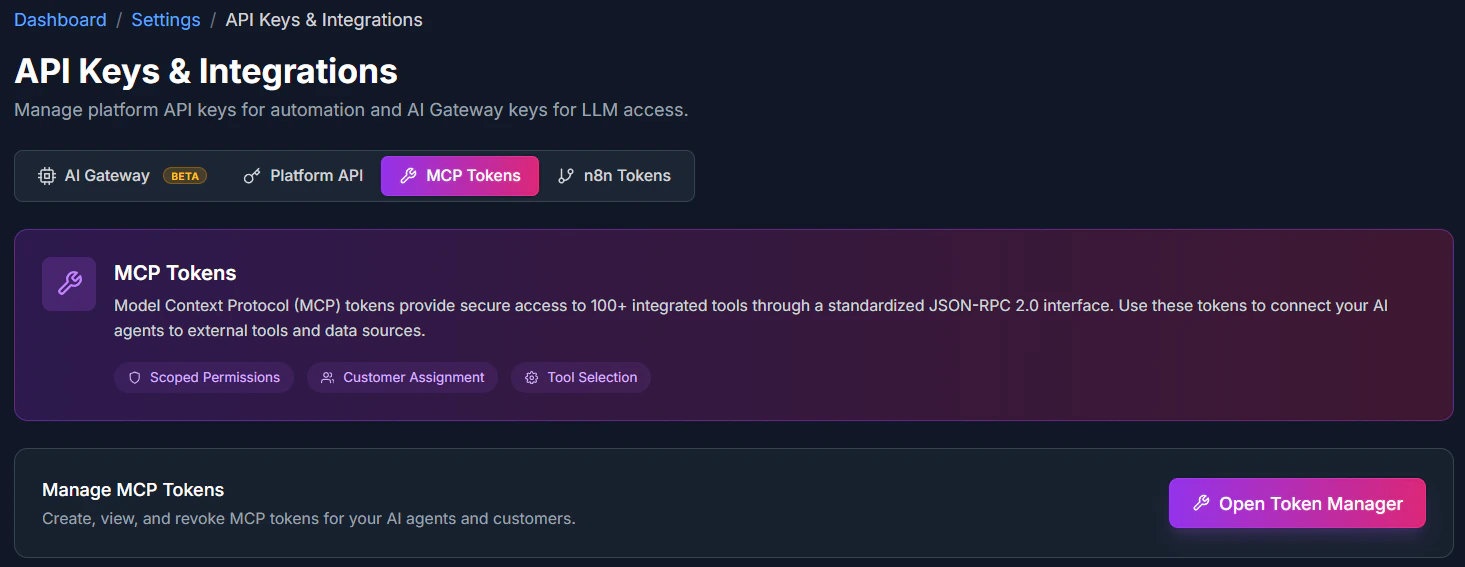
**Primary:** Go to **AI Agents → MCP Tokens** in the sidebar.
**Alternative:** Open **Settings → Partner API Keys** and switch to the **MCP Tokens** tab.
 ## Generate an MCP token
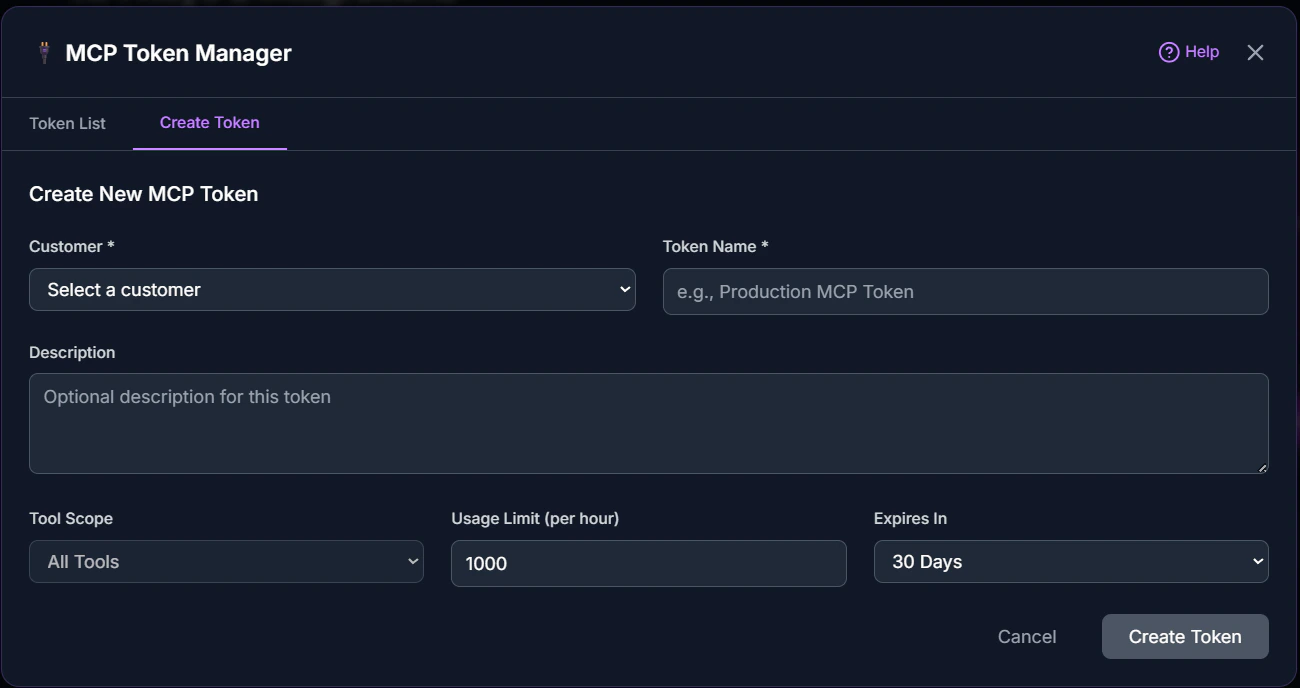
1. In the **MCP Tokens** section, click **Generate Token**.
2. Give the token a descriptive name (e.g., "Cursor Development").
3. Copy the generated token immediately—it won't be shown again.
4. Store the token securely in a password manager.
## Generate an MCP token
1. In the **MCP Tokens** section, click **Generate Token**.
2. Give the token a descriptive name (e.g., "Cursor Development").
3. Copy the generated token immediately—it won't be shown again.
4. Store the token securely in a password manager.
 ## Using MCP tokens
### With Cursor
Add your MCP token to Cursor's settings to enable Knotie AI Pro integration:
1. Open Cursor settings.
2. Navigate to MCP configuration.
3. Add your Knotie AI Pro endpoint and token.
### With Windsurf
Configure MCP in Windsurf:
1. Open Windsurf settings.
2. Add MCP server configuration.
3. Include your token in the authentication header.
### With Claude Desktop
Set up MCP for Claude Desktop:
1. Edit your Claude configuration file.
2. Add the Knotie AI Pro MCP server.
3. Include your authentication token.
## Tool modes (full vs meta)
By default, a token runs in **full mode** — the AI assistant sees the complete list of available tools at once.
If you'd rather the assistant look up tools as it needs them (instead of loading the whole list up front), you can switch the token to **meta mode** by adding this option when you create it:
```json theme={null}
{
"toolMode": "meta"
}
```
In meta mode the assistant gets two helper tools: one to search for the tool it needs, and one to run it. Rate limits and credit charges work exactly the same either way.
You can also limit which connected app tools a token is allowed to use:
```json theme={null}
{
"allowedApps": ["elevenlabs", "retell"]
}
```
See [MCP tool modes](/api-reference/mcp/tool-modes) for the full reference.
## Token security
* **Never share tokens** – Treat MCP tokens like passwords.
* **Rotate regularly** – Generate new tokens periodically.
* **Revoke unused tokens** – Delete tokens you no longer need.
* **Use separate tokens** – Create different tokens for different tools/environments.
## Revoking tokens
1. Go to **Settings → Partner API Keys → MCP Tokens** tab.
2. Find the token you want to revoke.
3. Click **Delete** or **Revoke**.
4. Confirm the action.
Once revoked, the token immediately stops working.
## Troubleshooting
* **Token not working** – Confirm you copied the full token without extra spaces.
* **Access denied** – Check that your account has API access enabled.
* **Can't find the MCP Tokens section** – Look under **AI Agents → MCP Tokens** in the sidebar, or **Settings → Partner API Keys → MCP Tokens** tab.
## Related pages
* [API Keys](/partner-portal/api-keys) – Partner API keys for general automation
* [MCP API Reference](/api-reference/mcp/introduction) – Endpoint documentation
* [MCP tool modes](/api-reference/mcp/tool-modes) – Full vs meta mode, and how to limit which app tools a token can use
## Using MCP tokens
### With Cursor
Add your MCP token to Cursor's settings to enable Knotie AI Pro integration:
1. Open Cursor settings.
2. Navigate to MCP configuration.
3. Add your Knotie AI Pro endpoint and token.
### With Windsurf
Configure MCP in Windsurf:
1. Open Windsurf settings.
2. Add MCP server configuration.
3. Include your token in the authentication header.
### With Claude Desktop
Set up MCP for Claude Desktop:
1. Edit your Claude configuration file.
2. Add the Knotie AI Pro MCP server.
3. Include your authentication token.
## Tool modes (full vs meta)
By default, a token runs in **full mode** — the AI assistant sees the complete list of available tools at once.
If you'd rather the assistant look up tools as it needs them (instead of loading the whole list up front), you can switch the token to **meta mode** by adding this option when you create it:
```json theme={null}
{
"toolMode": "meta"
}
```
In meta mode the assistant gets two helper tools: one to search for the tool it needs, and one to run it. Rate limits and credit charges work exactly the same either way.
You can also limit which connected app tools a token is allowed to use:
```json theme={null}
{
"allowedApps": ["elevenlabs", "retell"]
}
```
See [MCP tool modes](/api-reference/mcp/tool-modes) for the full reference.
## Token security
* **Never share tokens** – Treat MCP tokens like passwords.
* **Rotate regularly** – Generate new tokens periodically.
* **Revoke unused tokens** – Delete tokens you no longer need.
* **Use separate tokens** – Create different tokens for different tools/environments.
## Revoking tokens
1. Go to **Settings → Partner API Keys → MCP Tokens** tab.
2. Find the token you want to revoke.
3. Click **Delete** or **Revoke**.
4. Confirm the action.
Once revoked, the token immediately stops working.
## Troubleshooting
* **Token not working** – Confirm you copied the full token without extra spaces.
* **Access denied** – Check that your account has API access enabled.
* **Can't find the MCP Tokens section** – Look under **AI Agents → MCP Tokens** in the sidebar, or **Settings → Partner API Keys → MCP Tokens** tab.
## Related pages
* [API Keys](/partner-portal/api-keys) – Partner API keys for general automation
* [MCP API Reference](/api-reference/mcp/introduction) – Endpoint documentation
* [MCP tool modes](/api-reference/mcp/tool-modes) – Full vs meta mode, and how to limit which app tools a token can use