> ## Documentation Index
> Fetch the complete documentation index at: https://docs.knotie-ai.pro/llms.txt
> Use this file to discover all available pages before exploring further.
# Agent analytics
> Track call volume, duration, and cost breakdown so you can price confidently and spot issues early.
## What Agent Analytics is for
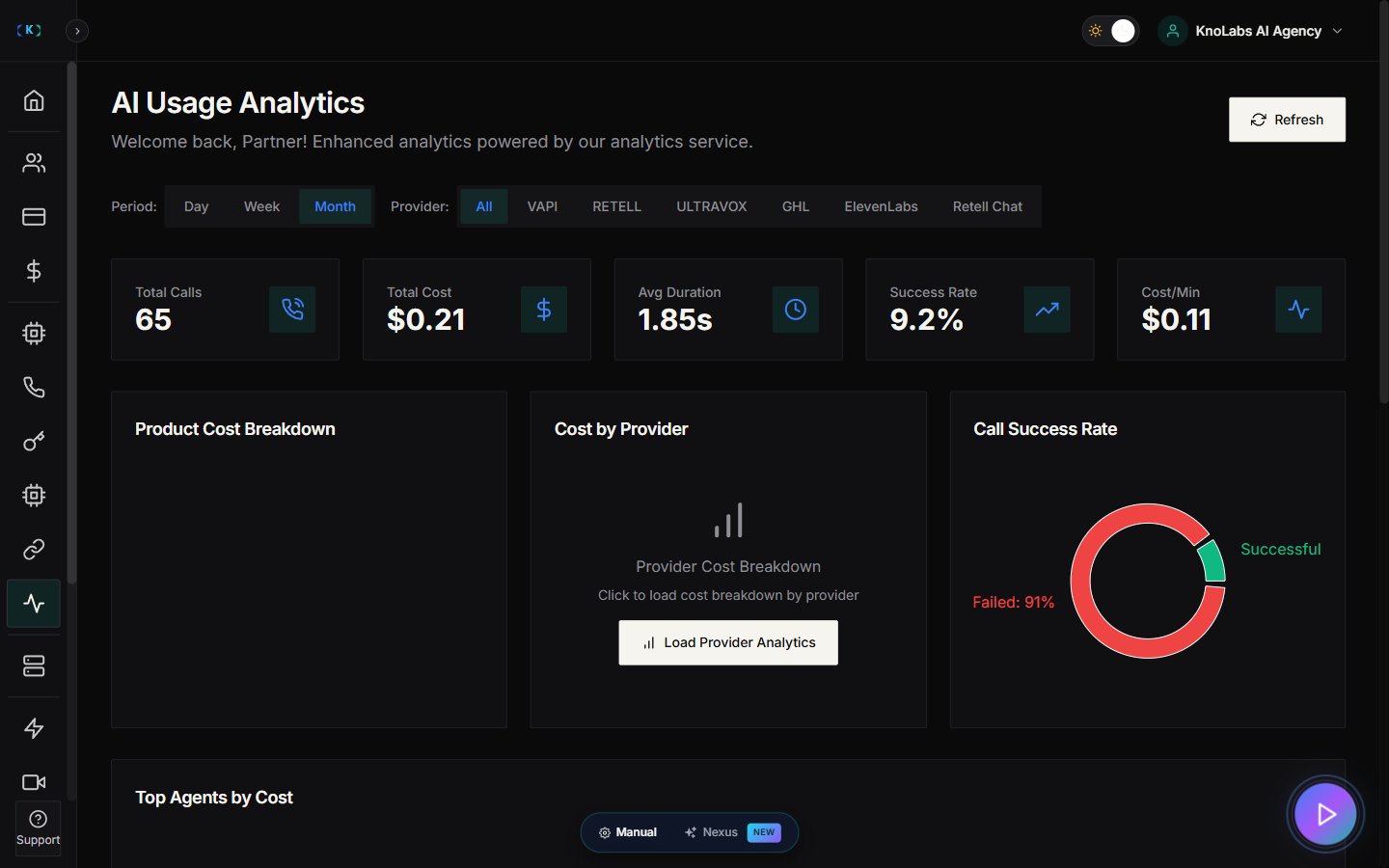
**Agent Analytics** helps you understand what’s happening across your AI agents:
* Total calls
* Total call duration
* Average duration
* Success rate
* Cost breakdown (LLM, STT, TTS, and provider costs)
This is the page you use to:
* Price services correctly
* Check profit margins
* Spot sudden spikes
* Diagnose failed calls
## Where to find it
In the Partner Portal sidebar, open **Agent Analytics**.
## Before you start (most common blockers)
If you see a message like “Please update your API keys & onboard Agents first,” it usually means:
* You haven’t added provider API keys yet, or
* You haven’t imported/created agents yet.
Fix:
1. Go to **Settings → Partner API Keys** and open the **Platform API** tab. Create or update your keys here — these are the keys that let the platform run your agents.
2. Return to **AI Agents** in the sidebar and import or create your agents.
3. Come back to **Agent Analytics**.
## Choose the time period
Agent Analytics supports time windows such as:
* **Day**
* **Week**
* **Month**
Use **Month** for pricing decisions and **Day** for troubleshooting spikes.
## What the cost breakdown means
You’ll often see costs split into parts like:
* **LLM**: the AI “brain” behind the conversation
* **STT**: speech-to-text (turns audio into text)
* **TTS**: text-to-speech (creates the voice)
* **Provider costs**: Retell / VAPI / Ultravox / GHL / ElevenLabs / Knova
If one category grows unusually fast, it’s a signal to review:
* Prompt length
* Call flow
* Agent configuration
* Provider settings
## Viewing individual agent analytics
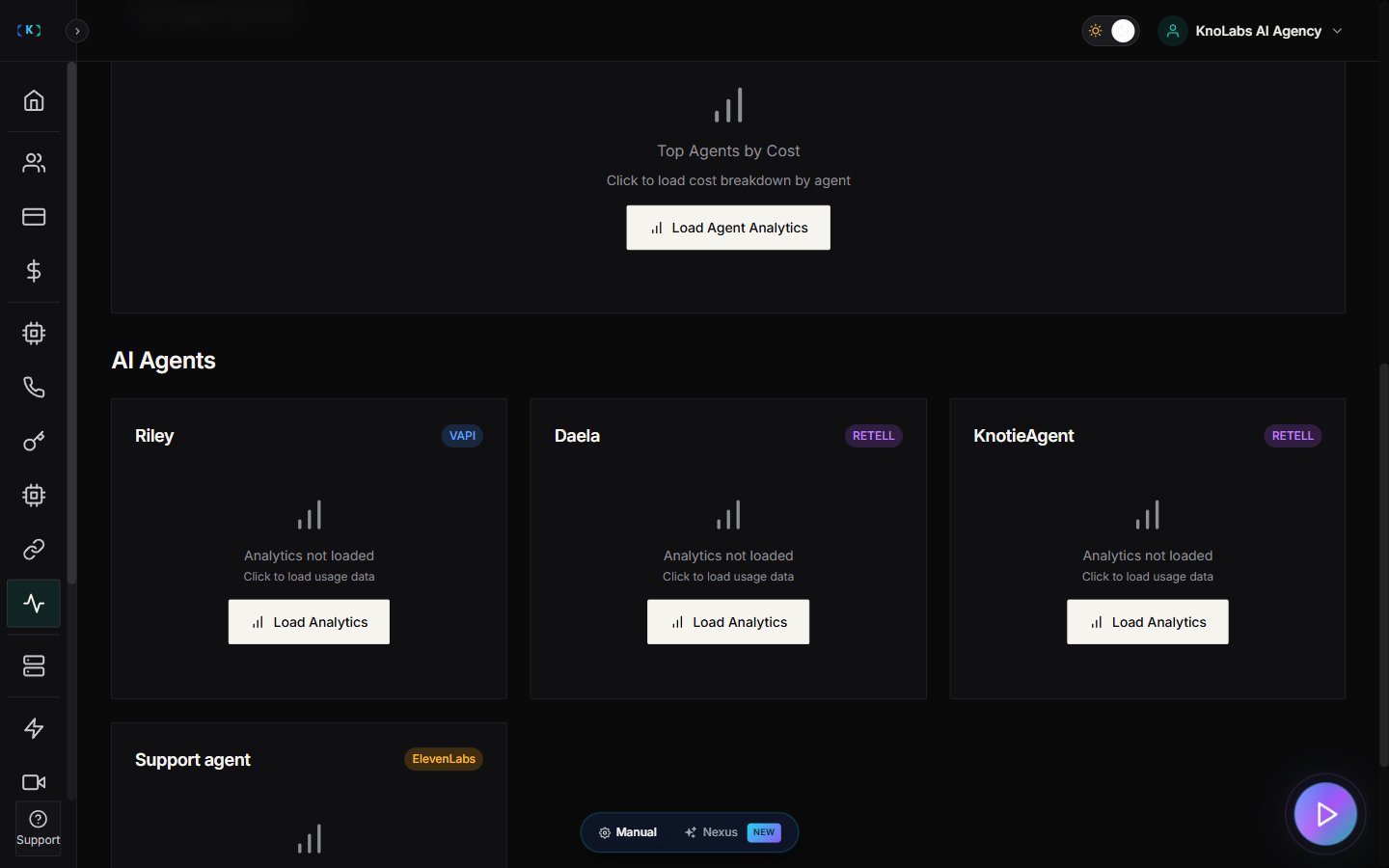
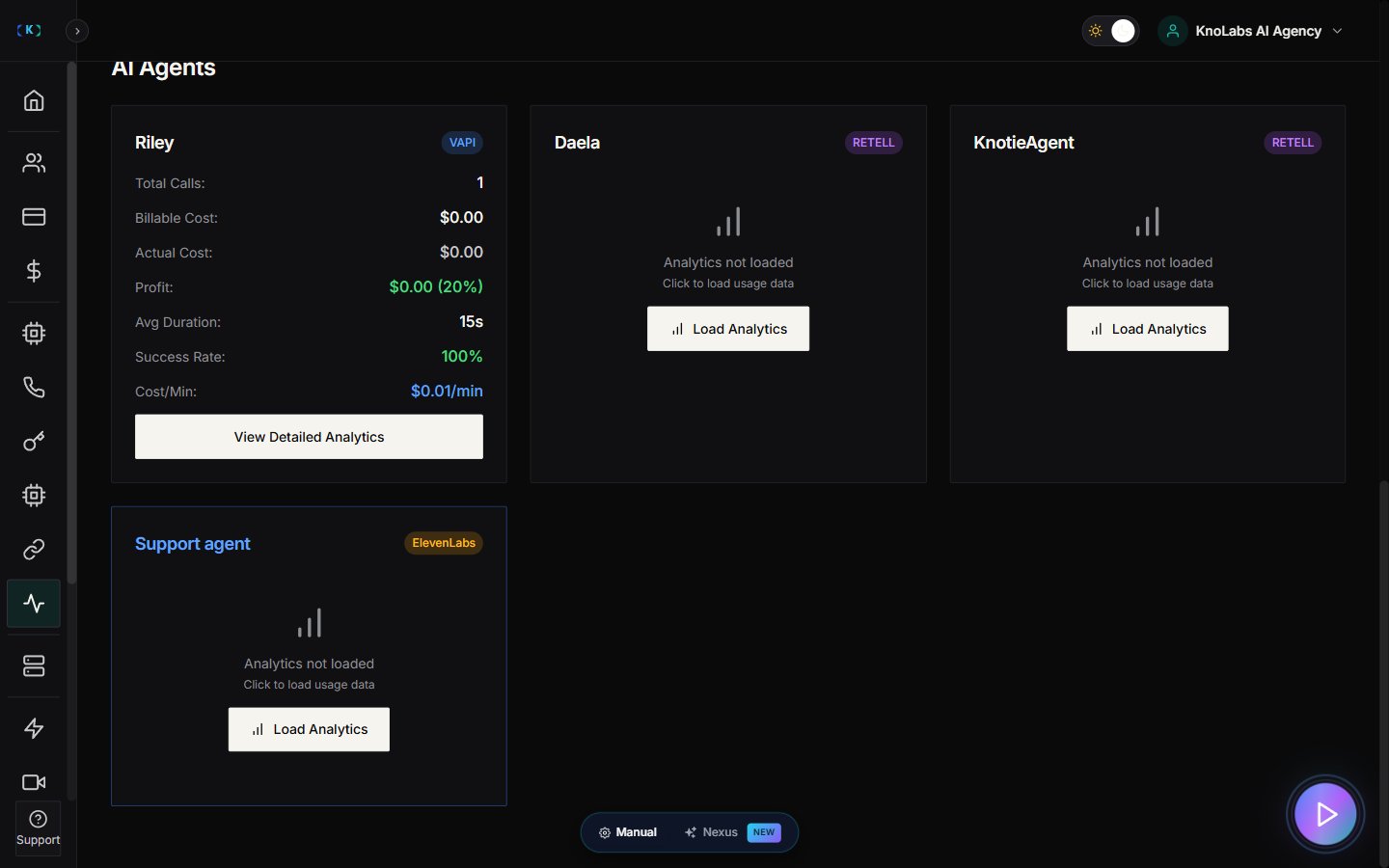
While the main view shows **overall costs for all agents**, you can also load analytics for a specific agent:
1. Use the agent selector/filter at the top of the page.
2. Select the agent you want to analyze.
3. View detailed metrics for that specific agent.
This allows you to:
* **Identify top agents** – See which agents are handling the most calls.
* **Provider-based cost breakdowns** – Understand costs per provider (Retell, VAPI, Ultravox, etc.).
* **Troubleshoot specific agents** – Isolate issues to a single agent rather than your entire portfolio.
 ## Metered billing (still rolling out)
Automatic usage-based billing is being rolled out in stages:
* **Stripe payouts are ready.** You can connect your Stripe account today and start taking payments (see the [Metered billing setup guide](/partner-portal/metered-billing)). Knotie's platform fee is 2.5%.
* **The automated metered-billing page is still in development.** Some parts, like Billing Plans and Customer Billing, aren't fully live yet.
In the meantime, use **Agent Analytics** to track usage, and create invoices from the **Billing & Invoices** page.
## Tips for agencies
* Review analytics weekly and adjust your markup if costs change.
* Use analytics screenshots in customer check-in calls (it builds trust).
* Load individual agent analytics to identify your most profitable agents.
## Screenshots
## Metered billing (still rolling out)
Automatic usage-based billing is being rolled out in stages:
* **Stripe payouts are ready.** You can connect your Stripe account today and start taking payments (see the [Metered billing setup guide](/partner-portal/metered-billing)). Knotie's platform fee is 2.5%.
* **The automated metered-billing page is still in development.** Some parts, like Billing Plans and Customer Billing, aren't fully live yet.
In the meantime, use **Agent Analytics** to track usage, and create invoices from the **Billing & Invoices** page.
## Tips for agencies
* Review analytics weekly and adjust your markup if costs change.
* Use analytics screenshots in customer check-in calls (it builds trust).
* Load individual agent analytics to identify your most profitable agents.
## Screenshots