> ## Documentation Index
> Fetch the complete documentation index at: https://docs.knotie-ai.pro/llms.txt
> Use this file to discover all available pages before exploring further.
# Client portal navigation, billing, and AI Gateway
> Understand which customer-side menus appear in the whitelabel portal, how Billing & Payments works, and when AI Gateway is visible.
## What this page covers
This page documents the **customer-facing whitelabel portal** after a customer has portal access.
It focuses on three things:
* Which sidebar items are always visible
* Which items are controlled by **Features & Add-ons**
* How **Billing & Payments**, **AI Credits**, **Payment Methods**, and **AI Gateway** appear for the customer
## Core sidebar items
These items are always shown in the client portal:
* **Dashboard**
* **Detailed Usage**
* **Conversations**
## Management section
These items only appear if the partner enables them for the customer:
* **Knowledge Base**
* **Phone Numbers**
* **Integration**
* **My Docs & Media**
Notes:
* **My Docs & Media** is currently marked **Coming Soon** in the client portal.
* **Integration** only appears if the partner enables it in the customer's **Features & Add-ons** settings.
* The customer only sees the integration apps the partner allowed for that account.
## Settings & Security section
The client portal always includes:
* **Settings**
Additional items appear conditionally:
* **Billing & Payments**
* **API Keys**
* **AI Gateway**
Important:
* Team members without settings permissions may not see the full **Settings & Security** section.
## When Billing & Payments appears
**Billing & Payments** is not a manual menu toggle in **Features & Add-ons**.
It appears once the customer has active portal credentials / portal access.
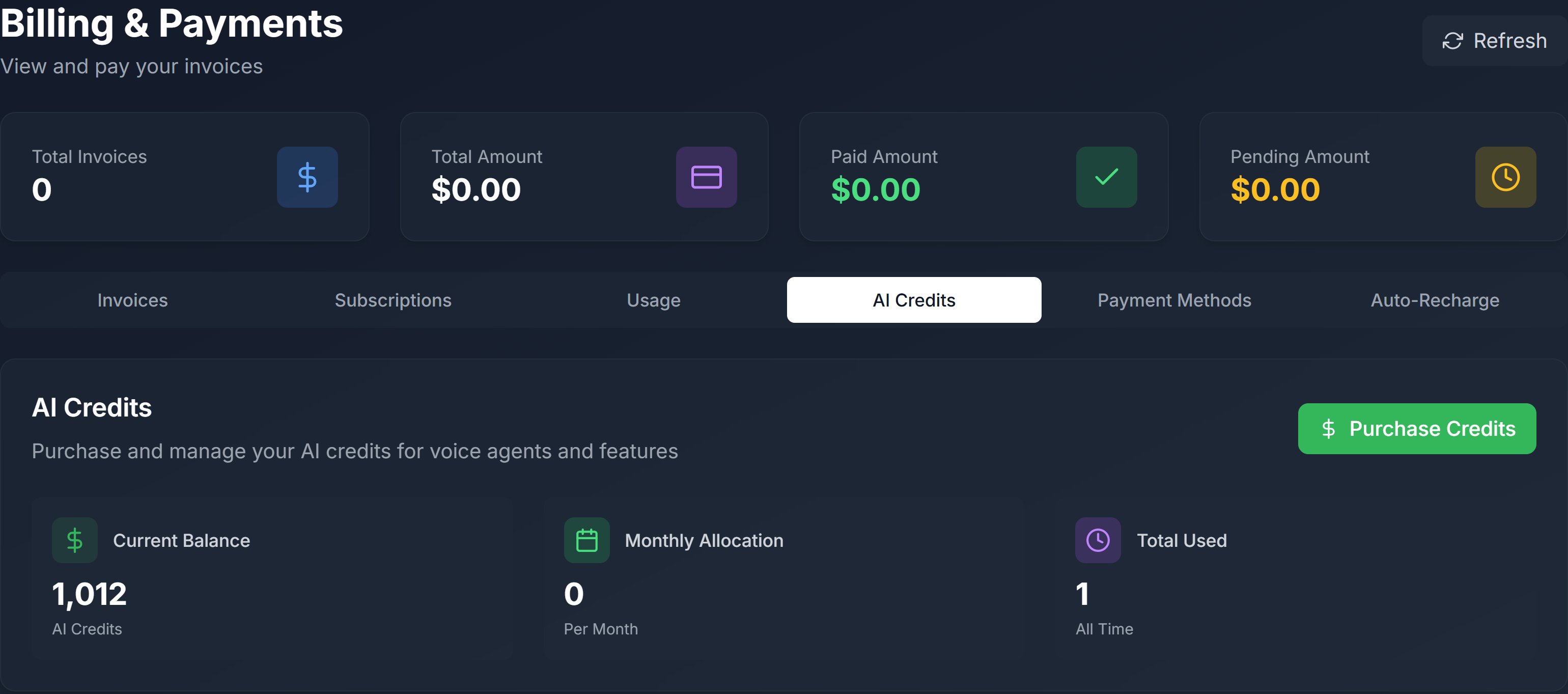
Inside **Billing & Payments**, the customer can access these tabs:
* **Invoices**
* **Subscriptions**
* **Usage**
* **AI Credits**
* **Payment Methods**
 ## What customers can do in Billing & Payments
### Invoices
Customers can:
* View invoice history
* Open hosted invoice pages
* Pay eligible invoices
* See payment status updates
### Subscriptions
Customers can:
* Review active subscriptions
* See billing periods or next billing dates
* Cancel eligible subscriptions
### Usage
The **Usage** tab shows customer-side usage reporting.
### AI Credits
The **AI Credits** tab lets customers:
* View **Current Balance**
* View **Monthly Allocation**
* View **Total Used**
* Review recent credit transactions
* Click **Purchase Credits**
### Payment Methods
The **Payment Methods** tab lets customers:
* Add a payment method
* Set a default payment method
* Delete saved payment methods
If a default payment method exists, the UI explains that it can be auto-charged for new invoices.
## When API Keys appears
The **API Keys** menu appears only when both of these are enabled for the customer:
* **API Access**
* **API Keys** menu visibility
If **API Access** is disabled, the **API Keys** visibility toggle cannot be enabled.
## When AI Gateway appears
The **AI Gateway** menu appears only when all of these conditions are true:
* The partner enabled **Customer Self-Service API Keys** in the partner **AI Gateway** page
* The customer has **AI Credits Enabled**
* The customer has **AI Gateway** enabled in **Features & Add-ons**
This is separate from the standard **API Keys** menu.
### AI Gateway depends on AI Credits
If the customer does not have AI Credits enabled:
* The **AI Gateway** menu should not appear
* The partner-side AI Gateway visibility toggle remains disabled
### Pricing visibility interaction
When **AI Credits Enabled** is turned on for a customer:
* **Show Pricing Information** is turned off
* The pricing-information toggle stays disabled while AI Credits remain enabled
See [Features, add-ons, and menu visibility](/partner-portal/customers/features-addons-and-menu-visibility) for the partner-side controls.
## What customers see on the AI Gateway page
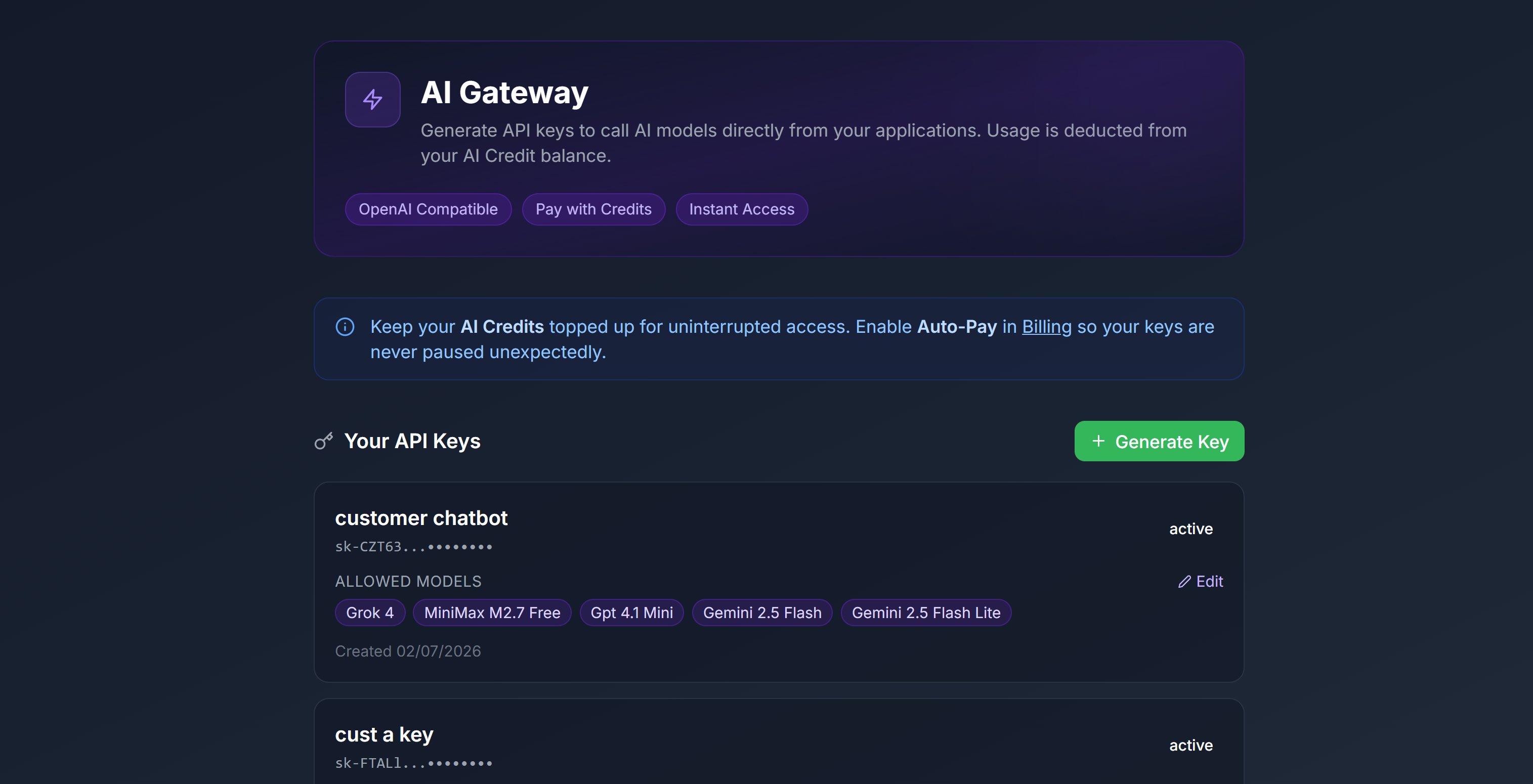
The customer-side **AI Gateway** page includes:
* A hero card with **OpenAI Compatible**, **Pay with Credits**, and **Instant Access**
* A credits reminder that links back to **Billing**
* A zero-credit warning state when balance is `0`
* A **Generate Key** action
* A list of the customer's existing gateway keys
## What customers can do in Billing & Payments
### Invoices
Customers can:
* View invoice history
* Open hosted invoice pages
* Pay eligible invoices
* See payment status updates
### Subscriptions
Customers can:
* Review active subscriptions
* See billing periods or next billing dates
* Cancel eligible subscriptions
### Usage
The **Usage** tab shows customer-side usage reporting.
### AI Credits
The **AI Credits** tab lets customers:
* View **Current Balance**
* View **Monthly Allocation**
* View **Total Used**
* Review recent credit transactions
* Click **Purchase Credits**
### Payment Methods
The **Payment Methods** tab lets customers:
* Add a payment method
* Set a default payment method
* Delete saved payment methods
If a default payment method exists, the UI explains that it can be auto-charged for new invoices.
## When API Keys appears
The **API Keys** menu appears only when both of these are enabled for the customer:
* **API Access**
* **API Keys** menu visibility
If **API Access** is disabled, the **API Keys** visibility toggle cannot be enabled.
## When AI Gateway appears
The **AI Gateway** menu appears only when all of these conditions are true:
* The partner enabled **Customer Self-Service API Keys** in the partner **AI Gateway** page
* The customer has **AI Credits Enabled**
* The customer has **AI Gateway** enabled in **Features & Add-ons**
This is separate from the standard **API Keys** menu.
### AI Gateway depends on AI Credits
If the customer does not have AI Credits enabled:
* The **AI Gateway** menu should not appear
* The partner-side AI Gateway visibility toggle remains disabled
### Pricing visibility interaction
When **AI Credits Enabled** is turned on for a customer:
* **Show Pricing Information** is turned off
* The pricing-information toggle stays disabled while AI Credits remain enabled
See [Features, add-ons, and menu visibility](/partner-portal/customers/features-addons-and-menu-visibility) for the partner-side controls.
## What customers see on the AI Gateway page
The customer-side **AI Gateway** page includes:
* A hero card with **OpenAI Compatible**, **Pay with Credits**, and **Instant Access**
* A credits reminder that links back to **Billing**
* A zero-credit warning state when balance is `0`
* A **Generate Key** action
* A list of the customer's existing gateway keys
 ### Zero-credit state
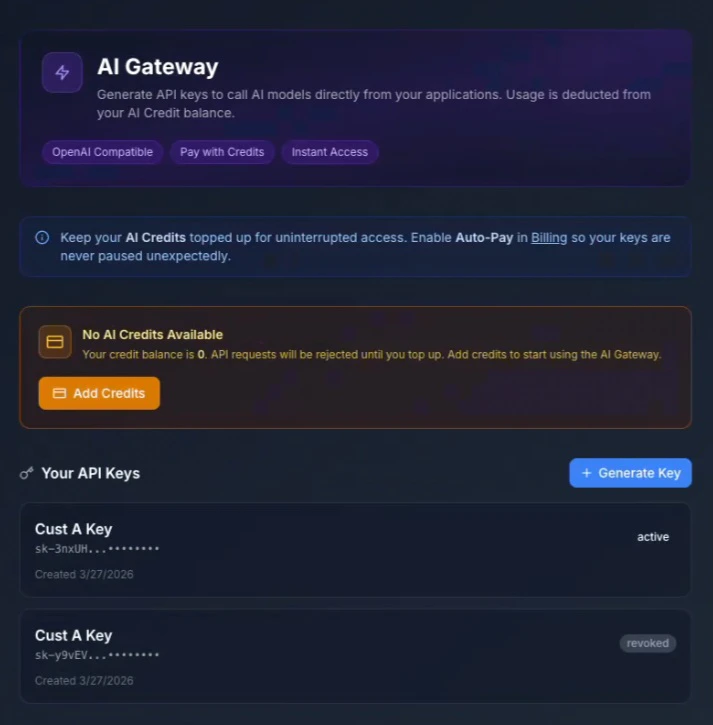
If the customer's AI Credit balance is zero, the page warns that:
* API requests will be rejected
* The customer must add credits before using AI Gateway
### Zero-credit state
If the customer's AI Credit balance is zero, the page warns that:
* API requests will be rejected
* The customer must add credits before using AI Gateway
 ## How customer key creation works
When the customer clicks **Generate Key**, the customer-facing modal asks for:
* **Key Name**
* **Allowed Models**
It does **not** ask the customer to enter a budget.
That is because customer-created keys are **pay-as-you-go** from the customer's AI Credits, not a partner-entered budget box.
## How customer key creation works
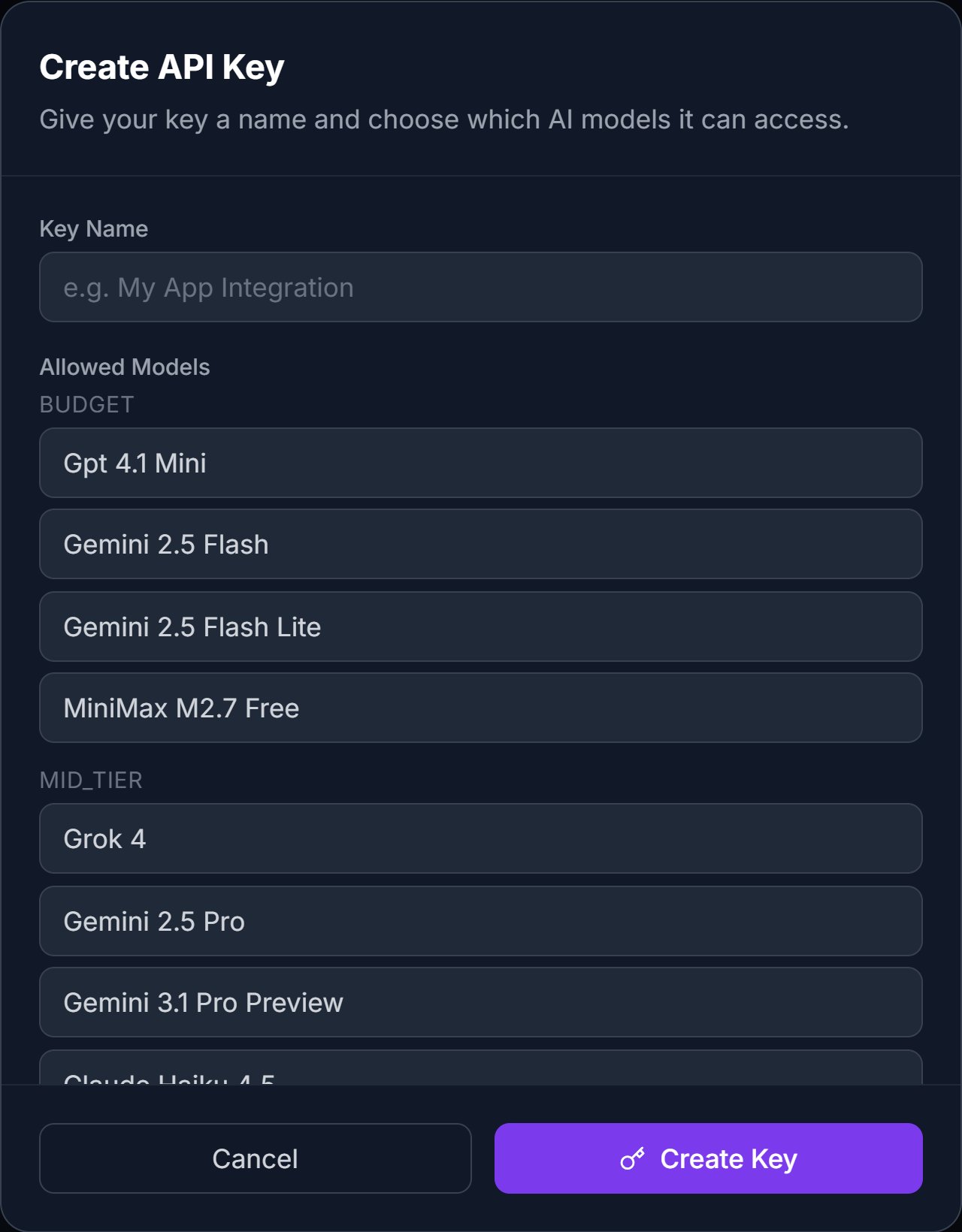
When the customer clicks **Generate Key**, the customer-facing modal asks for:
* **Key Name**
* **Allowed Models**
It does **not** ask the customer to enter a budget.
That is because customer-created keys are **pay-as-you-go** from the customer's AI Credits, not a partner-entered budget box.
 ### After creation
After a key is created:
* The virtual key is shown once
* The customer must copy it immediately
* The key then appears in the **Your API Keys** list
If the key becomes suspended, the UI tells the customer to top up credits in **Billing**.
### Request API Gateway URL
The customer page also includes a helper card for requesting the gateway base URL from the team.
Use this when the customer has a key but still needs the full connection URL for their application.
## Partner deposit behavior behind customer self-service
Even though customers create their own keys, the partner-side system still reserves a fixed deposit per customer-created key.
Current behavior:
* Each customer-created key reserves **1,000 Knotie Credits** from the partner balance
* If the partner balance falls below that reserve threshold, customer-created keys can be suspended until the partner tops up
This is configured from the partner-side **AI Gateway** page, not from the customer portal.
## If AI Gateway isn't showing for a customer
If a customer expects **AI Gateway** but doesn't see it, check these in order:
1. Customer portal access is enabled
2. **AI Credits Enabled** is on for that customer
3. The customer's **AI Gateway** visibility toggle is on
4. The partner has enabled **Customer Self-Service API Keys**
## Related pages
* [AI Gateway](/partner-portal/ai-gateway)
* [Features, add-ons, and menu visibility](/partner-portal/customers/features-addons-and-menu-visibility)
* [Whitelabel subdomain](/customer-management/whitelabel-subdomain)
### After creation
After a key is created:
* The virtual key is shown once
* The customer must copy it immediately
* The key then appears in the **Your API Keys** list
If the key becomes suspended, the UI tells the customer to top up credits in **Billing**.
### Request API Gateway URL
The customer page also includes a helper card for requesting the gateway base URL from the team.
Use this when the customer has a key but still needs the full connection URL for their application.
## Partner deposit behavior behind customer self-service
Even though customers create their own keys, the partner-side system still reserves a fixed deposit per customer-created key.
Current behavior:
* Each customer-created key reserves **1,000 Knotie Credits** from the partner balance
* If the partner balance falls below that reserve threshold, customer-created keys can be suspended until the partner tops up
This is configured from the partner-side **AI Gateway** page, not from the customer portal.
## If AI Gateway isn't showing for a customer
If a customer expects **AI Gateway** but doesn't see it, check these in order:
1. Customer portal access is enabled
2. **AI Credits Enabled** is on for that customer
3. The customer's **AI Gateway** visibility toggle is on
4. The partner has enabled **Customer Self-Service API Keys**
## Related pages
* [AI Gateway](/partner-portal/ai-gateway)
* [Features, add-ons, and menu visibility](/partner-portal/customers/features-addons-and-menu-visibility)
* [Whitelabel subdomain](/customer-management/whitelabel-subdomain)