> ## Documentation Index
> Fetch the complete documentation index at: https://docs.knotie-ai.pro/llms.txt
> Use this file to discover all available pages before exploring further.
# MCP tool modes
> Control which tools a voice-agent or partner token exposes — full mode for all ~280+ tools, meta mode for a lightweight 11-tool set with on-demand search.
## Why tool modes exist
A voice-agent token with `scope:'all'` previously gave the LLM access to \~283 tools simultaneously (155 from ElevenLabs alone). This degraded tool-selection accuracy and added latency.
**Meta mode** solves this by giving the agent two gateway tools instead:
* `internal_search_tools` — keyword-ranked search across all available tools (returns name + description)
* `internal_execute_tool` — generic executor: the agent passes a tool name + arguments and the platform dispatches it
The agent now navigates a catalogue rather than holding 283 simultaneous function definitions.
## Token types and their defaults
| Token minted by | Default mode | Can change? |
| --------------------------------------- | -------------------- | ------------------------------------ |
| Voice agent (auto-minted at call start) | `meta` (\~11 tools) | Platform default (managed by Knotie) |
| Partner API key / manual token | `full` (\~283 tools) | Via `toolMode` JWT claim |
Voice agents default to `meta` to protect LLM context and tool accuracy. Partner-minted tokens (Cursor, Claude Desktop, Windsurf, automation scripts) still receive full tool access by default.
## JWT claims for fine-grained control
When minting a token manually you can include two optional claims:
### `toolMode`
```json theme={null}
{
"toolMode": "meta"
}
```
Values: `"full"` | `"meta"`. Omitting the claim defaults to `"full"` for partner-minted tokens.
### `allowedApps`
```json theme={null}
{
"allowedApps": ["elevenlabs", "retell"]
}
```
When present, the token can only invoke tools belonging to the listed apps. Attempts to call tools from unlisted apps are rejected. Both the legacy tool-list and tool-call endpoints (`/api/mcp/tools/list`, `/api/mcp/tools/call`) enforce this claim.
Omitting `allowedApps` grants access to all apps the token's scope allows.
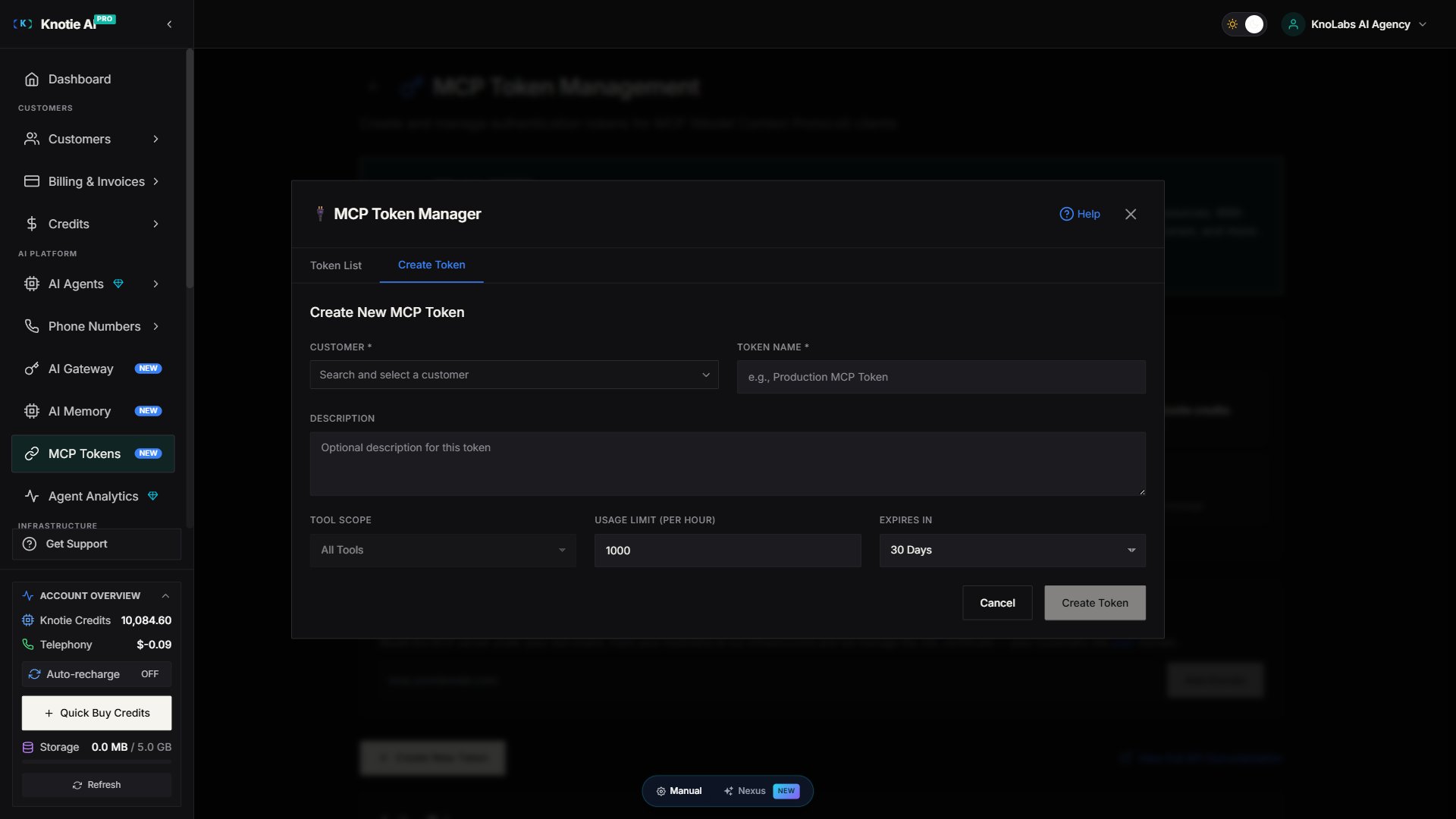 The **Create Token** modal in the Partner Portal UI does **not** expose `toolMode` or `allowedApps` controls. The modal fields are: Customer, Token Name, Description, Tool Scope (a disabled dropdown with only "All Tools" / "Specific Tools" — no meta/full selector, no allowedApps field), Usage Limit, Expires In. **`toolMode` and `allowedApps` are JWT-claim-only** — they are honored when present in a token's payload, but cannot be set from this UI. Any partner token minted from the Create Token modal is always **full** mode with **all apps allowed**. To mint a `meta`-mode or app-restricted token, mint it directly via the API / MCP route with the JWT claims set explicitly.
## How agents use meta mode
In meta mode the agent workflow changes:
1. **Discover** — call `internal_search_tools` with a keyword (e.g., `"social post"`) to get relevant tool names and descriptions.
2. **Execute** — call `internal_execute_tool` with the tool name and parameters.
3. Rate limits, credit charges, scope, and `allowedApps` enforcement all apply inside `internal_execute_tool` exactly as they do for direct tool calls.
## Revert to full mode for voice agents
Voice-agent tool mode is a platform-level default managed by Knotie. If you need your voice agents to receive the full tool list (e.g., for debugging a tool-selection issue), contact Knotie support to have the default changed for your account. The change applies to newly minted voice-agent tokens; in-flight tokens are unaffected until the call ends.
## New agent-facing tools
The following tools are now available to agent tokens with appropriate scope:
| Tool | What it does |
| ----------------------- | ---------------------------------------------------------- |
| `MEDIA_LIST_ASSETS` | List a customer's uploaded media assets |
| `MEDIA_IMPORT_FROM_URL` | Download an external URL into the customer's media library |
| `SOCIAL_POST_PUBLISH` | Immediately publish a post to specified social platforms |
| `SOCIAL_POST_SCHEDULE` | Schedule a post for a future date/time |
| `SOCIAL_POST_LIST` | List upcoming scheduled social posts |
`MEDIA_IMPORT_FROM_URL` runs the URL through a safe-fetch validator (HTTPS-only, private/loopback IP rejection, ≤3 redirects) before downloading.
## Related pages
* [MCP tokens](/partner-portal/ai-agents/mcp/tokens) — Generate and manage partner MCP tokens.
* [MCP API reference](/api-reference/mcp/introduction) — Full endpoint documentation
* [Social posting calendar](/customer-management/social-posting) — Schedule social posts via the portal or via agent tools
* [Docs & Media library](/customer-management/media-library) — Upload and manage media assets
The **Create Token** modal in the Partner Portal UI does **not** expose `toolMode` or `allowedApps` controls. The modal fields are: Customer, Token Name, Description, Tool Scope (a disabled dropdown with only "All Tools" / "Specific Tools" — no meta/full selector, no allowedApps field), Usage Limit, Expires In. **`toolMode` and `allowedApps` are JWT-claim-only** — they are honored when present in a token's payload, but cannot be set from this UI. Any partner token minted from the Create Token modal is always **full** mode with **all apps allowed**. To mint a `meta`-mode or app-restricted token, mint it directly via the API / MCP route with the JWT claims set explicitly.
## How agents use meta mode
In meta mode the agent workflow changes:
1. **Discover** — call `internal_search_tools` with a keyword (e.g., `"social post"`) to get relevant tool names and descriptions.
2. **Execute** — call `internal_execute_tool` with the tool name and parameters.
3. Rate limits, credit charges, scope, and `allowedApps` enforcement all apply inside `internal_execute_tool` exactly as they do for direct tool calls.
## Revert to full mode for voice agents
Voice-agent tool mode is a platform-level default managed by Knotie. If you need your voice agents to receive the full tool list (e.g., for debugging a tool-selection issue), contact Knotie support to have the default changed for your account. The change applies to newly minted voice-agent tokens; in-flight tokens are unaffected until the call ends.
## New agent-facing tools
The following tools are now available to agent tokens with appropriate scope:
| Tool | What it does |
| ----------------------- | ---------------------------------------------------------- |
| `MEDIA_LIST_ASSETS` | List a customer's uploaded media assets |
| `MEDIA_IMPORT_FROM_URL` | Download an external URL into the customer's media library |
| `SOCIAL_POST_PUBLISH` | Immediately publish a post to specified social platforms |
| `SOCIAL_POST_SCHEDULE` | Schedule a post for a future date/time |
| `SOCIAL_POST_LIST` | List upcoming scheduled social posts |
`MEDIA_IMPORT_FROM_URL` runs the URL through a safe-fetch validator (HTTPS-only, private/loopback IP rejection, ≤3 redirects) before downloading.
## Related pages
* [MCP tokens](/partner-portal/ai-agents/mcp/tokens) — Generate and manage partner MCP tokens.
* [MCP API reference](/api-reference/mcp/introduction) — Full endpoint documentation
* [Social posting calendar](/customer-management/social-posting) — Schedule social posts via the portal or via agent tools
* [Docs & Media library](/customer-management/media-library) — Upload and manage media assets