> ## Documentation Index
> Fetch the complete documentation index at: https://docs.knotie-ai.pro/llms.txt
> Use this file to discover all available pages before exploring further.
# Import a VAPI agent
> Onboard or import a VAPI agent for a customer.
## What “import” means
Importing pulls your existing VAPI agents into Knotie AI Pro so you can manage them in the Partner Portal.
This is the fastest option if you already built agents in VAPI and want them available inside Knotie AI Pro.
## Before you start
* You need a **VAPI API key**.
* You must be able to log in to the Partner Portal.
## Import VAPI agents into Knotie AI Pro
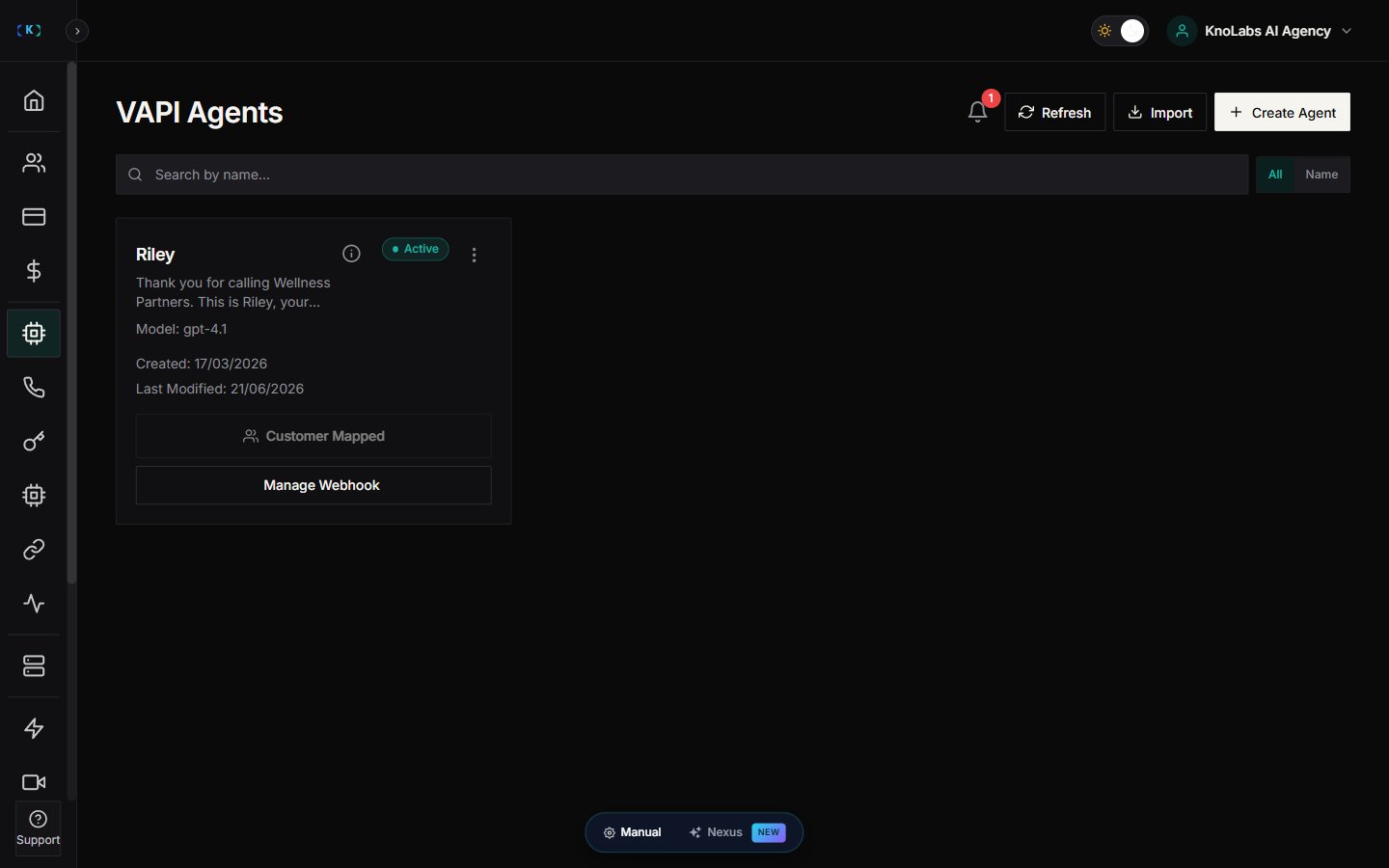
1. In the Partner Portal, open **AI Agents**.
2. Click **VAPI Agents**.
3. Click **Import Agents**.
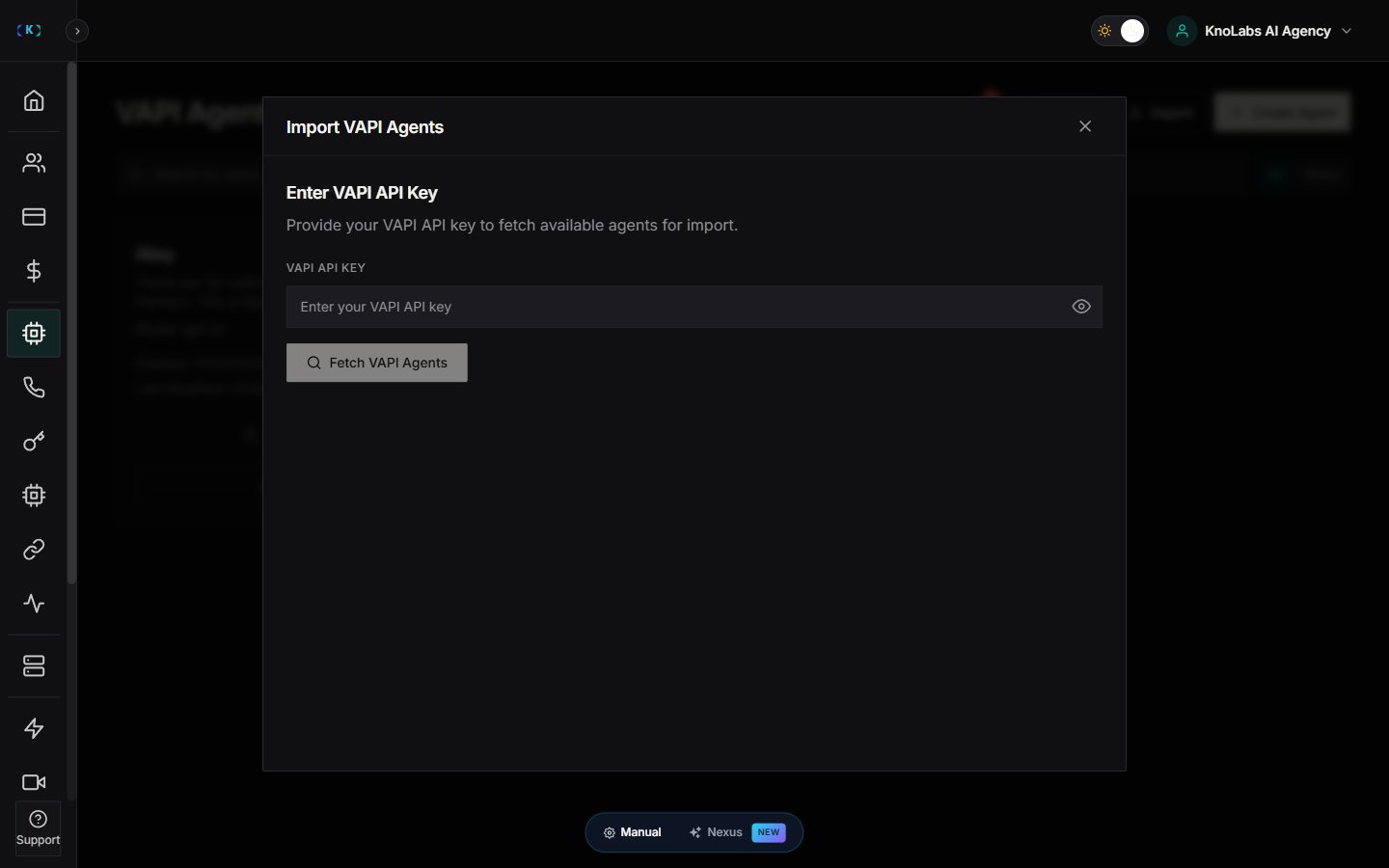
4. In the modal, paste your **VAPI API Key**.
5. Click **Fetch VAPI Agents**.
6. Select the agents you want to import:
* Agents already imported show as **Imported**.
* Use **Select All** if you’re importing multiple at once.
7. Click **Import**.
Knotie AI will import the agents and automatically handle the “plumbing” behind the scenes (analytics registration + webhook configuration).
## After import (recommended next step)
* Open an imported agent and map it to a customer if needed.
Once an agent is assigned to a customer, Knotie AI Pro automatically wires in a live MCP server — the agent can use tools from any app the customer has connected without a rebuild. See [Connected App Tools](/agents/connected-app-tools).
## Troubleshooting
* **“Please update your VAPI API key in settings”**
* Go to **Settings** and update your VAPI API key.
* Return to **VAPI Agents** and try importing again.
* **You hit a plan limit**
* VAPI agents are a premium feature. If your plan doesn’t include it, you’ll see an upgrade message.
* **No agents available for import**
* This usually means all your VAPI agents are already imported.
## Screenshots