> ## Documentation Index
> Fetch the complete documentation index at: https://docs.knotie-ai.pro/llms.txt
> Use this file to discover all available pages before exploring further.
# Manage Ultravox agents
> Import, configure, test, and assign Ultravox voice agents in Knotie AI Pro — including API key management and analytics webhooks.
## What Ultravox agents are in Knotie AI Pro
Ultravox is a fully supported voice AI provider in Knotie AI Pro. In the Partner Portal you can:
* **Import existing agents** from your Ultravox account
* **Create new agents** from scratch
* **Map agents to customers** with a profit multiplier
* **Test agents** before going live
* **Manage your Ultravox API key** directly in the portal
* **Configure webhook analytics** for accurate per-call billing
Ultravox Agents carries a **Premium Feature** badge in the sidebar. Free Forever or lower-tier partners may see an upgrade prompt.
## Prerequisites
1. An Ultravox account with at least one agent created.
2. An Ultravox API key added under **Partner Portal → Settings → Partner API Keys → Platform API** tab.
## Where to find it
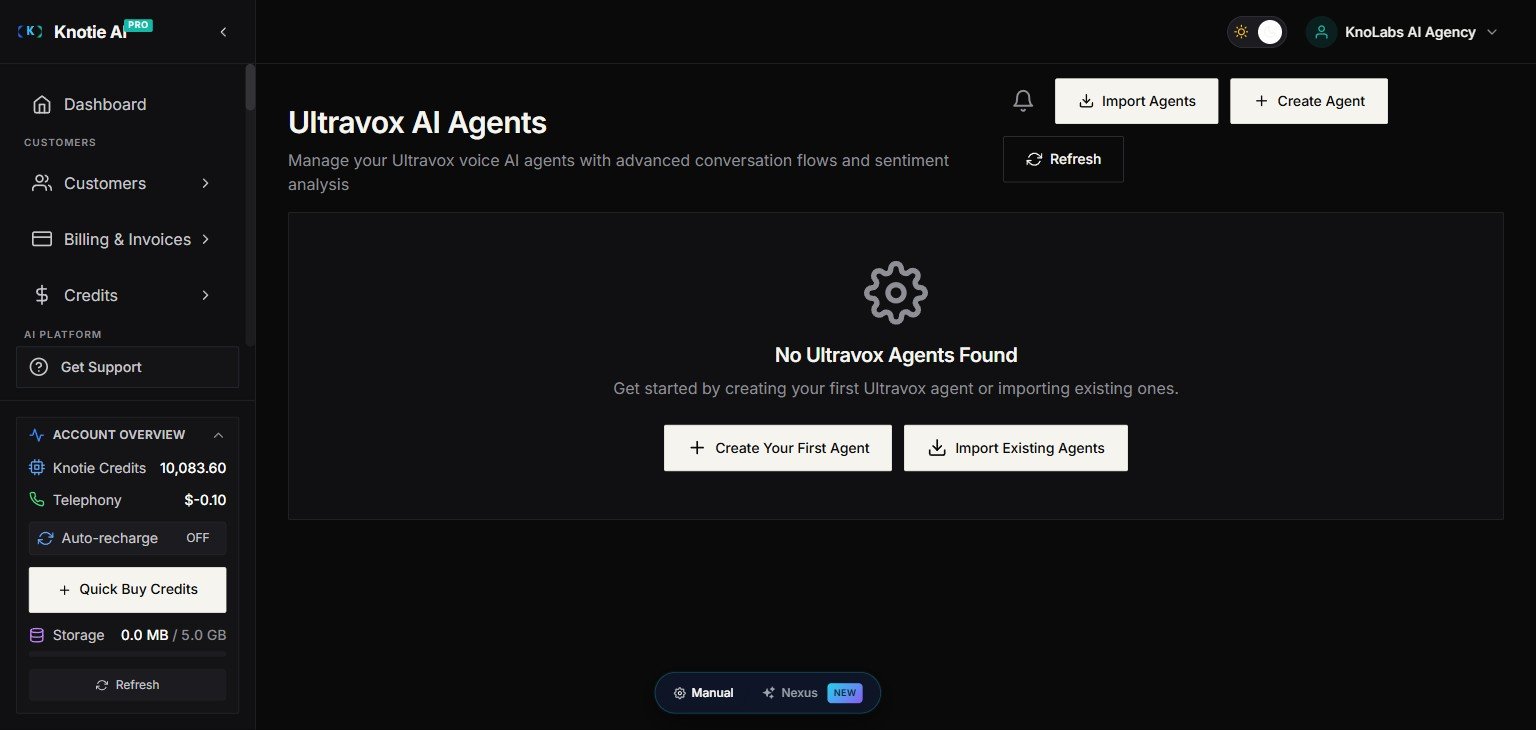
1. Go to **Partner Portal → AI Agents**.
2. Under the **Voice Agents** group, click **Ultravox AI**.
You land on the Ultravox Agents page at `/partner/ai-agents/ultravox`.
 ## Import agents
1. Click **Import Agents**.
2. The import modal fetches agents from Ultravox using your stored API key.
3. Select agents and confirm.
**Re-importing a previously deleted agent is now supported.** If an agent was previously imported and then removed locally, the portal automatically cleans up the stale record so the re-import completes cleanly — no manual database cleanup needed.
If the import list is empty, verify your API key is valid and that agents exist in your Ultravox account.
## Create a new agent
1. Click **Create Agent**.
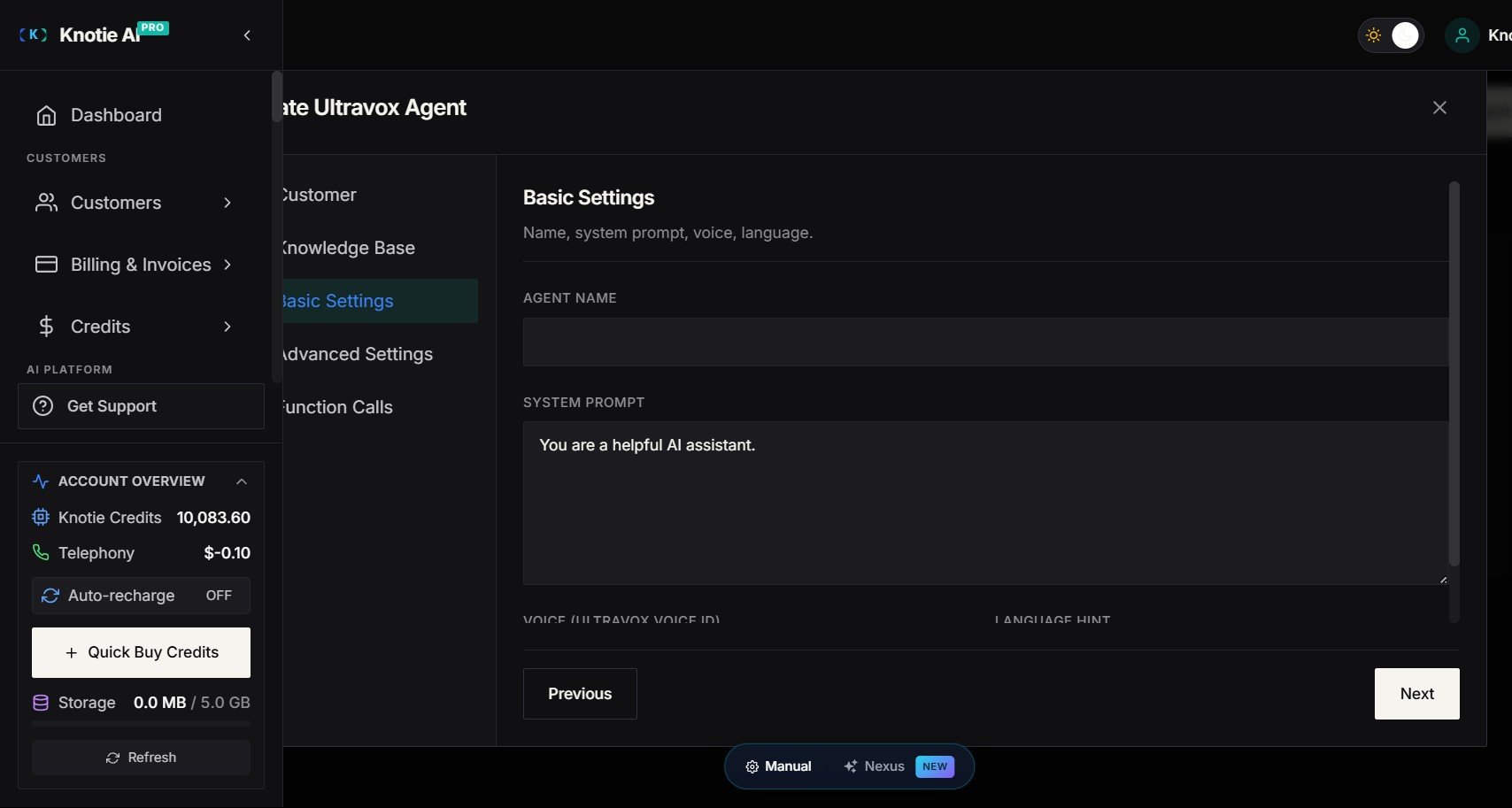
2. Fill in the agent name, system prompt, voice, and other settings.
3. Save — the agent is created in Ultravox and synced to the portal.
## Map an agent to a customer
Mapping links an Ultravox agent to a Knotie customer record for billing and analytics:
1. Open the agent's action menu.
2. Choose **Map to Customer**.
3. Select the customer.
4. Set your **profit multiplier** (markup on Ultravox costs).
5. Save.
## Edit agent settings
Click the edit icon on any agent to open the agent settings modal:
* **System Prompt** — the instructions that define how the agent behaves
* **Voice** — select from available Ultravox voices
* **First Message** — opening message at call start
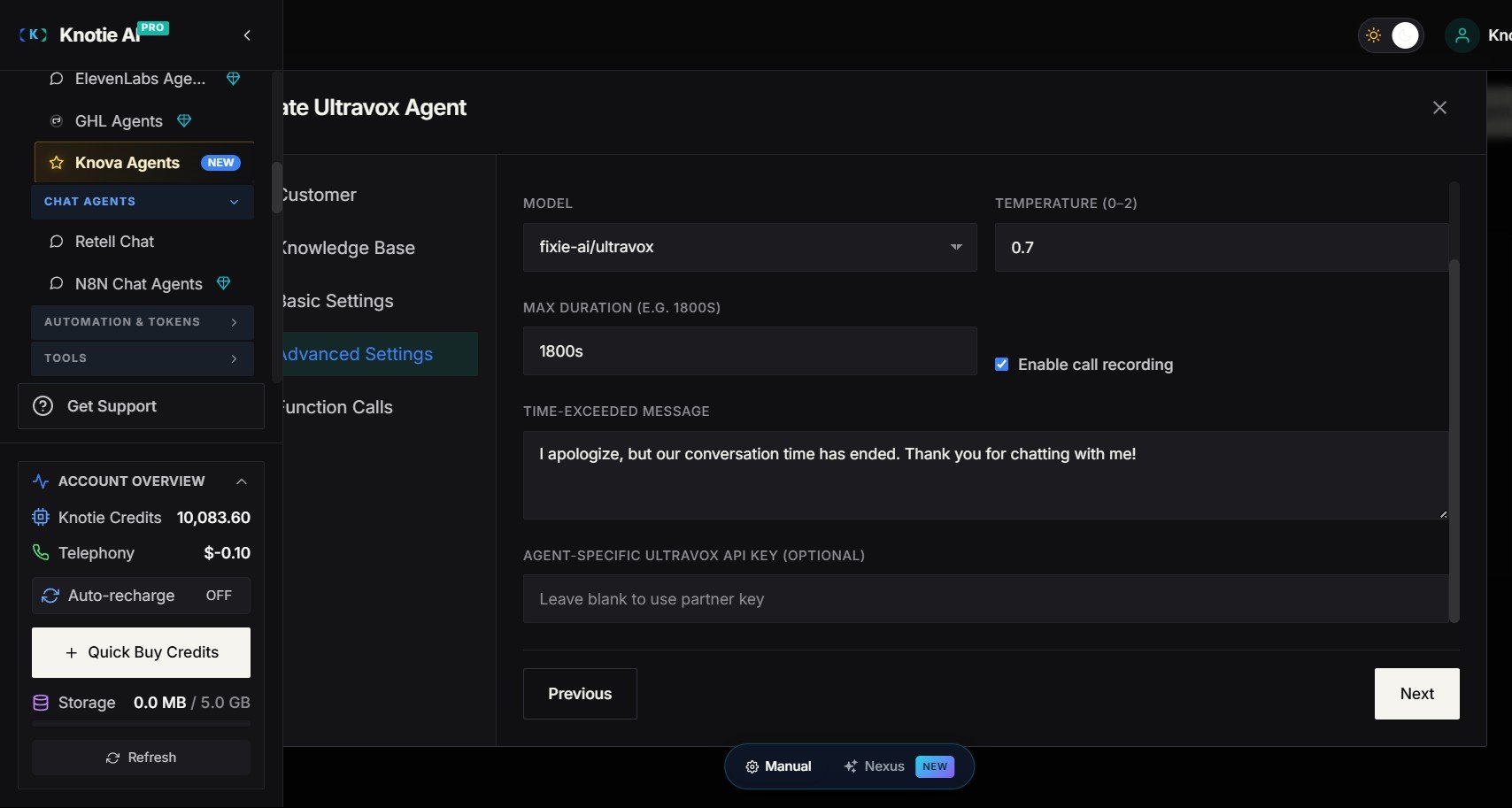
* **Max Duration** — maximum call length in seconds
* **Temperature** — how creative vs. focused the agent's responses are
## Import agents
1. Click **Import Agents**.
2. The import modal fetches agents from Ultravox using your stored API key.
3. Select agents and confirm.
**Re-importing a previously deleted agent is now supported.** If an agent was previously imported and then removed locally, the portal automatically cleans up the stale record so the re-import completes cleanly — no manual database cleanup needed.
If the import list is empty, verify your API key is valid and that agents exist in your Ultravox account.
## Create a new agent
1. Click **Create Agent**.
2. Fill in the agent name, system prompt, voice, and other settings.
3. Save — the agent is created in Ultravox and synced to the portal.
## Map an agent to a customer
Mapping links an Ultravox agent to a Knotie customer record for billing and analytics:
1. Open the agent's action menu.
2. Choose **Map to Customer**.
3. Select the customer.
4. Set your **profit multiplier** (markup on Ultravox costs).
5. Save.
## Edit agent settings
Click the edit icon on any agent to open the agent settings modal:
* **System Prompt** — the instructions that define how the agent behaves
* **Voice** — select from available Ultravox voices
* **First Message** — opening message at call start
* **Max Duration** — maximum call length in seconds
* **Temperature** — how creative vs. focused the agent's responses are
 ## Test an agent
1. Click **Test** on the agent card.
2. Follow the test modal to initiate a sample call.
3. Review transcripts and analytics after the test.
## Manage your API key
The API key used to communicate with Ultravox is stored encrypted. To update or re-verify it:
1. Open the agent's **three-dot menu** (⋮) — there is no page-level API Key button on the Ultravox agents page (the page-level button only shows on the empty state for setup, not once agents exist). Choose **API Key** from the menu.
2. Enter your Ultravox API key.
3. The portal verifies the key and displays:
* ✅ **Valid** — key is active.
* ❌ **Invalid** — key was rejected.
* ⚠️ **Error** — verification failed.
4. The last-verified timestamp is shown.
## Test an agent
1. Click **Test** on the agent card.
2. Follow the test modal to initiate a sample call.
3. Review transcripts and analytics after the test.
## Manage your API key
The API key used to communicate with Ultravox is stored encrypted. To update or re-verify it:
1. Open the agent's **three-dot menu** (⋮) — there is no page-level API Key button on the Ultravox agents page (the page-level button only shows on the empty state for setup, not once agents exist). Choose **API Key** from the menu.
2. Enter your Ultravox API key.
3. The portal verifies the key and displays:
* ✅ **Valid** — key is active.
* ❌ **Invalid** — key was rejected.
* ⚠️ **Error** — verification failed.
4. The last-verified timestamp is shown.
 ## Webhooks and analytics
Ultravox webhook attribution now uses the **agent ID directly from the webhook payload**, giving more accurate per-agent analytics:
1. Open the agent's **Webhook** settings.
2. Copy the webhook URL.
3. Register it in your Ultravox account's webhook settings (`events: ["call.ended"]`).
Once active, call usage is tracked in **Agent Analytics** and credits are deducted per-minute according to your agent tier.
Webhook registration in Ultravox is account-level — the same URL handles all agents in your account. Knotie's backend automatically attributes each call to the correct agent.
## Troubleshooting
| Symptom | Fix |
| ---------------------------------- | -------------------------------------------------------------------------- |
| Import fails or returns no agents | Verify your Ultravox API key under Settings → Partner API Keys |
| Re-importing a deleted agent fails | This is now handled automatically — if the issue persists, contact support |
| Upgrade prompt on the page | Ultravox may require a higher Knotie plan |
| Analytics not recording | Confirm the webhook URL is registered in your Ultravox account |
## Webhooks and analytics
Ultravox webhook attribution now uses the **agent ID directly from the webhook payload**, giving more accurate per-agent analytics:
1. Open the agent's **Webhook** settings.
2. Copy the webhook URL.
3. Register it in your Ultravox account's webhook settings (`events: ["call.ended"]`).
Once active, call usage is tracked in **Agent Analytics** and credits are deducted per-minute according to your agent tier.
Webhook registration in Ultravox is account-level — the same URL handles all agents in your account. Knotie's backend automatically attributes each call to the correct agent.
## Troubleshooting
| Symptom | Fix |
| ---------------------------------- | -------------------------------------------------------------------------- |
| Import fails or returns no agents | Verify your Ultravox API key under Settings → Partner API Keys |
| Re-importing a deleted agent fails | This is now handled automatically — if the issue persists, contact support |
| Upgrade prompt on the page | Ultravox may require a higher Knotie plan |
| Analytics not recording | Confirm the webhook URL is registered in your Ultravox account |