> ## Documentation Index
> Fetch the complete documentation index at: https://docs.knotie-ai.pro/llms.txt
> Use this file to discover all available pages before exploring further.
# Voice widget
> Add and test a browser voice launcher for a Knova agent.
## What the widget does
The voice widget lets website visitors speak with a Knova agent from their browser. In production, **Embed widget** is available for inbound phone agents and website agents. It is not shown for outbound-only agents.
## Create a widget
1. Open **AI Agents → Knova Agents**.
2. Open the agent's three-dot menu and select **Embed widget**.
3. Select **New widget**.
4. Enter a widget name.
5. Choose the button style, position, theme, colours, labels, and session limit.
6. Add the websites where the widget is allowed to run, one per line.
7. Choose whether to show live captions and a footer.
8. Select **Save widget**.
The allowed-website list also covers subdomains of the websites you enter.
 ## Add it to your website
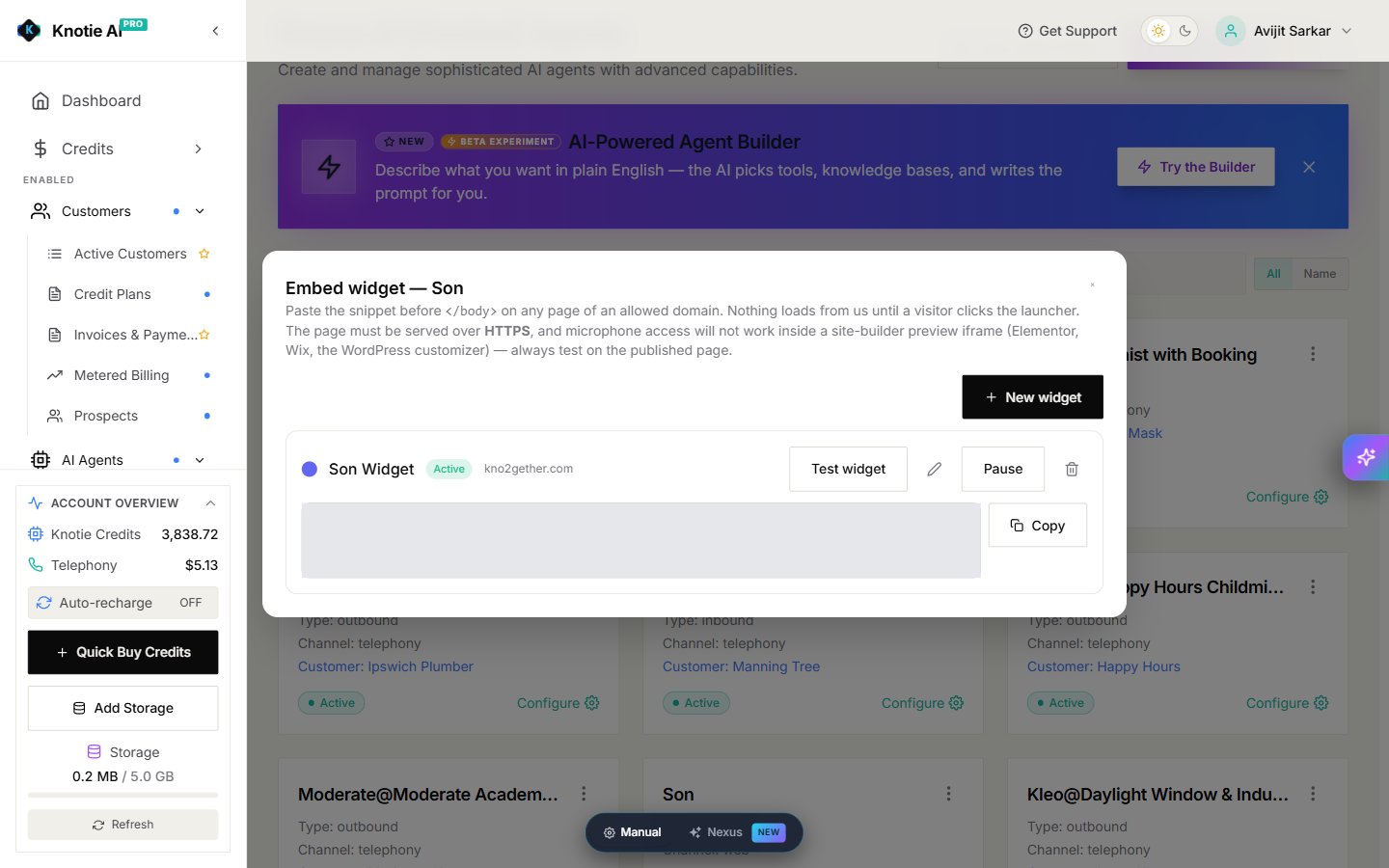
Copy the code shown for the widget and place it before the closing body tag on each page where the launcher should appear.
The published page must use HTTPS. Test on the published website because microphone access does not work inside many website-builder preview frames.
## Test before publishing
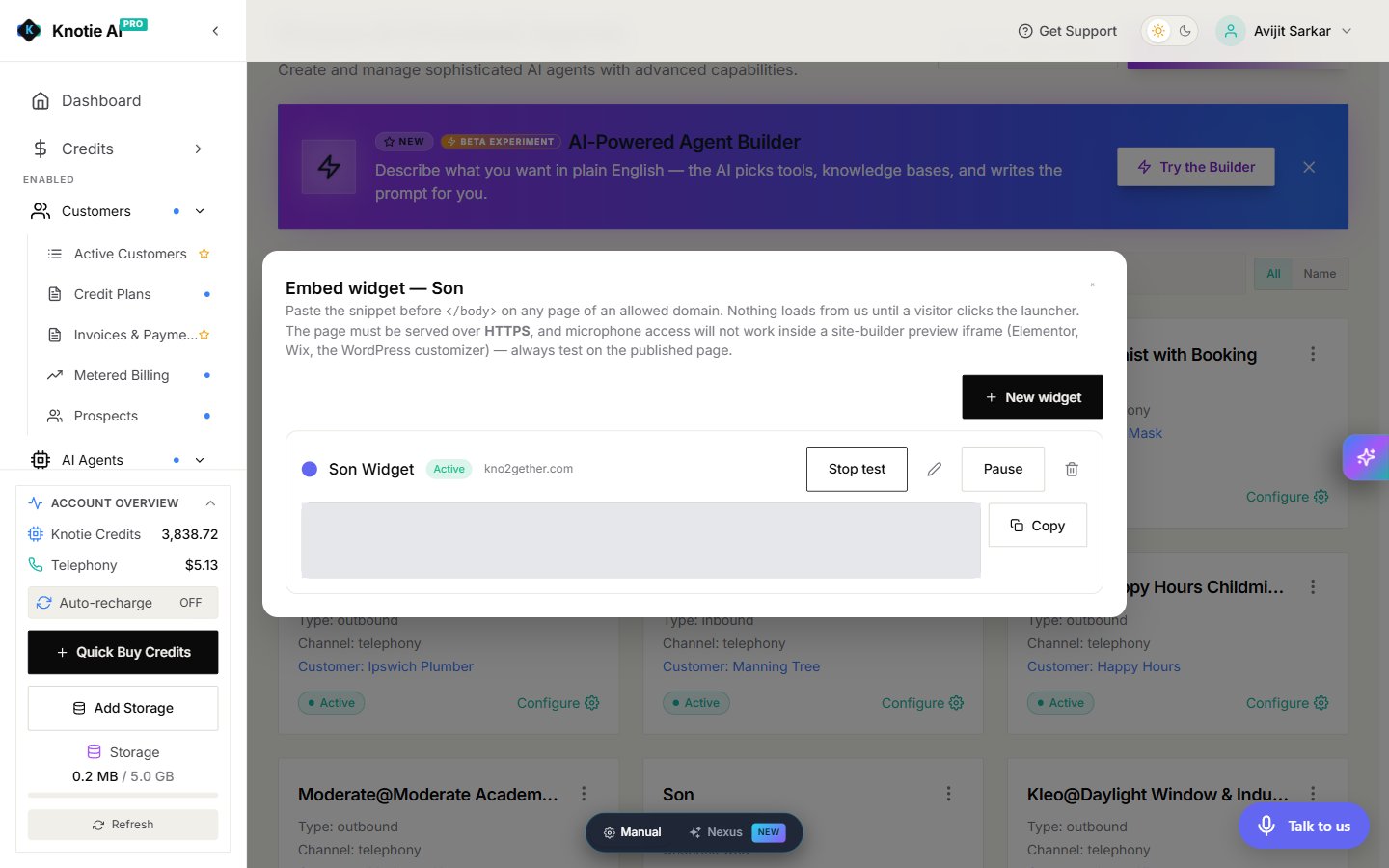
Select **Test widget** in the embed panel. A live launcher appears in the lower corner of the portal so you can check the button and start a browser voice session. Select **Stop test** when you are done.
## Add it to your website
Copy the code shown for the widget and place it before the closing body tag on each page where the launcher should appear.
The published page must use HTTPS. Test on the published website because microphone access does not work inside many website-builder preview frames.
## Test before publishing
Select **Test widget** in the embed panel. A live launcher appears in the lower corner of the portal so you can check the button and start a browser voice session. Select **Stop test** when you are done.
 ## Update, pause, or remove a widget
Return to **Embed widget** and use the controls beside the widget:
* select the pencil to edit its settings
* select **Pause** to make it unavailable without deleting it
* select the copy button to copy the current code
* select the delete button to remove it
## Microphone troubleshooting
If a visitor cannot start a voice session:
1. Open the published HTTPS page rather than a website-builder preview.
2. Allow microphone access when the browser asks.
3. Confirm a working microphone is selected in the browser or device settings.
4. Close other apps that may be using the microphone.
5. Confirm the widget is active and the current website is in **Allowed domains**.
6. Reload the page and try again.
## Related pages
* [Manage Knova agents](/agents/knova/manage-knova-agents)
* [Agent analytics](/partner-portal/agent-analytics)
## Update, pause, or remove a widget
Return to **Embed widget** and use the controls beside the widget:
* select the pencil to edit its settings
* select **Pause** to make it unavailable without deleting it
* select the copy button to copy the current code
* select the delete button to remove it
## Microphone troubleshooting
If a visitor cannot start a voice session:
1. Open the published HTTPS page rather than a website-builder preview.
2. Allow microphone access when the browser asks.
3. Confirm a working microphone is selected in the browser or device settings.
4. Close other apps that may be using the microphone.
5. Confirm the widget is active and the current website is in **Allowed domains**.
6. Reload the page and try again.
## Related pages
* [Manage Knova agents](/agents/knova/manage-knova-agents)
* [Agent analytics](/partner-portal/agent-analytics)