> ## Documentation Index
> Fetch the complete documentation index at: https://docs.knotie-ai.pro/llms.txt
> Use this file to discover all available pages before exploring further.
# Knova AI Agent
> Hosted AI agent platform managed by Knotie — includes knowledge bases, web-test simulator, and customer profit mapping.
## Overview
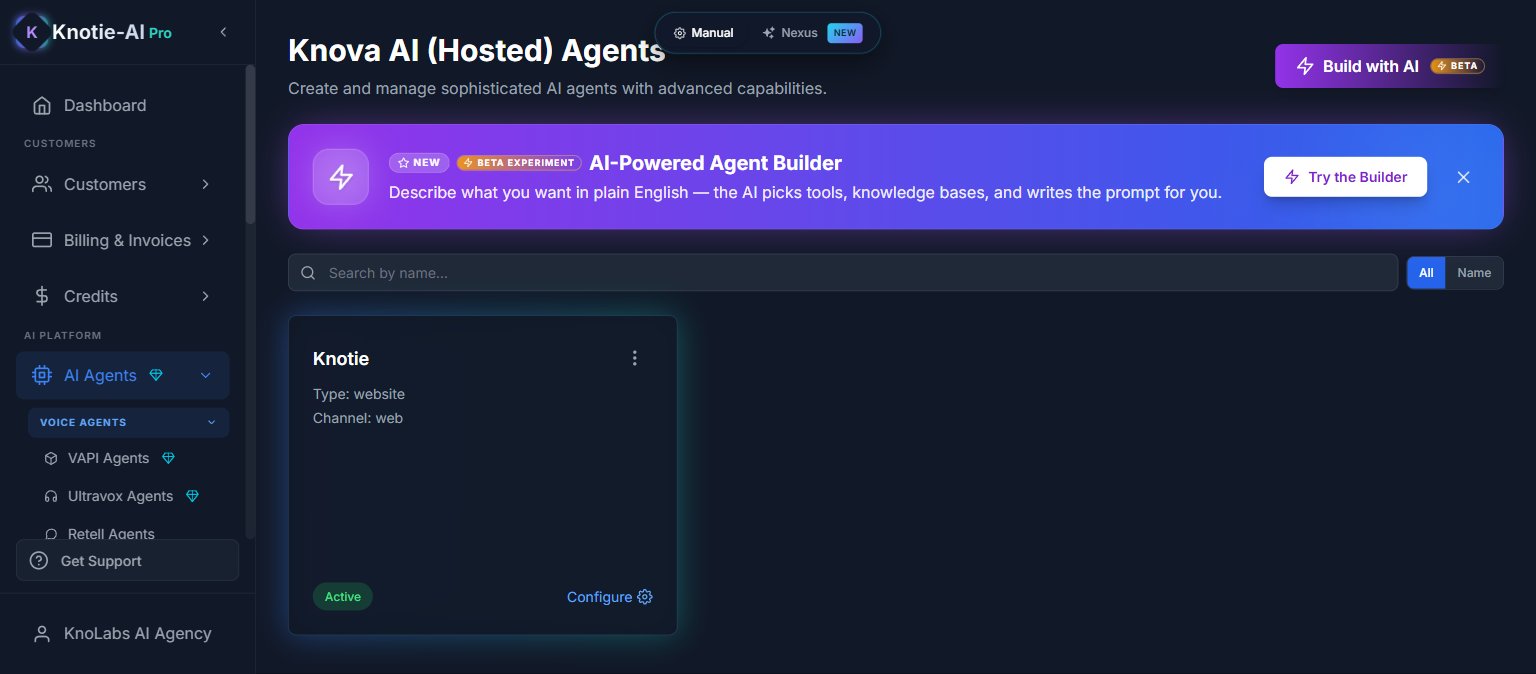
Knova is a **hosted** AI agent platform — infrastructure is managed by Knotie, not self-hosted by you. It offers advanced capabilities including knowledge bases, a browser-based voice test, and configurable profit margins per customer.
 ## Where to find it
1. In the Partner Portal sidebar, go to **AI Agents → Voice Agents → Knova Agents**.
You'll land on `/partner/ai-agents/knova`.
Knova Agents shows a **NEW** badge in the sidebar (not Premium Feature, not Coming Soon). The page is live and functional.
Knova is currently in Beta. The "Build with AI" button and "Try Agent" features are experimental.
## Key features
### Try Agent (Web-Test)
Test your Knova agent directly from the browser before going live:
1. Open the agent's three-dot menu
2. Click **Try Agent (BETA)**
3. Speak with the agent through a live browser voice session
## Where to find it
1. In the Partner Portal sidebar, go to **AI Agents → Voice Agents → Knova Agents**.
You'll land on `/partner/ai-agents/knova`.
Knova Agents shows a **NEW** badge in the sidebar (not Premium Feature, not Coming Soon). The page is live and functional.
Knova is currently in Beta. The "Build with AI" button and "Try Agent" features are experimental.
## Key features
### Try Agent (Web-Test)
Test your Knova agent directly from the browser before going live:
1. Open the agent's three-dot menu
2. Click **Try Agent (BETA)**
3. Speak with the agent through a live browser voice session
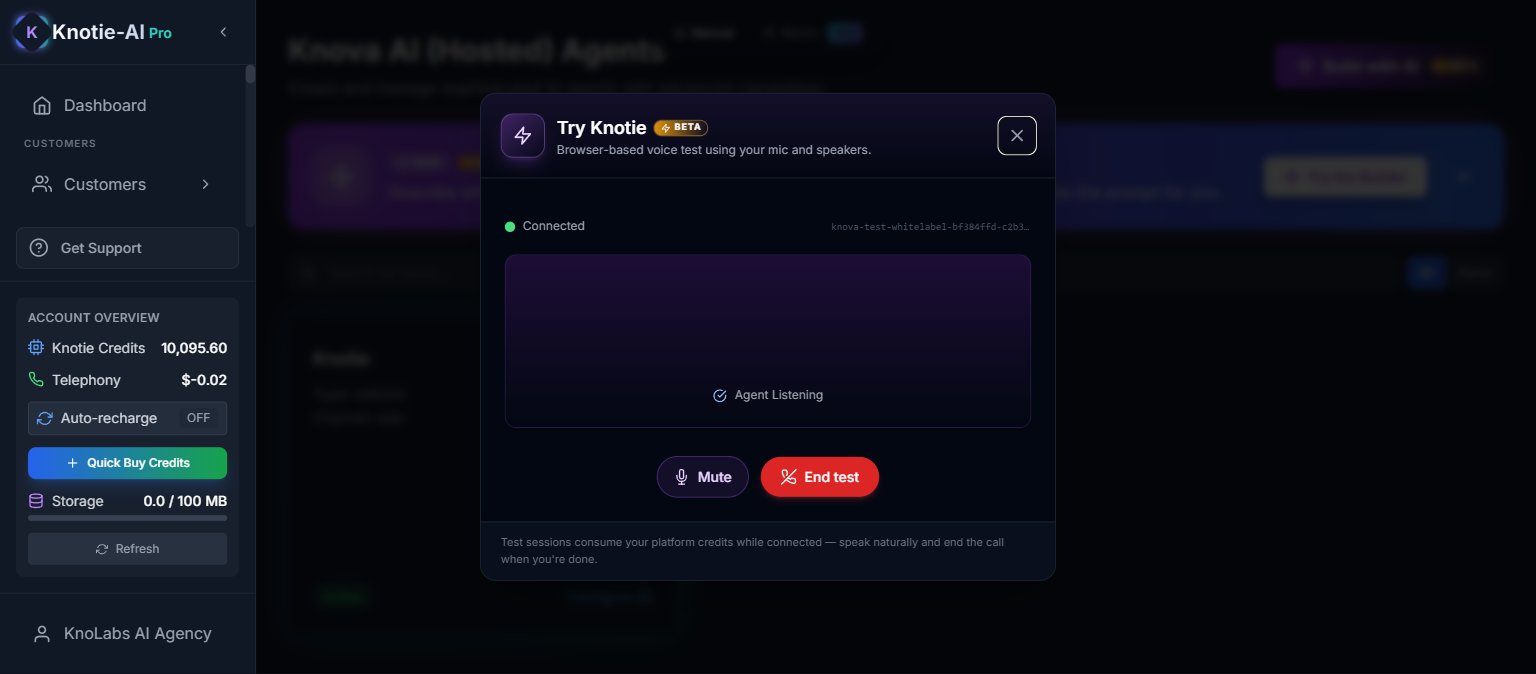 The modal shows a live status (`Agent Listening` / `Agent Thinking`) and Mute / End test controls. Test sessions consume your platform credits while connected.
### Customer assignment
Map an agent to a customer to enable:
* Billing and usage tracking
* Profit multiplier configuration
* Analytics configuration
To assign:
1. Open the agent's three-dot menu
2. Click **Assign Customer**
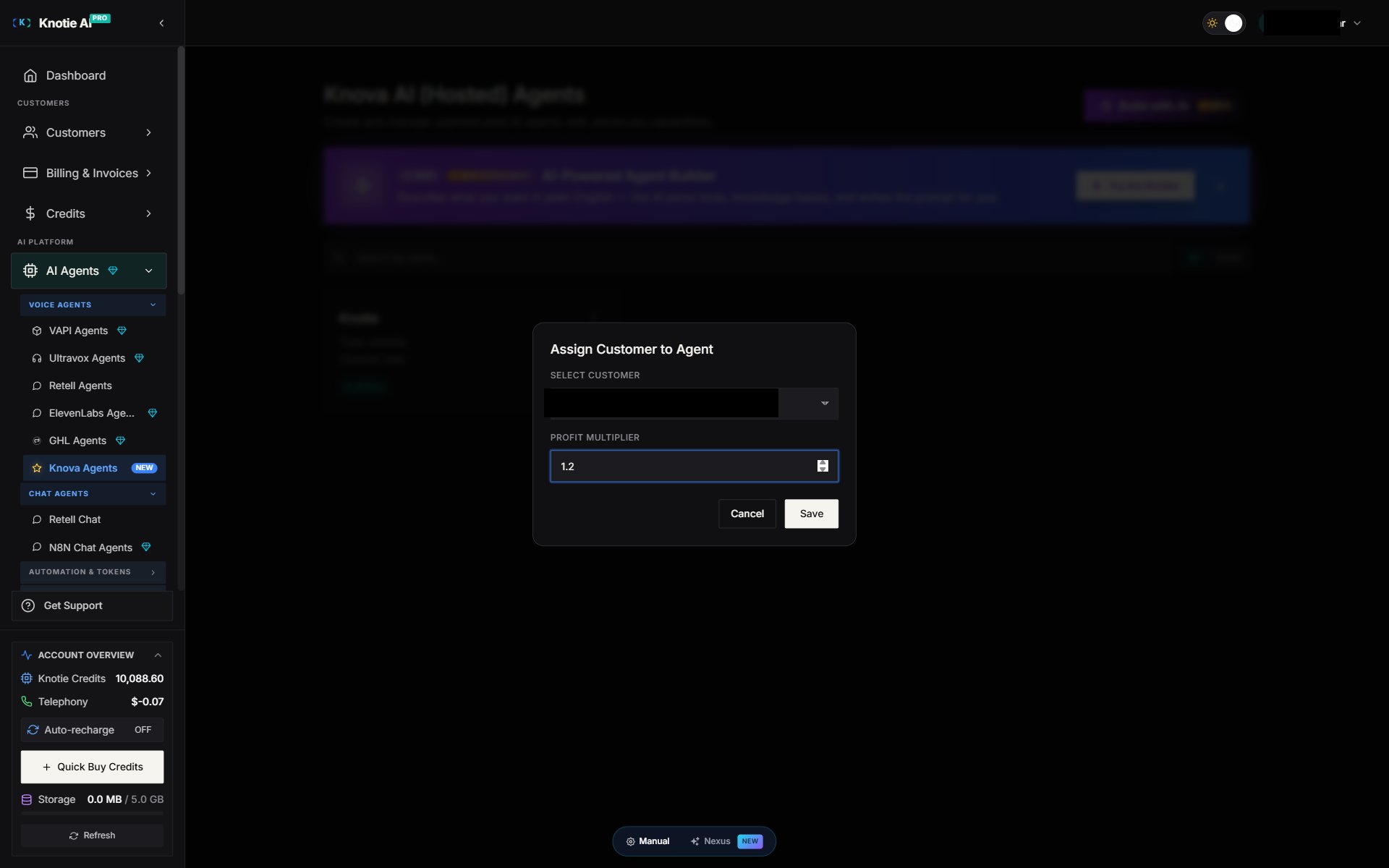
3. Select the customer and set the profit multiplier
The modal shows a live status (`Agent Listening` / `Agent Thinking`) and Mute / End test controls. Test sessions consume your platform credits while connected.
### Customer assignment
Map an agent to a customer to enable:
* Billing and usage tracking
* Profit multiplier configuration
* Analytics configuration
To assign:
1. Open the agent's three-dot menu
2. Click **Assign Customer**
3. Select the customer and set the profit multiplier
 ### Profit multiplier
The profit multiplier determines how much you bill the customer for AI usage above cost. Default is **1.2x**.
For example:
* Actual AI cost: \$0.10/minute
* Profit multiplier: 1.2x
* Billed to customer: \$0.12/minute
### Configure metrics
Once an agent is assigned to a customer, you can configure analytics:
1. Open the agent's three-dot menu
2. Click **Configure Metrics**
3. Set up analytics tracking for the agent
Configure Metrics is disabled until you assign a customer to the agent. **Web-channel agents are an exception**: an agent whose Type is `website` / Channel is `web` keeps Configure Metrics disabled even after a customer is assigned — analytics can't be configured for web-type agents. Configure Metrics is intended for phone/voice agents.
## Create an agent
The Create Agent modal is a **5-tab sequential flow** — Customer → Setup Mode → Basic → Advanced → Functions — each tab gating the next. Picking **Manual** on the Setup Mode tab hides the AI Builder chat for the rest of the flow; picking **AI Builder** replaces the Basic tab with a chat panel that drafts a config you can apply to the form.
1. Click **Build with AI** (top of the Knova agents page) or **+ Create Agent**.
2. Walk through tabs 1–5 in order.
3. Click **Save** on the Functions tab.
## Outbound Calling (Phase 1)
Knova agents can now **place outbound calls** — from a portal test button or triggered automatically by GoHighLevel, n8n, or any webhook-capable system.
Key capabilities:
* **Test call from the portal** — fire a real outbound call to any E.164 number directly from the Knova Agents page
* **Dynamic variables** — inject `{{lead_name}}`, `{{outreach_topic}}`, or any custom value into the agent's prompt and greeting at call time
* **Webhook trigger** — connect GoHighLevel, n8n, Zapier, or a Facebook Lead Ad bridge via a simple `POST` request
See the [Outbound Calling guide](/agents/knova/outbound-calling) for full setup instructions.
## Edit or delete
Use the three-dot menu to:
* **Try Agent (BETA)** — test in browser
* **Test Outbound Call** — trigger a live outbound call to any number
* **Edit Agent** — modify settings
* **Assign Customer** — map to customer
* **Configure Metrics** — set up analytics
* **Delete Agent** — remove the agent
## Access control
Knova creation is subject to plan limits. Free Forever partners may see an upgrade modal if limits are reached.
## Connected App Tools
When a Knova agent is **assigned to a customer**, Knotie AI Pro automatically connects that customer's apps to the agent. Tools from Gmail, Slack, HubSpot, Google Calendar, and any other apps the customer has connected become available to the agent **immediately**, with no rebuild.
### How it works
1. Assign a customer to the agent.
2. Knotie securely links that customer's connected apps to the agent behind the scenes.
3. The agent can use those tools on its very next call — you don't configure anything by hand.
### Customer assignment and tool lifecycle
| Event | What happens |
| ------------------------------------------ | ---------------------------------------------------------- |
| Agent created with a customer | The customer's connected-app tools are linked to the agent |
| Agent updated (tools, config, or customer) | The link is refreshed with the latest tools and access |
| Customer unassigned | The customer's tools are removed from the agent |
| Customer reassigned to another account | Access is re-scoped to the new customer |
### Prerequisites
* **A customer must be assigned** — agents without a customer don't get connected-app tools.
* **The customer must have apps connected** — connect apps from the customer's integration settings first.
### Which tools connect automatically
Standard connected-app tools (Gmail, Slack, Google Calendar, and similar) are wired up automatically. Two tool types still use their own per-tool connection instead:
* **Custom API integrations** — bespoke tools you've built yourself
* **Tools with pre-filled values** — where specific parameter values are saved into the tool ahead of time
For the full cross-provider reference, see [Connected App Tools](/agents/connected-app-tools).
## Next steps
* [Outbound Calling](/agents/knova/outbound-calling) — set up portal test calls and external webhook triggers
* [Outbound Webhook API](/agents/knova/outbound-webhook-api) — API reference for GHL, n8n, and custom integrations
* [Connected App Tools](/agents/connected-app-tools) — how live MCP server wiring works across all voice providers
* [Integration Apps Selection](/partner-portal/customers/integration-apps-selection) — control which apps customers can connect
* [AI Experiences](/partner-portal/experiences) — enable AI Receptionist and other one-click products
* [AI Gateway](/partner-portal/ai-gateway) — manage API access and budgets
* [AI Usage](/partner-portal/ai-usage) — track costs and usage
### Profit multiplier
The profit multiplier determines how much you bill the customer for AI usage above cost. Default is **1.2x**.
For example:
* Actual AI cost: \$0.10/minute
* Profit multiplier: 1.2x
* Billed to customer: \$0.12/minute
### Configure metrics
Once an agent is assigned to a customer, you can configure analytics:
1. Open the agent's three-dot menu
2. Click **Configure Metrics**
3. Set up analytics tracking for the agent
Configure Metrics is disabled until you assign a customer to the agent. **Web-channel agents are an exception**: an agent whose Type is `website` / Channel is `web` keeps Configure Metrics disabled even after a customer is assigned — analytics can't be configured for web-type agents. Configure Metrics is intended for phone/voice agents.
## Create an agent
The Create Agent modal is a **5-tab sequential flow** — Customer → Setup Mode → Basic → Advanced → Functions — each tab gating the next. Picking **Manual** on the Setup Mode tab hides the AI Builder chat for the rest of the flow; picking **AI Builder** replaces the Basic tab with a chat panel that drafts a config you can apply to the form.
1. Click **Build with AI** (top of the Knova agents page) or **+ Create Agent**.
2. Walk through tabs 1–5 in order.
3. Click **Save** on the Functions tab.
## Outbound Calling (Phase 1)
Knova agents can now **place outbound calls** — from a portal test button or triggered automatically by GoHighLevel, n8n, or any webhook-capable system.
Key capabilities:
* **Test call from the portal** — fire a real outbound call to any E.164 number directly from the Knova Agents page
* **Dynamic variables** — inject `{{lead_name}}`, `{{outreach_topic}}`, or any custom value into the agent's prompt and greeting at call time
* **Webhook trigger** — connect GoHighLevel, n8n, Zapier, or a Facebook Lead Ad bridge via a simple `POST` request
See the [Outbound Calling guide](/agents/knova/outbound-calling) for full setup instructions.
## Edit or delete
Use the three-dot menu to:
* **Try Agent (BETA)** — test in browser
* **Test Outbound Call** — trigger a live outbound call to any number
* **Edit Agent** — modify settings
* **Assign Customer** — map to customer
* **Configure Metrics** — set up analytics
* **Delete Agent** — remove the agent
## Access control
Knova creation is subject to plan limits. Free Forever partners may see an upgrade modal if limits are reached.
## Connected App Tools
When a Knova agent is **assigned to a customer**, Knotie AI Pro automatically connects that customer's apps to the agent. Tools from Gmail, Slack, HubSpot, Google Calendar, and any other apps the customer has connected become available to the agent **immediately**, with no rebuild.
### How it works
1. Assign a customer to the agent.
2. Knotie securely links that customer's connected apps to the agent behind the scenes.
3. The agent can use those tools on its very next call — you don't configure anything by hand.
### Customer assignment and tool lifecycle
| Event | What happens |
| ------------------------------------------ | ---------------------------------------------------------- |
| Agent created with a customer | The customer's connected-app tools are linked to the agent |
| Agent updated (tools, config, or customer) | The link is refreshed with the latest tools and access |
| Customer unassigned | The customer's tools are removed from the agent |
| Customer reassigned to another account | Access is re-scoped to the new customer |
### Prerequisites
* **A customer must be assigned** — agents without a customer don't get connected-app tools.
* **The customer must have apps connected** — connect apps from the customer's integration settings first.
### Which tools connect automatically
Standard connected-app tools (Gmail, Slack, Google Calendar, and similar) are wired up automatically. Two tool types still use their own per-tool connection instead:
* **Custom API integrations** — bespoke tools you've built yourself
* **Tools with pre-filled values** — where specific parameter values are saved into the tool ahead of time
For the full cross-provider reference, see [Connected App Tools](/agents/connected-app-tools).
## Next steps
* [Outbound Calling](/agents/knova/outbound-calling) — set up portal test calls and external webhook triggers
* [Outbound Webhook API](/agents/knova/outbound-webhook-api) — API reference for GHL, n8n, and custom integrations
* [Connected App Tools](/agents/connected-app-tools) — how live MCP server wiring works across all voice providers
* [Integration Apps Selection](/partner-portal/customers/integration-apps-selection) — control which apps customers can connect
* [AI Experiences](/partner-portal/experiences) — enable AI Receptionist and other one-click products
* [AI Gateway](/partner-portal/ai-gateway) — manage API access and budgets
* [AI Usage](/partner-portal/ai-usage) — track costs and usage