> ## Documentation Index
> Fetch the complete documentation index at: https://docs.knotie-ai.pro/llms.txt
> Use this file to discover all available pages before exploring further.
# Manage Knova agents
> Create, configure, and manage Knova AI voice agents — Knotie's built-in agent type that requires no external provider account.
## What Knova agents are
**Knova** is Knotie AI Pro's native agent type. Unlike Retell or VAPI agents, Knova agents run entirely within the platform — no third-party API key is required. They support inbound and outbound phone calls, a configurable system prompt, knowledge bases, and custom tools.
Use Knova agents when:
* You want the fastest onboarding (no external provider setup)
* You are on the Free Forever plan (Knova agents are included)
* You want AI-assisted agent creation via the built-in Agent Builder Chat
## Create a Knova agent
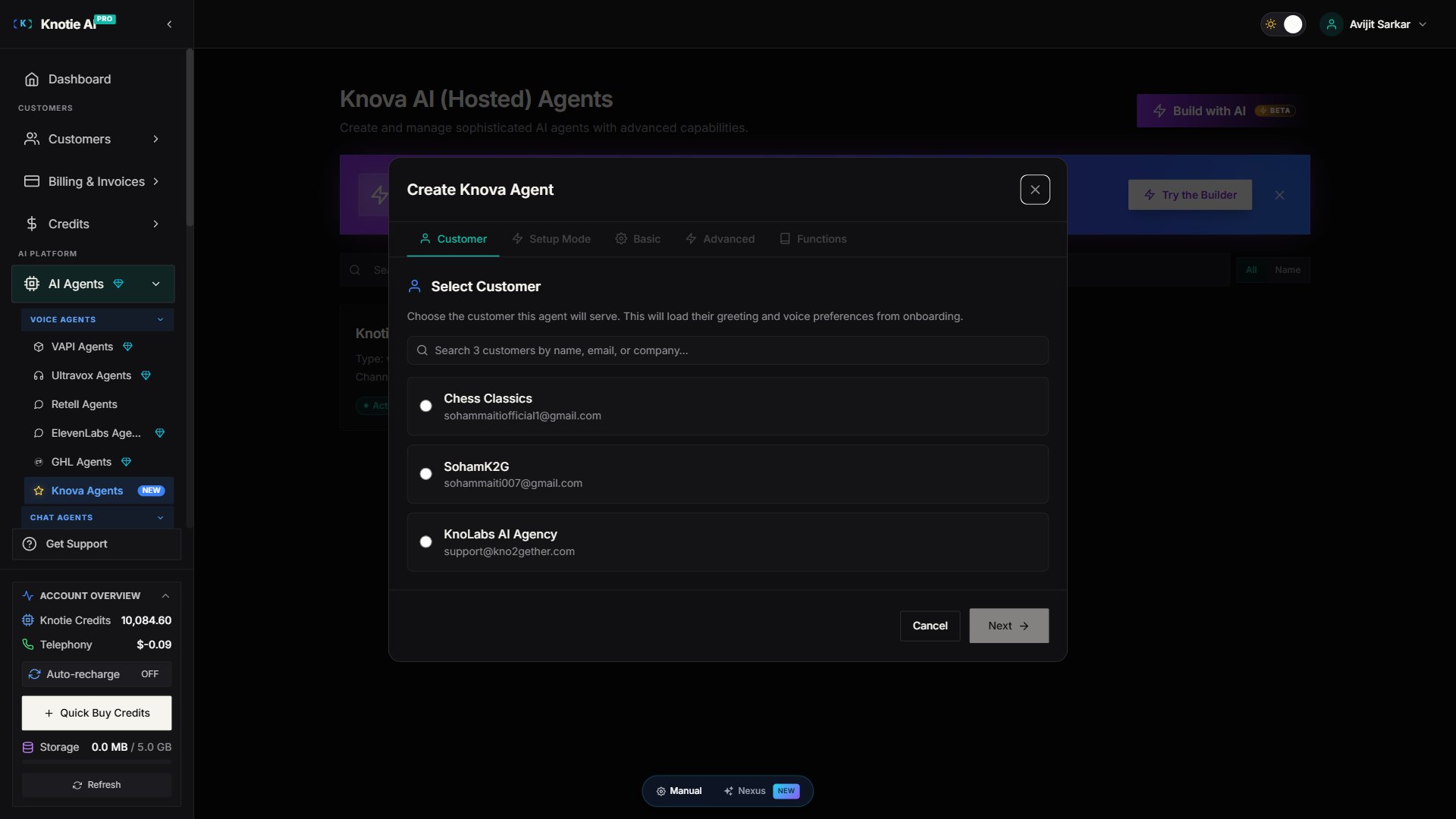 The **Create Agent** modal is a **5-tab sequential flow**, not a flat Basic form. Each tab gates the next:
1. **Customer** – Pick the customer this agent belongs to.
2. **Setup Mode** – Choose **AI Builder** (chat-driven, recommended) or **Manual** (fill fields yourself). If you pick Manual, the AI Builder tab is hidden for the rest of the flow.
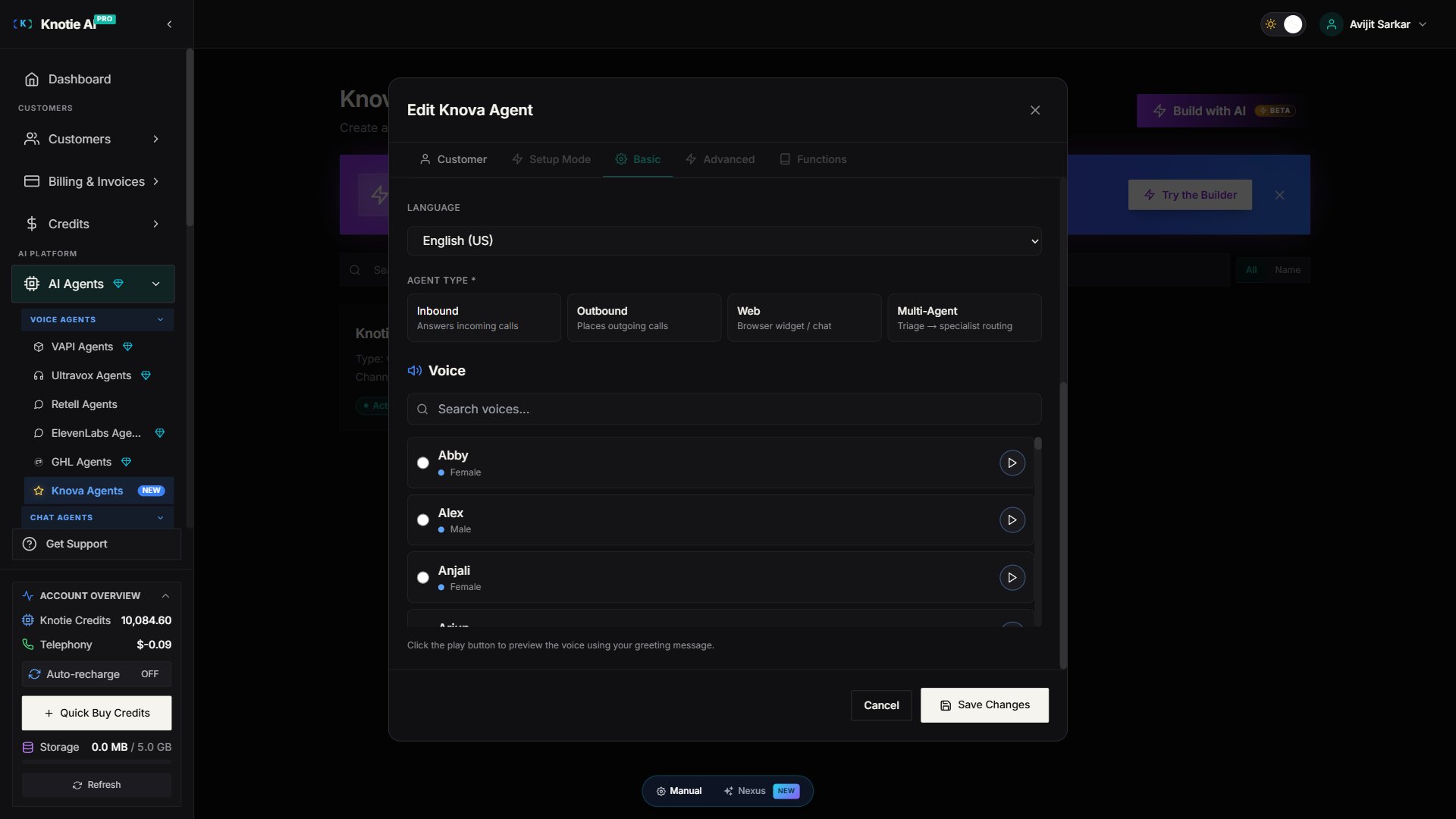
3. **Basic** – Agent name, system prompt, greeting, voice (see [Voice selection](#voice-selection) below). The Basic tab is replaced by the AI Builder chat panel if you chose AI Builder on the Setup Mode tab.
4. **Advanced** – Tools, knowledge base, advanced config.
5. **Functions** – Function calls / tool wiring.
To open the modal:
1. In the Partner Portal, open **AI Agents → Knova Agents**.
2. Click **Create Agent** (top right).
3. Walk through tabs 1–5 in order; click **Save** on the Functions tab to create the agent.
The Build with AI button (top of the Knova agents page) also opens the modal, defaulting to the AI Builder chat on the Basic tab.
## System prompt guidelines
The system prompt is the core of your agent's behavior. It defines personality, scope, and rules.
**Limits:**
| Field | Maximum |
| -------------------- | --------------------- |
| System prompt length | **15,000 characters** |
If your use case is very broad, consider splitting it into multiple agents rather than one large prompt — each agent handles a focused scope, which improves response quality and makes prompts easier to maintain.
**Tips:**
* Start with the agent's role: *"You are a friendly receptionist for Acme Plumbing..."*
* Include what it should and should **not** do
* Specify how to handle transfers and escalations
* Use the **AI Builder Chat** to generate a first draft from your business context (see [AI Agent Builder Chat](/agents/knova/agent-builder-chat))
## Voice selection
Knova agents use one of two text-to-speech banks:
| Bank | Indicator |
| --------------- | --------------------------------- |
| First TTS bank | Blue dot next to the voice name |
| Second TTS bank | Purple dot next to the voice name |
**Note:** You pick the voice, not the provider behind it. Your existing agent voice settings are preserved when the platform upgrades its underlying voice models.
The platform periodically upgrades its default voices for better quality and broader language coverage. These upgrades don't change the voice catalog — Ashley, Edward, Olivia, and other named voices continue to work exactly as before.
The **Create Agent** modal is a **5-tab sequential flow**, not a flat Basic form. Each tab gates the next:
1. **Customer** – Pick the customer this agent belongs to.
2. **Setup Mode** – Choose **AI Builder** (chat-driven, recommended) or **Manual** (fill fields yourself). If you pick Manual, the AI Builder tab is hidden for the rest of the flow.
3. **Basic** – Agent name, system prompt, greeting, voice (see [Voice selection](#voice-selection) below). The Basic tab is replaced by the AI Builder chat panel if you chose AI Builder on the Setup Mode tab.
4. **Advanced** – Tools, knowledge base, advanced config.
5. **Functions** – Function calls / tool wiring.
To open the modal:
1. In the Partner Portal, open **AI Agents → Knova Agents**.
2. Click **Create Agent** (top right).
3. Walk through tabs 1–5 in order; click **Save** on the Functions tab to create the agent.
The Build with AI button (top of the Knova agents page) also opens the modal, defaulting to the AI Builder chat on the Basic tab.
## System prompt guidelines
The system prompt is the core of your agent's behavior. It defines personality, scope, and rules.
**Limits:**
| Field | Maximum |
| -------------------- | --------------------- |
| System prompt length | **15,000 characters** |
If your use case is very broad, consider splitting it into multiple agents rather than one large prompt — each agent handles a focused scope, which improves response quality and makes prompts easier to maintain.
**Tips:**
* Start with the agent's role: *"You are a friendly receptionist for Acme Plumbing..."*
* Include what it should and should **not** do
* Specify how to handle transfers and escalations
* Use the **AI Builder Chat** to generate a first draft from your business context (see [AI Agent Builder Chat](/agents/knova/agent-builder-chat))
## Voice selection
Knova agents use one of two text-to-speech banks:
| Bank | Indicator |
| --------------- | --------------------------------- |
| First TTS bank | Blue dot next to the voice name |
| Second TTS bank | Purple dot next to the voice name |
**Note:** You pick the voice, not the provider behind it. Your existing agent voice settings are preserved when the platform upgrades its underlying voice models.
The platform periodically upgrades its default voices for better quality and broader language coverage. These upgrades don't change the voice catalog — Ashley, Edward, Olivia, and other named voices continue to work exactly as before.
 ## Resumable builder sessions
When you use the **AI Agent Builder Chat** to create an agent, the conversation is saved automatically as a **Builder Session**. You can resume the conversation later:
1. Open an existing Knova agent in the Partner Portal.
2. Click the **AI Builder** button (chat icon in the agent modal).
3. The modal shows a list of recent builder sessions for this agent. Click a session card to resume from where you left off.
Each session card displays:
* The first message you sent (as a conversation preview)
* The model used
* The time of the last turn
* The current stage (`conversing`, `proposed`, or `applied`)
Sessions from previous conversations are loaded when you open the Agent Builder — you do not need to start fresh every time.
## Assign a phone number
After creating a Knova agent and **assigning it to a customer** (see [Customer assignment](#customer-assignment-and-token-lifecycle) in the knova-agent.mdx overview, or the kebab **Assign Customer to Agent** action), phone-number assignment is done in the customer's own agent edit view — **not** in the Knova agent modal.
1. Open the assigned customer's record.
2. Edit the agent from the customer's **Manage Agents** view.
3. Pick a provisioned number from the customer's pool and click **Assign**.
The Knova agent modal itself does **not** have an "Assign Phone Number" step — that flow was removed in 2026. Phone numbers are bound to the customer + agent pair, not to the Knova agent alone.
Inbound calls to that number will now be handled by this agent.
## Builder sessions API
The builder session history is accessible via the partner API for integrations:
### List sessions for a customer
```
GET /api/partner/knova-agents/builder-sessions?customerId={customerId}
```
Optional query parameter: `agentId` — filter to sessions that produced a specific agent.
**Response:**
```json theme={null}
{
"sessions": [
{
"id": "session_cuid",
"currentStage": "applied",
"messageCount": 12,
"firstUserMessage": "Create a receptionist for an HVAC company...",
"resultingAgentId": "agent_abc123",
"createdAt": "2026-05-26T02:00:00.000Z",
"lastTurnAt": "2026-05-26T02:08:00.000Z"
}
]
}
```
Session stages:
| `currentStage` | Meaning |
| -------------- | ----------------------------------------------------- |
| `conversing` | The conversation is in progress |
| `proposed` | The AI has drafted an agent config; partner reviewing |
| `applied` | The partner clicked "Apply" and saved the agent |
| `abandoned` | Session closed without applying |
### Fetch a single session
```
GET /api/partner/knova-agents/builder-sessions/{sessionId}
```
Returns the full message history and draft proposal for that session.
## Telephony credit settings API
Partners can now **read** telephony credit settings via API in addition to writing them:
```
GET /api/partner/telephony-credits/settings
```
**Response:**
```json theme={null}
{
"success": true,
"data": {
"lowCreditThresholdCents": 1000,
"lowCreditThresholdDollars": 10.0,
"lowCreditNotificationsEnabled": true,
"autoTopUpEnabled": false,
"autoTopUpThresholdCents": 500,
"autoTopUpThresholdDollars": 5.0,
"autoTopUpAmountCents": 5000,
"autoTopUpAmountDollars": 50.0
}
}
```
Use `POST /api/partner/telephony-credits/settings` to update these values (see [Telephony Credits](/partner-portal/telephony-credits) for UI instructions).
## MCP tool changes
If you use Knotie's MCP server with AI coding tools like Cursor or Claude, note these updated tool schemas:
**`agents_create`** — field names updated:
| Old field | New field | Notes |
| ------------------------ | ---------------- | ----------------------------------------------------------------- |
| `name` | `agentName` | Agent display name |
| `config` (nested object) | Top-level fields | `systemPrompt`, `voiceId`, `voiceProvider`, `modelProvider`, etc. |
**`invoices_create` / `invoices_update`** — field names updated:
| Old field | New field | Notes |
| --------------- | ----------------- | --------------------------------- |
| `items` (array) | `title`, `amount` | `amount` is in **cents** (min 50) |
| `notes` | `description` | — |
**`invoices_recurring_create`** — field names updated: `interval` → `recurringInterval`; `items` → `title`, `amount` (in **dollars** for this route).
**`metered_plans_create`** — schema overhauled: `unit`/`pricePerUnitCents` replaced with `metricType`, `metricName`, `pricingModel`, `pricingTiers` (array), and `billingCycle`.
**`customer_credits_balance`** — now returns balance + recent transactions (additional data in the same call).
If you have existing MCP automations using these tools, update your prompts and tool calls to use the new field names.
## Troubleshooting
* **System prompt exceeds character limit** — Split overly broad scopes into a multi-agent workflow. Each persona or use case should have its own agent.
* **Voice not loading** — Reload the page. If voices still don't appear, check your internet connection and try a different browser.
* **Builder session not resuming** — Sessions are listed by `lastTurnAt` (most recent first). If you don't see a session, it may have been created for a different customer or on a different account.
* **Agent config not updating after edit** — The platform refreshes the agent's live configuration after every save. If the agent's phone number still uses the old settings, wait 30 seconds and call the number again. If it persists, contact support.
## Related pages
* [AI Agent Builder Chat](/agents/knova/agent-builder-chat) – How to use the AI-powered chat builder
* [Telephony Credits](/partner-portal/telephony-credits) – Manage credits for phone calls
* [MCP Tokens](/partner-portal/ai-agents/mcp/tokens) – Set up MCP access for AI coding tools
* [Agent Analytics](/partner-portal/agent-analytics) – View call and usage statistics
## Resumable builder sessions
When you use the **AI Agent Builder Chat** to create an agent, the conversation is saved automatically as a **Builder Session**. You can resume the conversation later:
1. Open an existing Knova agent in the Partner Portal.
2. Click the **AI Builder** button (chat icon in the agent modal).
3. The modal shows a list of recent builder sessions for this agent. Click a session card to resume from where you left off.
Each session card displays:
* The first message you sent (as a conversation preview)
* The model used
* The time of the last turn
* The current stage (`conversing`, `proposed`, or `applied`)
Sessions from previous conversations are loaded when you open the Agent Builder — you do not need to start fresh every time.
## Assign a phone number
After creating a Knova agent and **assigning it to a customer** (see [Customer assignment](#customer-assignment-and-token-lifecycle) in the knova-agent.mdx overview, or the kebab **Assign Customer to Agent** action), phone-number assignment is done in the customer's own agent edit view — **not** in the Knova agent modal.
1. Open the assigned customer's record.
2. Edit the agent from the customer's **Manage Agents** view.
3. Pick a provisioned number from the customer's pool and click **Assign**.
The Knova agent modal itself does **not** have an "Assign Phone Number" step — that flow was removed in 2026. Phone numbers are bound to the customer + agent pair, not to the Knova agent alone.
Inbound calls to that number will now be handled by this agent.
## Builder sessions API
The builder session history is accessible via the partner API for integrations:
### List sessions for a customer
```
GET /api/partner/knova-agents/builder-sessions?customerId={customerId}
```
Optional query parameter: `agentId` — filter to sessions that produced a specific agent.
**Response:**
```json theme={null}
{
"sessions": [
{
"id": "session_cuid",
"currentStage": "applied",
"messageCount": 12,
"firstUserMessage": "Create a receptionist for an HVAC company...",
"resultingAgentId": "agent_abc123",
"createdAt": "2026-05-26T02:00:00.000Z",
"lastTurnAt": "2026-05-26T02:08:00.000Z"
}
]
}
```
Session stages:
| `currentStage` | Meaning |
| -------------- | ----------------------------------------------------- |
| `conversing` | The conversation is in progress |
| `proposed` | The AI has drafted an agent config; partner reviewing |
| `applied` | The partner clicked "Apply" and saved the agent |
| `abandoned` | Session closed without applying |
### Fetch a single session
```
GET /api/partner/knova-agents/builder-sessions/{sessionId}
```
Returns the full message history and draft proposal for that session.
## Telephony credit settings API
Partners can now **read** telephony credit settings via API in addition to writing them:
```
GET /api/partner/telephony-credits/settings
```
**Response:**
```json theme={null}
{
"success": true,
"data": {
"lowCreditThresholdCents": 1000,
"lowCreditThresholdDollars": 10.0,
"lowCreditNotificationsEnabled": true,
"autoTopUpEnabled": false,
"autoTopUpThresholdCents": 500,
"autoTopUpThresholdDollars": 5.0,
"autoTopUpAmountCents": 5000,
"autoTopUpAmountDollars": 50.0
}
}
```
Use `POST /api/partner/telephony-credits/settings` to update these values (see [Telephony Credits](/partner-portal/telephony-credits) for UI instructions).
## MCP tool changes
If you use Knotie's MCP server with AI coding tools like Cursor or Claude, note these updated tool schemas:
**`agents_create`** — field names updated:
| Old field | New field | Notes |
| ------------------------ | ---------------- | ----------------------------------------------------------------- |
| `name` | `agentName` | Agent display name |
| `config` (nested object) | Top-level fields | `systemPrompt`, `voiceId`, `voiceProvider`, `modelProvider`, etc. |
**`invoices_create` / `invoices_update`** — field names updated:
| Old field | New field | Notes |
| --------------- | ----------------- | --------------------------------- |
| `items` (array) | `title`, `amount` | `amount` is in **cents** (min 50) |
| `notes` | `description` | — |
**`invoices_recurring_create`** — field names updated: `interval` → `recurringInterval`; `items` → `title`, `amount` (in **dollars** for this route).
**`metered_plans_create`** — schema overhauled: `unit`/`pricePerUnitCents` replaced with `metricType`, `metricName`, `pricingModel`, `pricingTiers` (array), and `billingCycle`.
**`customer_credits_balance`** — now returns balance + recent transactions (additional data in the same call).
If you have existing MCP automations using these tools, update your prompts and tool calls to use the new field names.
## Troubleshooting
* **System prompt exceeds character limit** — Split overly broad scopes into a multi-agent workflow. Each persona or use case should have its own agent.
* **Voice not loading** — Reload the page. If voices still don't appear, check your internet connection and try a different browser.
* **Builder session not resuming** — Sessions are listed by `lastTurnAt` (most recent first). If you don't see a session, it may have been created for a different customer or on a different account.
* **Agent config not updating after edit** — The platform refreshes the agent's live configuration after every save. If the agent's phone number still uses the old settings, wait 30 seconds and call the number again. If it persists, contact support.
## Related pages
* [AI Agent Builder Chat](/agents/knova/agent-builder-chat) – How to use the AI-powered chat builder
* [Telephony Credits](/partner-portal/telephony-credits) – Manage credits for phone calls
* [MCP Tokens](/partner-portal/ai-agents/mcp/tokens) – Set up MCP access for AI coding tools
* [Agent Analytics](/partner-portal/agent-analytics) – View call and usage statistics