> ## Documentation Index
> Fetch the complete documentation index at: https://docs.knotie-ai.pro/llms.txt
> Use this file to discover all available pages before exploring further.
# AI Agent Builder Chat
> Use the AI-powered chat builder to design Knova agents from a conversation — no form filling required.
## What the AI Agent Builder Chat is
The **AI Agent Builder Chat** is an in-product AI assistant that helps you create a Knova agent through a conversation. Instead of manually filling out a system prompt and configuring every field, you describe your business and goals in plain language and the AI generates a complete agent proposal — including name, system prompt, greeting message, and tool selection.
Use the Builder Chat when:
* You are creating a new Knova agent from scratch
* You want to revise an existing agent's system prompt or behavior
* You have a business website URL and want the agent to reflect that brand
* You want AI-drafted copy for your system prompt that you can refine
For the full agent-creation flow, opening steps, and multi-agent configuration, see [Knova AI Agent Builder](/agents/knova/knova-agent-builder). This page focuses on the chat experience itself.
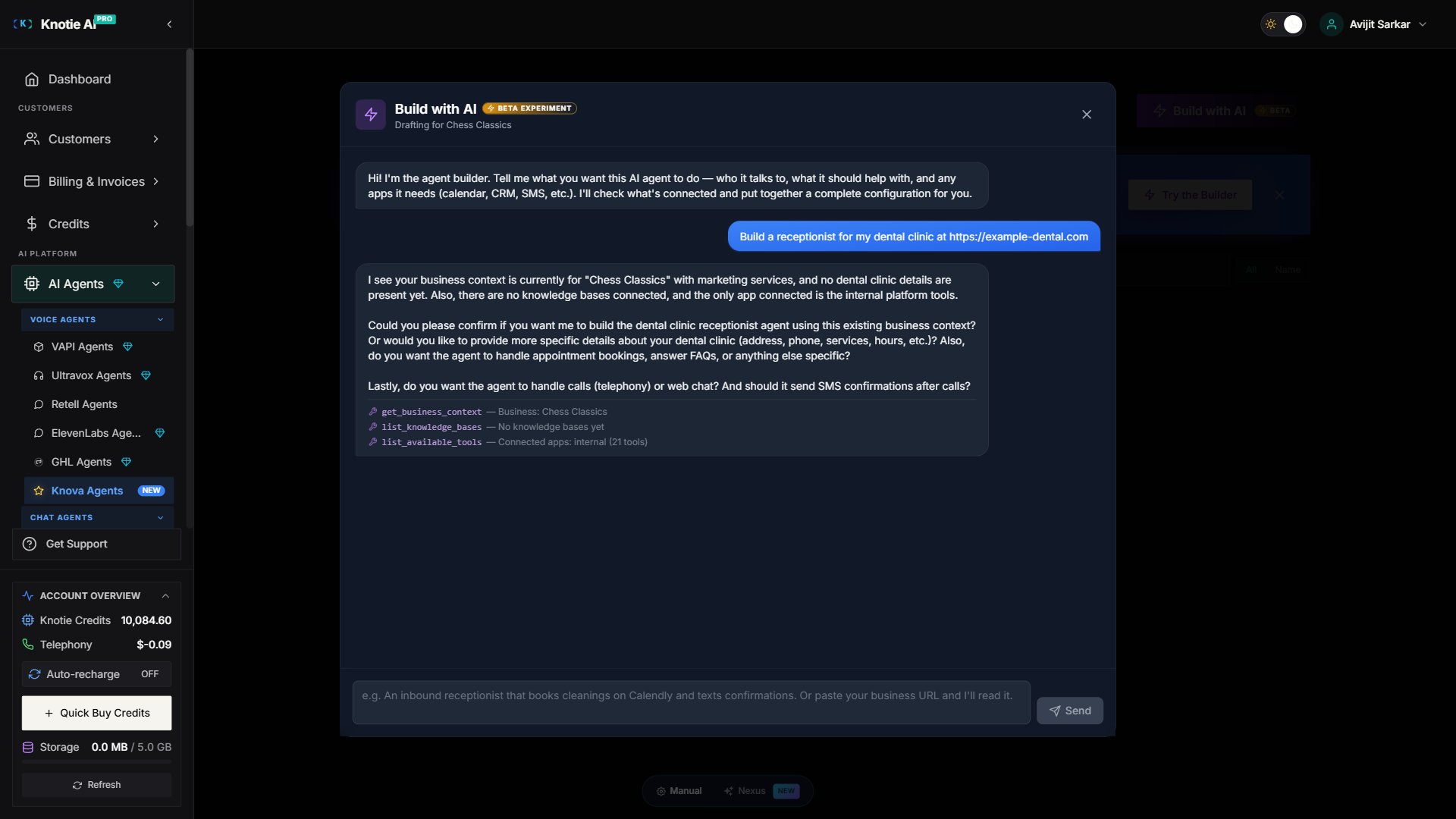 ## Opening the Builder Chat
1. In the Partner Portal, click **AI Agents** → **Create Agent**.
2. On the mode-selection screen, choose **AI Builder**.
3. The Builder Chat modal opens with a fresh conversation.
You can also open the Builder Chat from an **existing agent's edit modal** — click the AI Builder icon (chat bubble) at the top of the form to revise the current agent.
## Describing your business
Start the conversation with anything that gives the AI context:
* *"Create a receptionist for a plumbing company in Ipswich."*
* *"I need an outbound sales agent for a solar panel company."*
* *"Here's our website: [https://example.com](https://example.com) — draft a system prompt from it."*
The AI will ask follow-up questions if it needs more detail. Once it has enough context, it generates a **proposal** visible in the right-hand panel.
## How web pages and search work (autonomous)
The builder reads URLs and searches the web **on its own** — there is no Web-search toggle to flip. (The earlier per-turn "Web search" toggle and "Keep Web search on" checkbox have been removed.)
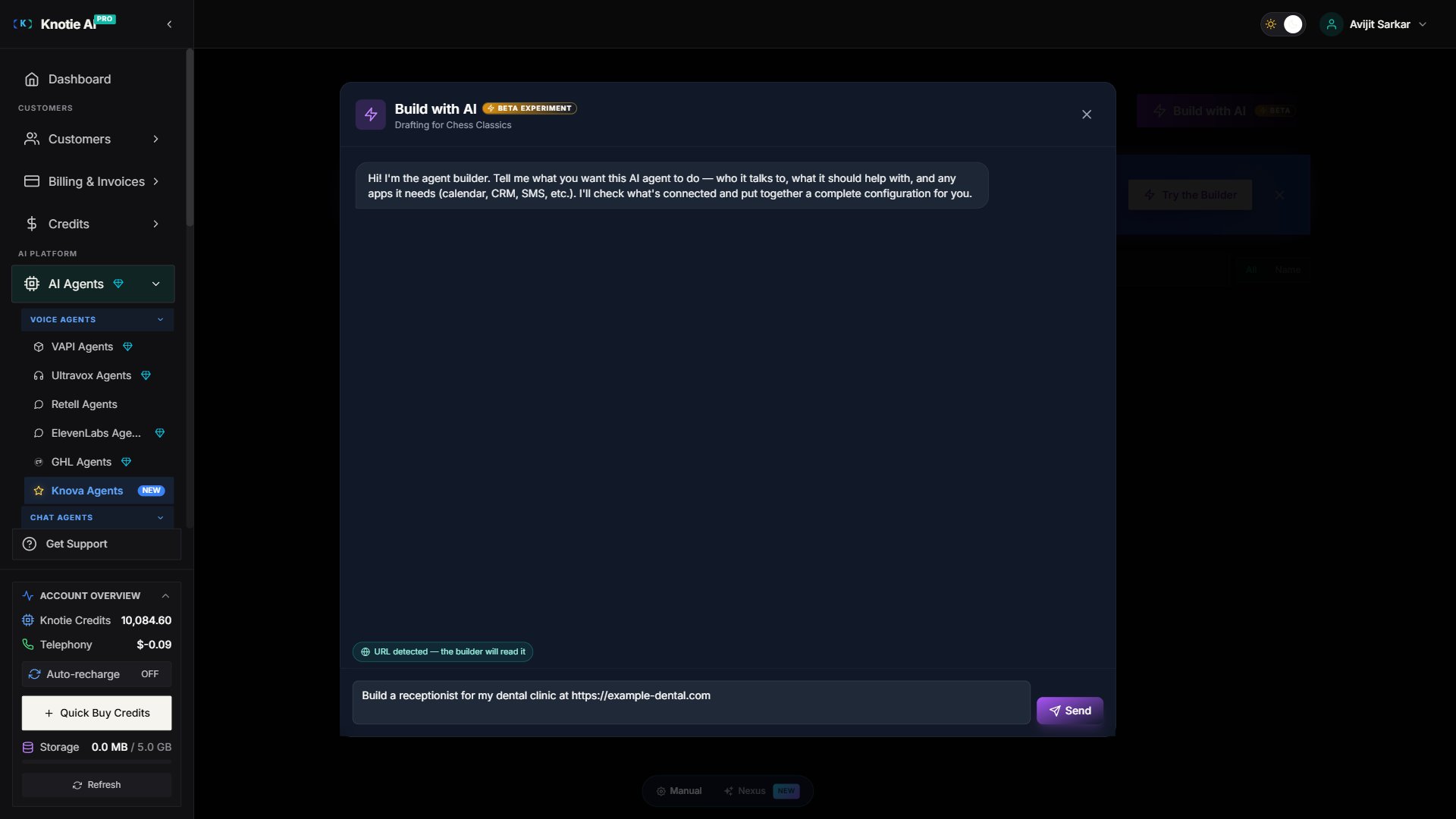
* Type or paste any URL in your message and the builder will fetch and read it.
* If a URL is detected in your input, a teal badge appears: **"URL detected — the builder will read it"**. This is informational only — no action is required.
* If the builder needs information it can't infer from your message or business profile, it will run its own web search.
If a fetch fails (the site blocks crawlers, returns a 4xx, or times out), the builder acknowledges the failure briefly and asks you to paste the relevant text in plain English — it continues building the best draft it can without blocking.
## Opening the Builder Chat
1. In the Partner Portal, click **AI Agents** → **Create Agent**.
2. On the mode-selection screen, choose **AI Builder**.
3. The Builder Chat modal opens with a fresh conversation.
You can also open the Builder Chat from an **existing agent's edit modal** — click the AI Builder icon (chat bubble) at the top of the form to revise the current agent.
## Describing your business
Start the conversation with anything that gives the AI context:
* *"Create a receptionist for a plumbing company in Ipswich."*
* *"I need an outbound sales agent for a solar panel company."*
* *"Here's our website: [https://example.com](https://example.com) — draft a system prompt from it."*
The AI will ask follow-up questions if it needs more detail. Once it has enough context, it generates a **proposal** visible in the right-hand panel.
## How web pages and search work (autonomous)
The builder reads URLs and searches the web **on its own** — there is no Web-search toggle to flip. (The earlier per-turn "Web search" toggle and "Keep Web search on" checkbox have been removed.)
* Type or paste any URL in your message and the builder will fetch and read it.
* If a URL is detected in your input, a teal badge appears: **"URL detected — the builder will read it"**. This is informational only — no action is required.
* If the builder needs information it can't infer from your message or business profile, it will run its own web search.
If a fetch fails (the site blocks crawlers, returns a 4xx, or times out), the builder acknowledges the failure briefly and asks you to paste the relevant text in plain English — it continues building the best draft it can without blocking.
 ## Reviewing and applying the proposal
When the AI has drafted an agent, the right-hand panel shows:
* **Agent Name** – A suggested name
* **System Prompt** – The full prompt the AI generated
* **Greeting Message** – What the agent says at the start of a call
* **Tools** – Suggested capabilities (if any)
Review the proposal and click **Apply** to transfer it to the agent form. From there you can make manual edits before saving.
## Resuming a previous session
Builder conversations are saved automatically. When you open the Builder Chat for an existing Knova agent, a list of previous sessions appears at the top:
* Click a session card to **resume** that conversation from where it left off.
* Each card shows a preview of your first message, the model used, and how long ago the last turn happened.
* Session cards only appear before you send your first message in the current open; once you start typing, they stay out of the way.
## Understanding "Re-checked context"
Occasionally the AI re-runs its context-loading tools (like reading your business settings or available integrations) on multiple turns. When a turn's tool calls are identical to the previous turn's, they are collapsed into a single line:
> *Re-checked context (3 tools)*
This is intentional noise reduction — the AI knew it already had the information it needed and re-verified silently. It does **not** mean the AI is stuck or confused.
## Rate limiting
The Builder Chat and the **Enhance Prompt** button share a single rate-limit bucket of **60 requests per minute** per partner account. If you hit the limit, you'll see:
> *"Rate limit exceeded — try again in a minute."*
Wait 60 seconds and resend. This limit applies per account, not per session.
## Applying a proposal and saving
When you click **Apply** in the proposal panel:
1. The agent form fields update with the AI's suggestions.
2. You can edit any field before saving.
3. Click **Save** on the main agent form. The platform records which builder session produced this agent, which is visible in the [Resumable Builder Sessions](/agents/knova/manage-knova-agents#resumable-builder-sessions) section of the manage-knova-agents page.
Closing the modal while the save is in flight does **not** trigger an "unsaved changes" confirmation — the save completes normally.
## Tips
* **Be specific about tone** — "Professional but warm" vs "Casual and friendly" produces noticeably different prompts.
* **Mention edge cases** — If there are things the agent should never do (e.g., quote prices, discuss competitors), say so in your message.
* **Iterate freely** — Applying a proposal doesn't lock you in. You can edit the form or open the builder again to regenerate.
* **Paste the relevant text on fetch failures** — If the builder can't read a page, paste the important parts in your next message and it will incorporate them.
## Troubleshooting
* **URL not detected as a URL** — Make sure it starts with `http://` or `https://`. Bare domains (e.g., `example.com`) are not detected automatically.
* **Proposal panel is empty** — The AI hasn't finished drafting. Wait for the streaming text to complete, then check the panel.
* **AI keeps asking the same questions** — Click **New conversation** (if available) or close and reopen the modal to start fresh.
* **Hit the rate limit** — Wait 60 seconds before resending. The limit is per account, not per session.
## Related pages
* [Knova AI Agent Builder](/agents/knova/knova-agent-builder) — Full builder guide: opening steps, multi-agent, reliability
* [Manage Knova agents](/agents/knova/manage-knova-agents) — Create, configure, and edit Knova agents
* [MCP Tokens](/partner-portal/ai-agents/mcp/tokens) — Use MCP tools to manage agents programmatically
## Reviewing and applying the proposal
When the AI has drafted an agent, the right-hand panel shows:
* **Agent Name** – A suggested name
* **System Prompt** – The full prompt the AI generated
* **Greeting Message** – What the agent says at the start of a call
* **Tools** – Suggested capabilities (if any)
Review the proposal and click **Apply** to transfer it to the agent form. From there you can make manual edits before saving.
## Resuming a previous session
Builder conversations are saved automatically. When you open the Builder Chat for an existing Knova agent, a list of previous sessions appears at the top:
* Click a session card to **resume** that conversation from where it left off.
* Each card shows a preview of your first message, the model used, and how long ago the last turn happened.
* Session cards only appear before you send your first message in the current open; once you start typing, they stay out of the way.
## Understanding "Re-checked context"
Occasionally the AI re-runs its context-loading tools (like reading your business settings or available integrations) on multiple turns. When a turn's tool calls are identical to the previous turn's, they are collapsed into a single line:
> *Re-checked context (3 tools)*
This is intentional noise reduction — the AI knew it already had the information it needed and re-verified silently. It does **not** mean the AI is stuck or confused.
## Rate limiting
The Builder Chat and the **Enhance Prompt** button share a single rate-limit bucket of **60 requests per minute** per partner account. If you hit the limit, you'll see:
> *"Rate limit exceeded — try again in a minute."*
Wait 60 seconds and resend. This limit applies per account, not per session.
## Applying a proposal and saving
When you click **Apply** in the proposal panel:
1. The agent form fields update with the AI's suggestions.
2. You can edit any field before saving.
3. Click **Save** on the main agent form. The platform records which builder session produced this agent, which is visible in the [Resumable Builder Sessions](/agents/knova/manage-knova-agents#resumable-builder-sessions) section of the manage-knova-agents page.
Closing the modal while the save is in flight does **not** trigger an "unsaved changes" confirmation — the save completes normally.
## Tips
* **Be specific about tone** — "Professional but warm" vs "Casual and friendly" produces noticeably different prompts.
* **Mention edge cases** — If there are things the agent should never do (e.g., quote prices, discuss competitors), say so in your message.
* **Iterate freely** — Applying a proposal doesn't lock you in. You can edit the form or open the builder again to regenerate.
* **Paste the relevant text on fetch failures** — If the builder can't read a page, paste the important parts in your next message and it will incorporate them.
## Troubleshooting
* **URL not detected as a URL** — Make sure it starts with `http://` or `https://`. Bare domains (e.g., `example.com`) are not detected automatically.
* **Proposal panel is empty** — The AI hasn't finished drafting. Wait for the streaming text to complete, then check the panel.
* **AI keeps asking the same questions** — Click **New conversation** (if available) or close and reopen the modal to start fresh.
* **Hit the rate limit** — Wait 60 seconds before resending. The limit is per account, not per session.
## Related pages
* [Knova AI Agent Builder](/agents/knova/knova-agent-builder) — Full builder guide: opening steps, multi-agent, reliability
* [Manage Knova agents](/agents/knova/manage-knova-agents) — Create, configure, and edit Knova agents
* [MCP Tokens](/partner-portal/ai-agents/mcp/tokens) — Use MCP tools to manage agents programmatically