> ## Documentation Index
> Fetch the complete documentation index at: https://docs.knotie-ai.pro/llms.txt
> Use this file to discover all available pages before exploring further.
# Manage ElevenLabs agents
> Import, configure, and manage ElevenLabs conversational agents in Knotie AI Pro — including function calls, knowledge bases, and API key management.
## What ElevenLabs agents are in Knotie AI
ElevenLabs is a fully supported voice AI provider in Knotie AI Pro. In the Partner Portal you can:
* **Import agents** from your ElevenLabs account
* **Edit agent settings** — system prompt, voice, LLM model, language, and more
* **Attach knowledge bases** so agents can answer customer-specific questions
* **Configure function calls** to connect agents to external tools via webhooks
* **Assign agents to customers** with a profit multiplier
* **Manage your ElevenLabs API key** directly from the portal
ElevenLabs Agents carries a **Premium Feature** badge in the sidebar. Free Forever or lower-tier partners may see an upgrade prompt.
## Prerequisites
Before managing ElevenLabs agents you need:
1. An ElevenLabs account with at least one agent created there.
2. An ElevenLabs API key added under **Partner Portal → Settings → Partner API Keys → Platform API** tab.
## Where to find it
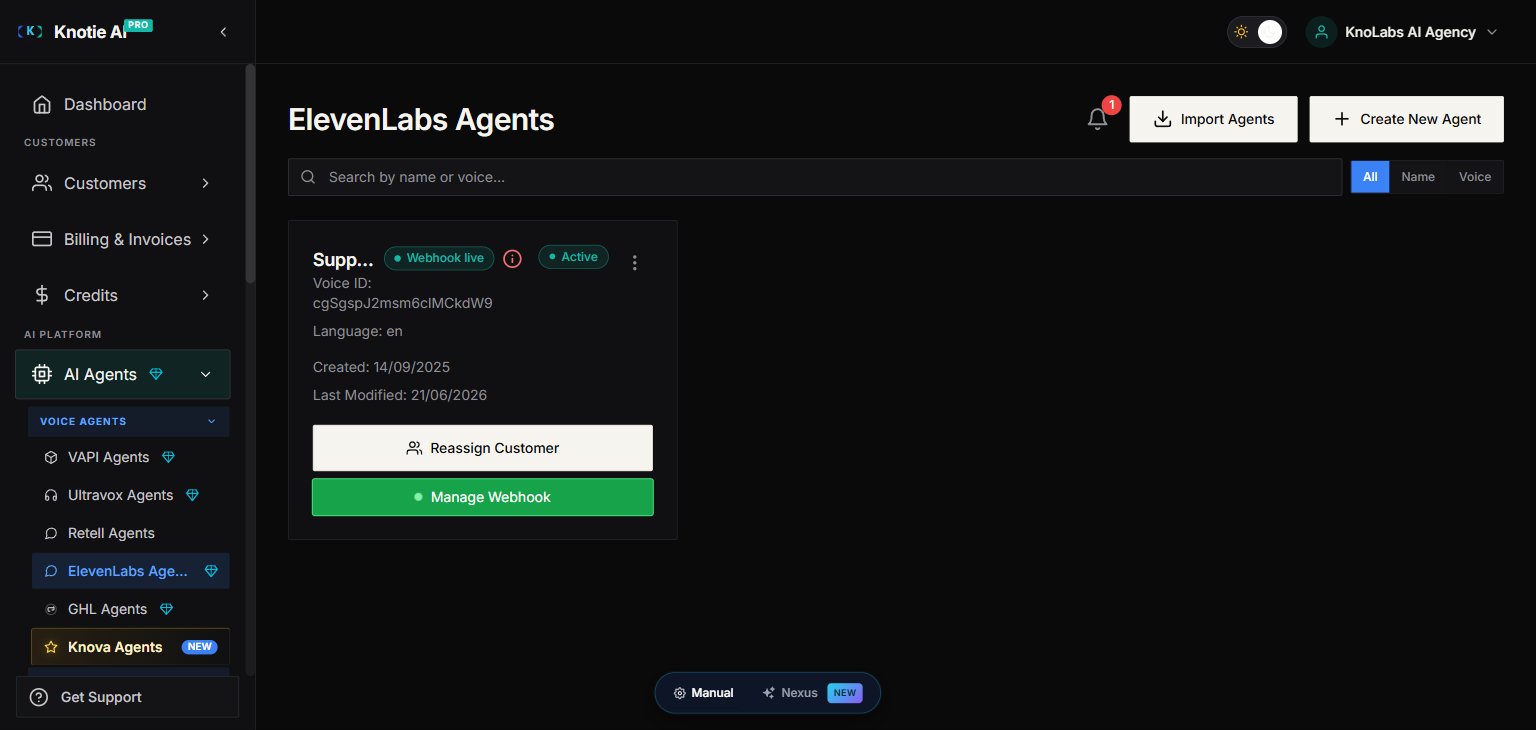
1. Open **Partner Portal → AI Agents**.
2. Under the **Voice Agents** group, click **ElevenLabs**.
You land on the ElevenLabs Agents page at `/partner/ai-agents/elevenlabs`.
 ## Import agents
1. Click **Import Agents**.
2. The import modal fetches your agents from ElevenLabs using your stored API key.
3. Select the agents you want to import and confirm.
4. After import the list updates automatically.
If a previously imported agent was deleted locally, re-importing it is now supported — the portal removes the stale record and creates a fresh one.
## Configure an agent
Click the **settings** (or edit) icon on any agent to open the agent modal. The modal has five tabs:
### Customer tab
Assign the agent to one of your customers:
1. Search for or select a **Customer** from the dropdown.
2. Set a **Profit Multiplier** (markup on ElevenLabs costs).
If no customers appear, onboard a customer first under **Customers**.
### Knowledge Base tab
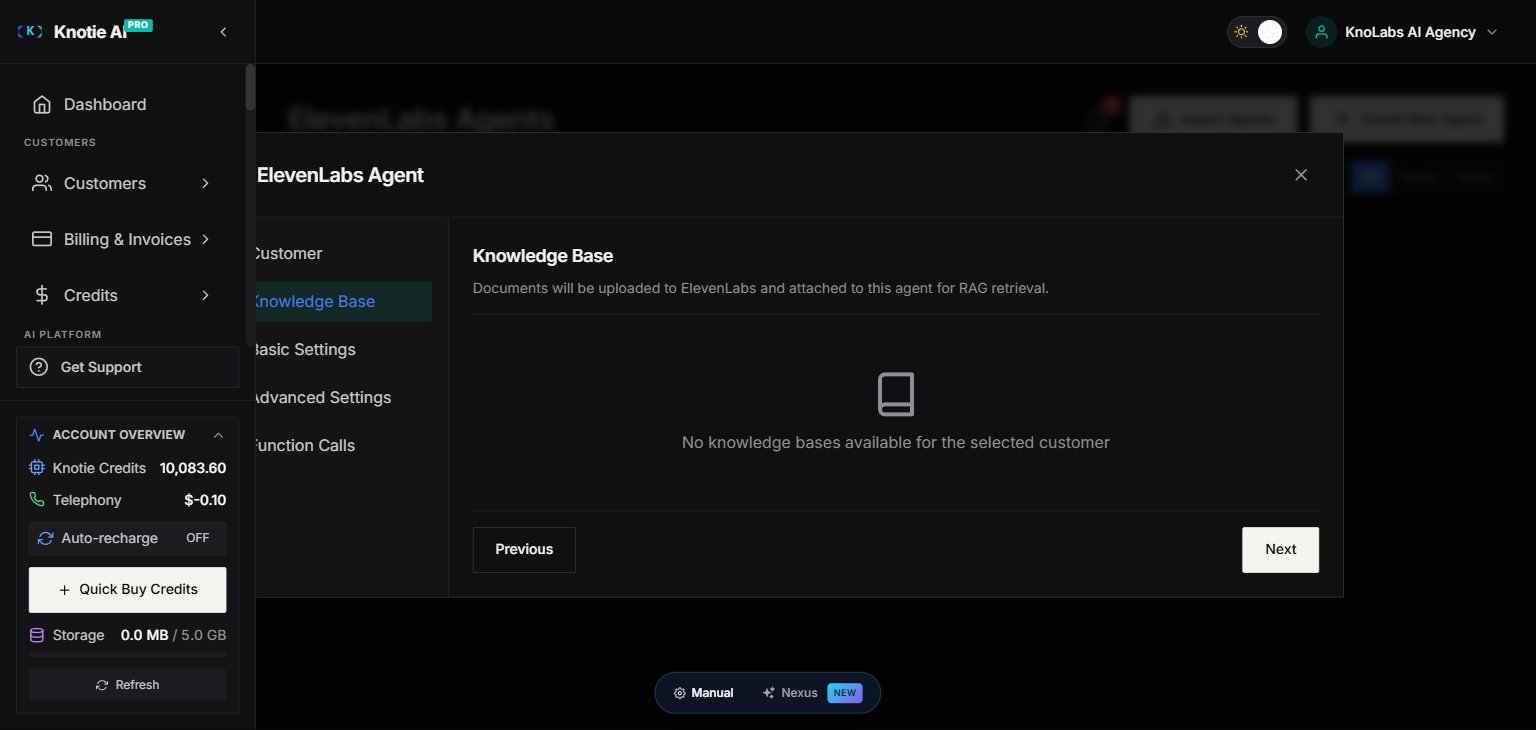
Attach knowledge base documents so the agent can reference customer-specific content during calls:
1. After selecting a customer, available knowledge bases for that customer appear.
2. Toggle the bases you want to attach.
## Import agents
1. Click **Import Agents**.
2. The import modal fetches your agents from ElevenLabs using your stored API key.
3. Select the agents you want to import and confirm.
4. After import the list updates automatically.
If a previously imported agent was deleted locally, re-importing it is now supported — the portal removes the stale record and creates a fresh one.
## Configure an agent
Click the **settings** (or edit) icon on any agent to open the agent modal. The modal has five tabs:
### Customer tab
Assign the agent to one of your customers:
1. Search for or select a **Customer** from the dropdown.
2. Set a **Profit Multiplier** (markup on ElevenLabs costs).
If no customers appear, onboard a customer first under **Customers**.
### Knowledge Base tab
Attach knowledge base documents so the agent can reference customer-specific content during calls:
1. After selecting a customer, available knowledge bases for that customer appear.
2. Toggle the bases you want to attach.
 ### Basic Settings tab
Configure the agent's core behaviour:
| Field | Description |
| ----------------- | -------------------------------------------------------------------- |
| **Agent Name** | Display name in the portal |
| **System Prompt** | The instructions that define how the agent behaves |
| **First Message** | The opening message the agent says when a call starts |
| **Language** | Conversation language (e.g. `en`) |
| **Voice ID** | The ElevenLabs voice to use |
| **LLM Model** | GPT-4o-mini, GPT-4o, Claude 3.5 Sonnet, Gemini 2.0 Flash, and others |
### Advanced Settings tab
| Field | Description |
| -------------------------- | ------------------------------------------------------------------ |
| **Temperature** | Response creativity (0–2). Default: 0.7 |
| **Max Tokens** | The longest response the agent will generate (`-1` = no limit) |
| **Max Duration (seconds)** | Maximum call length. Default: 600 s (10 min), max: 43,200 s (12 h) |
### Function Calls tab
Connect the agent to external tools (CRMs, booking systems, etc.) via webhook:
1. Click **Add Function Call**.
2. Select the tool from the available list.
3. Give it a custom name and description — ElevenLabs uses these to know when to invoke the tool.
4. Save the agent — function calls are synced to ElevenLabs automatically.
Function calls require a customer to be selected first (the customer's connected apps must be set up).
## Manage your API key
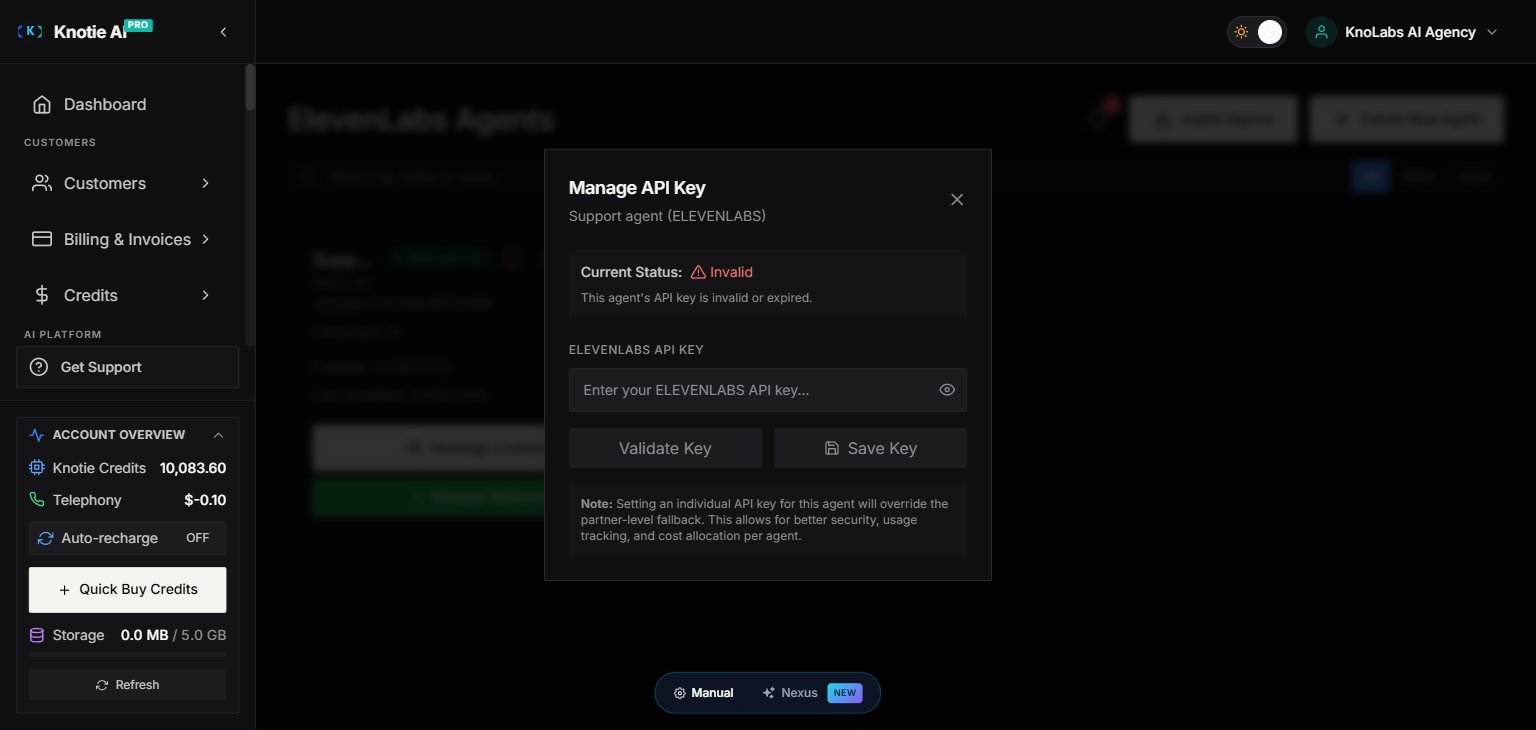
The API key used to communicate with ElevenLabs is stored encrypted in the portal. To update or re-verify it:
1. Open the agent's **three-dot menu** (⋮) — the API Key action lives in the per-agent menu, not as a page-level button. Choose **API Key** from the menu.
2. Enter your new ElevenLabs API key.
3. The portal verifies the key and shows one of three statuses:
* ✅ **Valid** — key is active and verified.
* ❌ **Invalid** — key was rejected by ElevenLabs.
* ⚠️ **Error** — verification failed (check your network or ElevenLabs status).
4. The last-verified timestamp is shown so you can tell when the key was last checked.
### Basic Settings tab
Configure the agent's core behaviour:
| Field | Description |
| ----------------- | -------------------------------------------------------------------- |
| **Agent Name** | Display name in the portal |
| **System Prompt** | The instructions that define how the agent behaves |
| **First Message** | The opening message the agent says when a call starts |
| **Language** | Conversation language (e.g. `en`) |
| **Voice ID** | The ElevenLabs voice to use |
| **LLM Model** | GPT-4o-mini, GPT-4o, Claude 3.5 Sonnet, Gemini 2.0 Flash, and others |
### Advanced Settings tab
| Field | Description |
| -------------------------- | ------------------------------------------------------------------ |
| **Temperature** | Response creativity (0–2). Default: 0.7 |
| **Max Tokens** | The longest response the agent will generate (`-1` = no limit) |
| **Max Duration (seconds)** | Maximum call length. Default: 600 s (10 min), max: 43,200 s (12 h) |
### Function Calls tab
Connect the agent to external tools (CRMs, booking systems, etc.) via webhook:
1. Click **Add Function Call**.
2. Select the tool from the available list.
3. Give it a custom name and description — ElevenLabs uses these to know when to invoke the tool.
4. Save the agent — function calls are synced to ElevenLabs automatically.
Function calls require a customer to be selected first (the customer's connected apps must be set up).
## Manage your API key
The API key used to communicate with ElevenLabs is stored encrypted in the portal. To update or re-verify it:
1. Open the agent's **three-dot menu** (⋮) — the API Key action lives in the per-agent menu, not as a page-level button. Choose **API Key** from the menu.
2. Enter your new ElevenLabs API key.
3. The portal verifies the key and shows one of three statuses:
* ✅ **Valid** — key is active and verified.
* ❌ **Invalid** — key was rejected by ElevenLabs.
* ⚠️ **Error** — verification failed (check your network or ElevenLabs status).
4. The last-verified timestamp is shown so you can tell when the key was last checked.
 ## Webhooks & analytics
To capture accurate per-call usage and billing data, enable the ElevenLabs webhook:
1. Open the agent's **Webhook** settings.
2. Copy the generated webhook URL.
3. Paste it into your ElevenLabs agent's webhook configuration.
Once active, call duration and credit consumption are tracked under **Agent Analytics**.
## Assign to a customer (quick path)
If you only need to assign an agent without changing other settings:
1. Open the agent's action menu (⋮).
2. Choose **Assign to Customer**.
3. Select the customer and profit multiplier.
4. Save.
## Troubleshooting
| Symptom | Fix |
| ---------------------------- | ----------------------------------------------------------------------------- |
| Import returns no agents | Confirm your ElevenLabs API key is valid under Settings → Partner API Keys |
| Agent save fails silently | Check the browser console; a function call may reference an unconfigured tool |
| Knowledge bases don't appear | Select a customer first; knowledge bases are customer-scoped |
| Upgrade prompt on the page | ElevenLabs may require a higher Knotie plan — contact support |
## Webhooks & analytics
To capture accurate per-call usage and billing data, enable the ElevenLabs webhook:
1. Open the agent's **Webhook** settings.
2. Copy the generated webhook URL.
3. Paste it into your ElevenLabs agent's webhook configuration.
Once active, call duration and credit consumption are tracked under **Agent Analytics**.
## Assign to a customer (quick path)
If you only need to assign an agent without changing other settings:
1. Open the agent's action menu (⋮).
2. Choose **Assign to Customer**.
3. Select the customer and profit multiplier.
4. Save.
## Troubleshooting
| Symptom | Fix |
| ---------------------------- | ----------------------------------------------------------------------------- |
| Import returns no agents | Confirm your ElevenLabs API key is valid under Settings → Partner API Keys |
| Agent save fails silently | Check the browser console; a function call may reference an unconfigured tool |
| Knowledge bases don't appear | Select a customer first; knowledge bases are customer-scoped |
| Upgrade prompt on the page | ElevenLabs may require a higher Knotie plan — contact support |