> ## Documentation Index
> Fetch the complete documentation index at: https://docs.knotie-ai.pro/llms.txt
> Use this file to discover all available pages before exploring further.
# BYO Agent (Bring Your Own)
> Connect self-hosted voice AI agents built with LiveKit or OpenAI to access Knotie's tool ecosystem and analytics.
## Overview
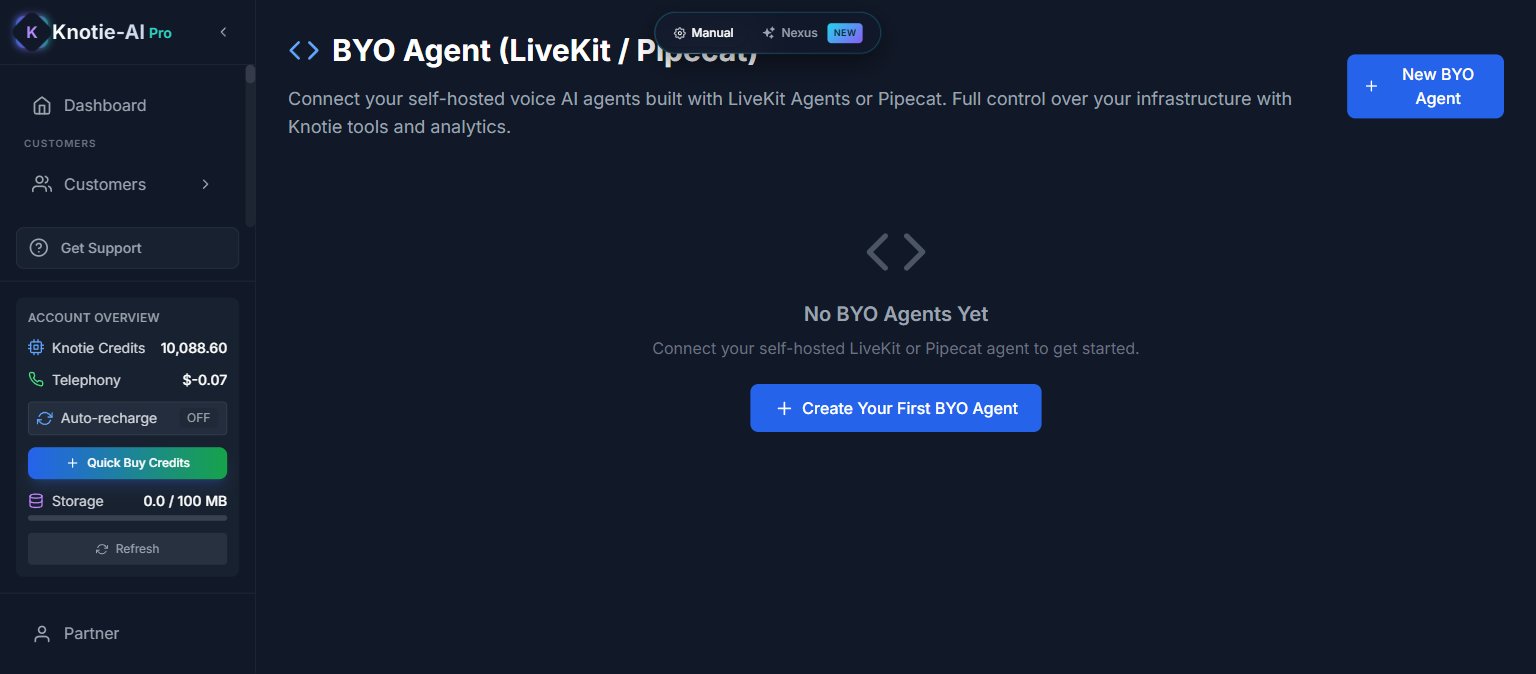
BYO (Bring Your Own) Agent lets you connect self-hosted voice AI agents built with **LiveKit** or **OpenAI** frameworks. Your agent runs on your own infrastructure, but gains access to Knotie's tool ecosystem — CRM integrations, analytics, and webhook-based orchestration.
The AI Agents page lists this card as **"BYO Agent LiveKit / OpenAI"**. If you previously connected a Pipecat-based agent, contact support — that framework path is no longer surfaced in the partner portal.
 ## Where to find it
1. Partner Portal → **AI Agents** (in the main sidebar)
2. Scroll to the **Voice AI Agents** section
3. Click the **BYO Agent LiveKit / OpenAI** card
## How it works
When you create a BYO Agent, Knotie generates:
* **API Token** — authenticates your agent with Knotie's APIs
* **Webhook URL** — your agent calls home to receive tool calls and events
* **Webhook Secret** — HMAC signature for verifying webhook authenticity
## Where to find it
1. Partner Portal → **AI Agents** (in the main sidebar)
2. Scroll to the **Voice AI Agents** section
3. Click the **BYO Agent LiveKit / OpenAI** card
## How it works
When you create a BYO Agent, Knotie generates:
* **API Token** — authenticates your agent with Knotie's APIs
* **Webhook URL** — your agent calls home to receive tool calls and events
* **Webhook Secret** — HMAC signature for verifying webhook authenticity
 ## Create a BYO Agent
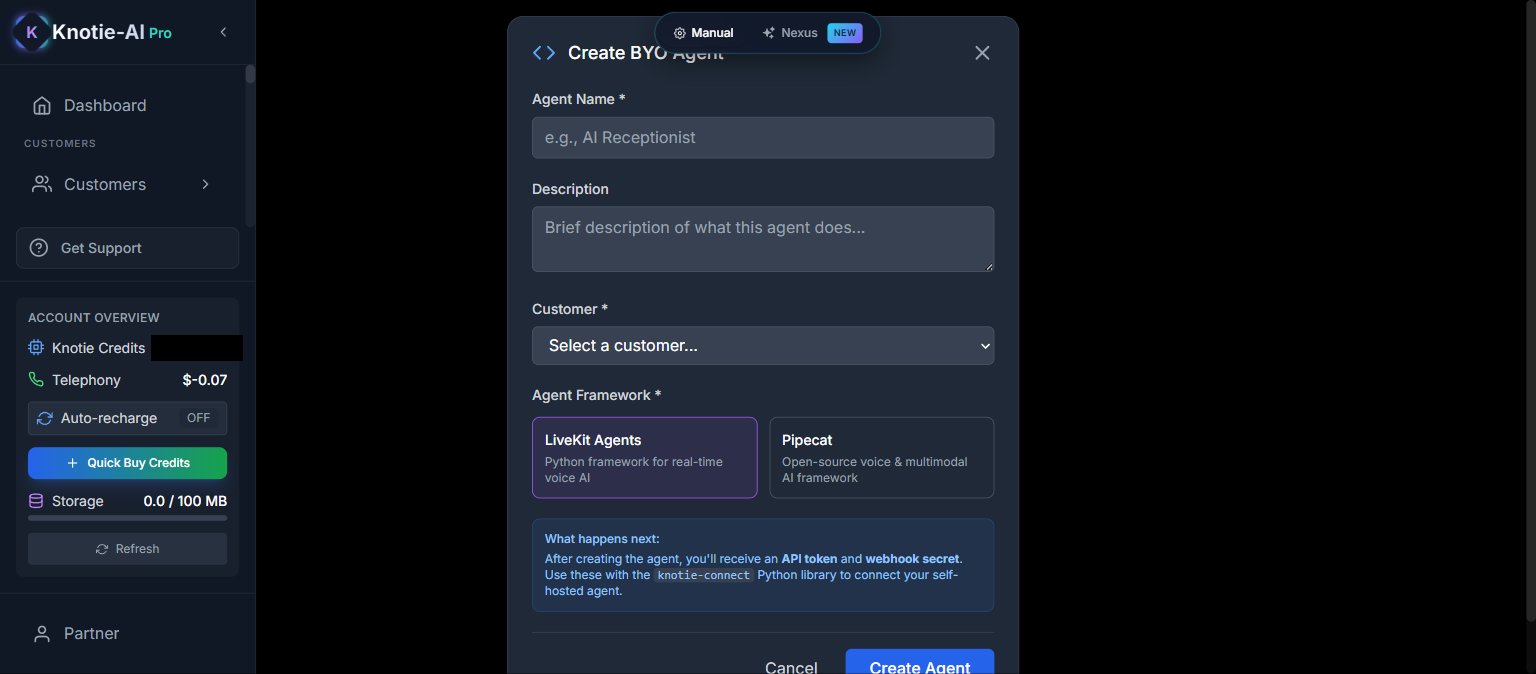
1. Click **Create**
2. Enter a name and description
3. Optionally assign to a customer
4. Set status (Active/Inactive)
5. Save
After creation, copy your credentials immediately — the credentials panel is shown only once.
## Quick start
After creating an agent, you'll see a quick-start code block with:
```bash theme={null}
pip install livekit-agents
```
And starter code to connect your self-hosted agent to Knotie.
## Connect tools
You can attach tool definitions to your BYO Agent:
* `appName` — the Knotie app (e.g., "crm", "calendar")
* `toolName` — the specific tool to call
This lets your self-hosted agent call back into Knotie's tool APIs.
## Regenerate token
To regenerate the API token:
1. Open the agent's three-dot menu
2. Click **Regenerate Token**
3. Confirm
The old token is invalidated immediately.
## Edit or delete
* **Edit Agent** — change name, description, customer assignment
* **Delete Agent** — removes from Knotie (your self-hosted agent continues running independently)
## Access control
BYO Agent creation is subject to Free Forever plan limits. If you hit your plan limit, you'll see an upgrade prompt.
## Next steps
* [AI Gateway](/partner-portal/ai-gateway) — manage API access
* [AI Usage](/partner-portal/ai-usage) — track agent costs and performance
* [Agent Analytics](/partner-portal/agent-analytics) — usage insights
## Create a BYO Agent
1. Click **Create**
2. Enter a name and description
3. Optionally assign to a customer
4. Set status (Active/Inactive)
5. Save
After creation, copy your credentials immediately — the credentials panel is shown only once.
## Quick start
After creating an agent, you'll see a quick-start code block with:
```bash theme={null}
pip install livekit-agents
```
And starter code to connect your self-hosted agent to Knotie.
## Connect tools
You can attach tool definitions to your BYO Agent:
* `appName` — the Knotie app (e.g., "crm", "calendar")
* `toolName` — the specific tool to call
This lets your self-hosted agent call back into Knotie's tool APIs.
## Regenerate token
To regenerate the API token:
1. Open the agent's three-dot menu
2. Click **Regenerate Token**
3. Confirm
The old token is invalidated immediately.
## Edit or delete
* **Edit Agent** — change name, description, customer assignment
* **Delete Agent** — removes from Knotie (your self-hosted agent continues running independently)
## Access control
BYO Agent creation is subject to Free Forever plan limits. If you hit your plan limit, you'll see an upgrade prompt.
## Next steps
* [AI Gateway](/partner-portal/ai-gateway) — manage API access
* [AI Usage](/partner-portal/ai-usage) — track agent costs and performance
* [Agent Analytics](/partner-portal/agent-analytics) — usage insights