> ## Documentation Index
> Fetch the complete documentation index at: https://docs.knotie-ai.pro/llms.txt
> Use this file to discover all available pages before exploring further.
# How to sign up
> Create your Knotie AI partner account and get access to the partner dashboard.
## Overview
This guide walks you through creating your Knotie AI partner account.
You sign up from the **Knotie AI Pro website** (knotie-ai.pro). Click any "Get started" button and a signup form opens right on the page.
The standalone Pricing page has been removed. You no longer choose a plan before creating your account. Instead, every new signup starts with a **Free Forever** account and is offered a **7-day free trial** of premium features immediately after registration.
## Steps
1. Open **knotie-ai.pro** and click **Start for free** (or any "Get started" button).
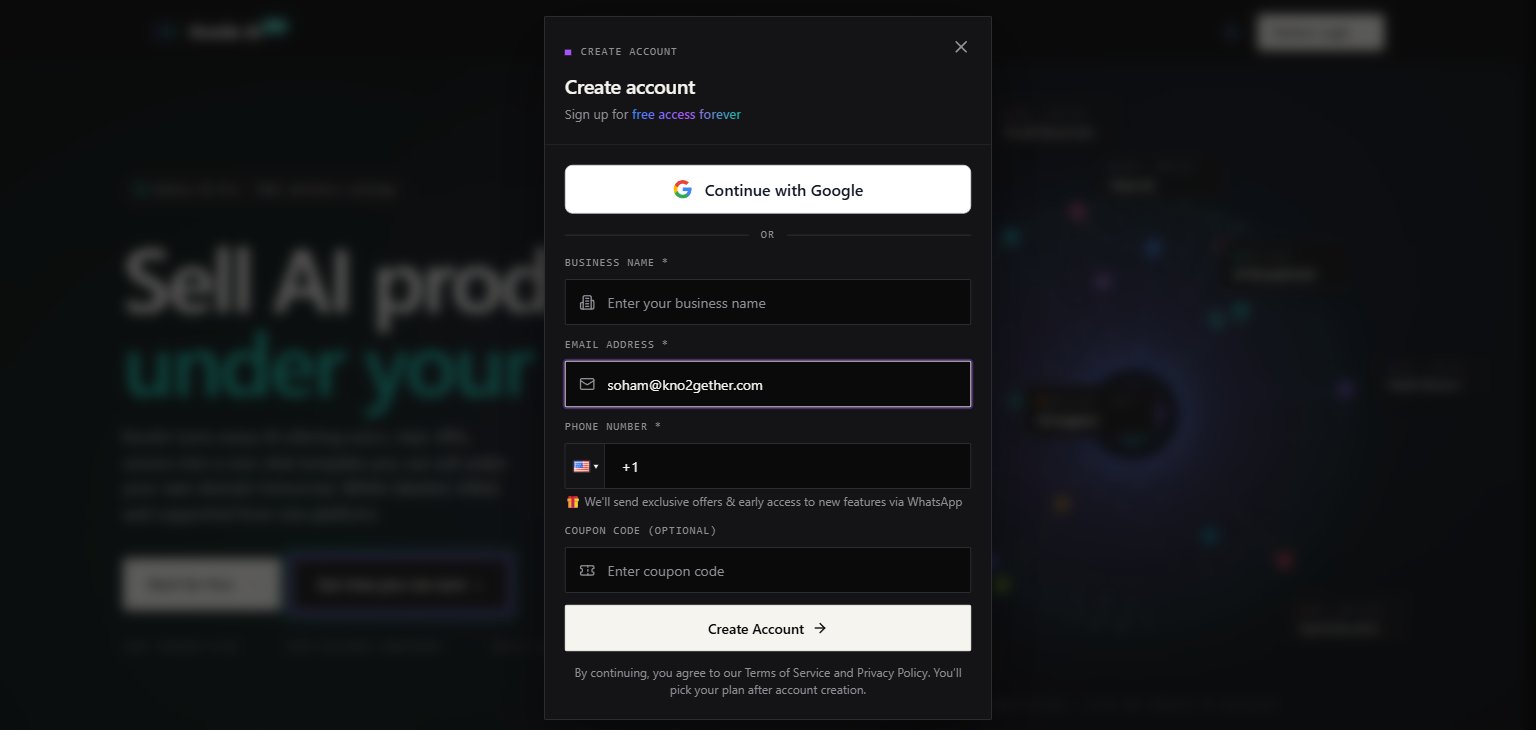
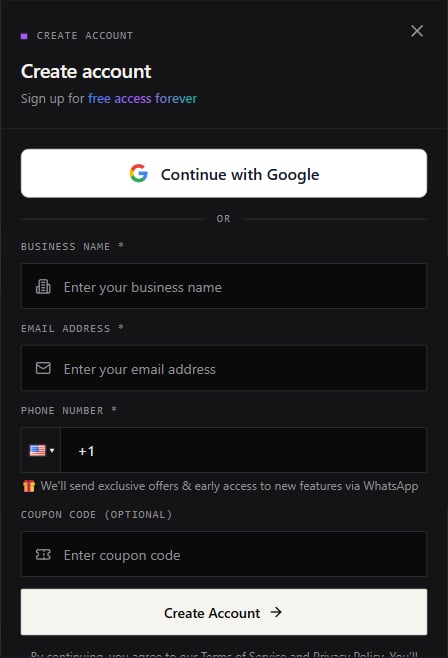
2. A **Create Account** modal opens. Fill in:
* **Business name**
* **Email address**
* **Phone number** (used for WhatsApp updates on exclusive offers)
3. (Optional) Enter a **coupon code** if you have one. The coupon is validated instantly — a green check and description appear when the code is accepted.
4. Click **Create Account**.
5. After the account is created, you'll see the **7-Day Free Trial** confirmation showing a "Free Forever — 7-day premium trial" summary and **\$0 today**. It lists every premium feature you unlock for the trial.
6. Click **Start 7-Day Free Trial**. You'll be taken to a secure payment page to add a card for verification — **no charge is made today**.
7. After adding your card, use **[Partner Login](/partner/login)** to access your dashboard.
## What the 7-day trial includes
During the trial you have full access to all premium features:
* All AI voice providers (VAPI, Retell, LiveKit, Ultravox)
* Unlimited customers and agents
* Advanced integrations and analytics
* Priority support
After 7 days your account automatically reverts to the **Free Forever** plan. There is no auto-upgrade and no charge unless you choose to upgrade.
## Google signup (if enabled)
If your platform has Google auth enabled, you'll see a **Continue with Google** button at the top of the signup modal.
After signing in with Google, the form shows your Google name and photo already filled in. You still need to provide:
* **Business name**
* **Phone number**
The same **7-day trial** confirmation follows for Google signups.
## What happens next
After your first login, Knotie AI may prompt you to set up a **passkey** ("Secure Your Account") before you reach the dashboard. You may also be asked to enable extra sign-in security (**MFA**) under Settings → Profile Settings.
## A note on the email field
You don't need to worry about extra spaces in your email address. If your phone keyboard or browser autofill adds a trailing space, the form removes it for you automatically.
 See [Partner Login Flow](/account/login-flow) for the full post-signup walkthrough.
## Screenshots
See [Partner Login Flow](/account/login-flow) for the full post-signup walkthrough.
## Screenshots
 ## Troubleshooting
* **Signup modal doesn't appear** — try disabling browser extensions that block pop-ups or modals.
* **No confirmation email** — check your spam folder and verify the email address you entered.
* **Coupon code not accepted** — the code is entered in uppercase automatically. If the error persists, the code may be expired or already used.
* **Card declined** — use a valid card for the \$0 verification. Prepaid cards may be rejected.
* **For issues with Google signup** — ensure your browser is signed into a Google account and that pop-ups are allowed.
## Troubleshooting
* **Signup modal doesn't appear** — try disabling browser extensions that block pop-ups or modals.
* **No confirmation email** — check your spam folder and verify the email address you entered.
* **Coupon code not accepted** — the code is entered in uppercase automatically. If the error persists, the code may be expired or already used.
* **Card declined** — use a valid card for the \$0 verification. Prepaid cards may be rejected.
* **For issues with Google signup** — ensure your browser is signed into a Google account and that pop-ups are allowed.