> ## Documentation Index
> Fetch the complete documentation index at: https://docs.knotie-ai.pro/llms.txt
> Use this file to discover all available pages before exploring further.
# Multi-factor authentication (MFA)
> Enable MFA for your account and learn our recommendations.
## Overview
MFA adds an extra layer of security by requiring a second factor during sign-in.
## Recommendation
Enable MFA for all partner accounts that manage:
* Customer access
* Domains
* API keys
* Billing (especially Stripe)
If you connect Stripe, we strongly recommend enabling MFA.
## How to set up
1. In the Partner Portal, go to **Settings** → **Profile Settings**.
2. Find the **Security** section (password, MFA, passkeys).
3. Click **Enable MFA**.
4. Scan the QR code using an authenticator app (Google Authenticator, Authy, 1Password, etc.).
5. Save your **backup codes**.
Your password, MFA, and passkey controls all live together under **Settings → Profile Settings**.
## Signing in with MFA
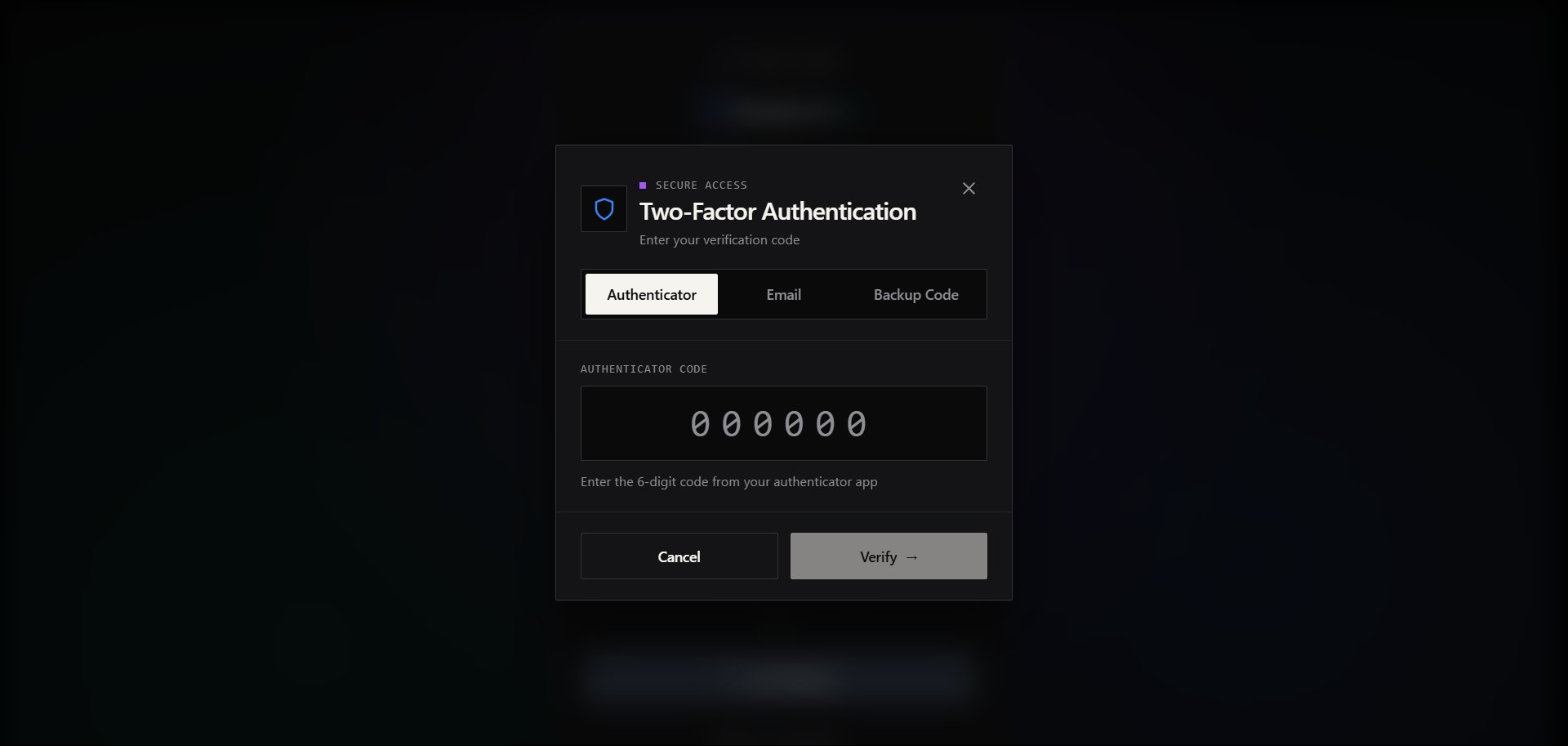
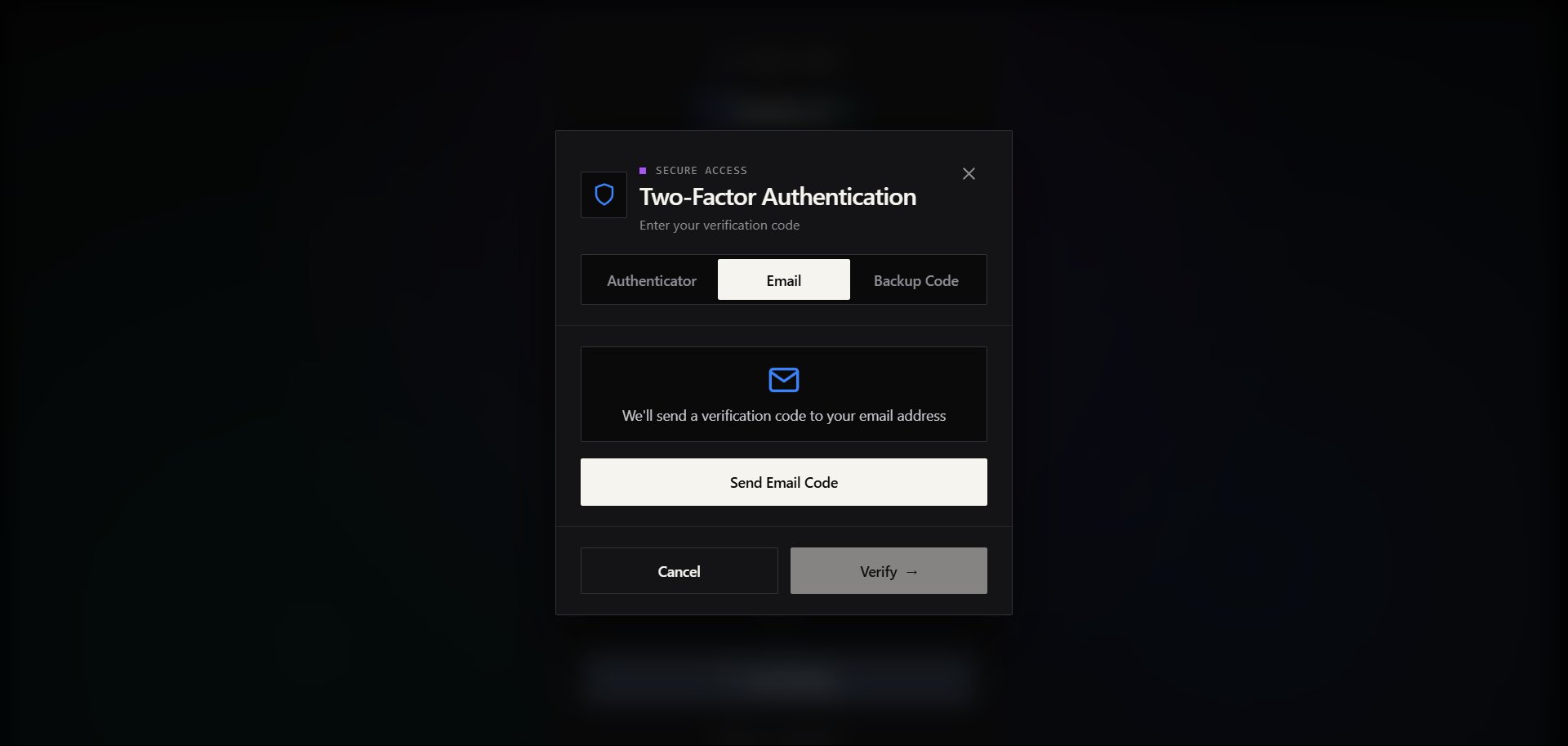
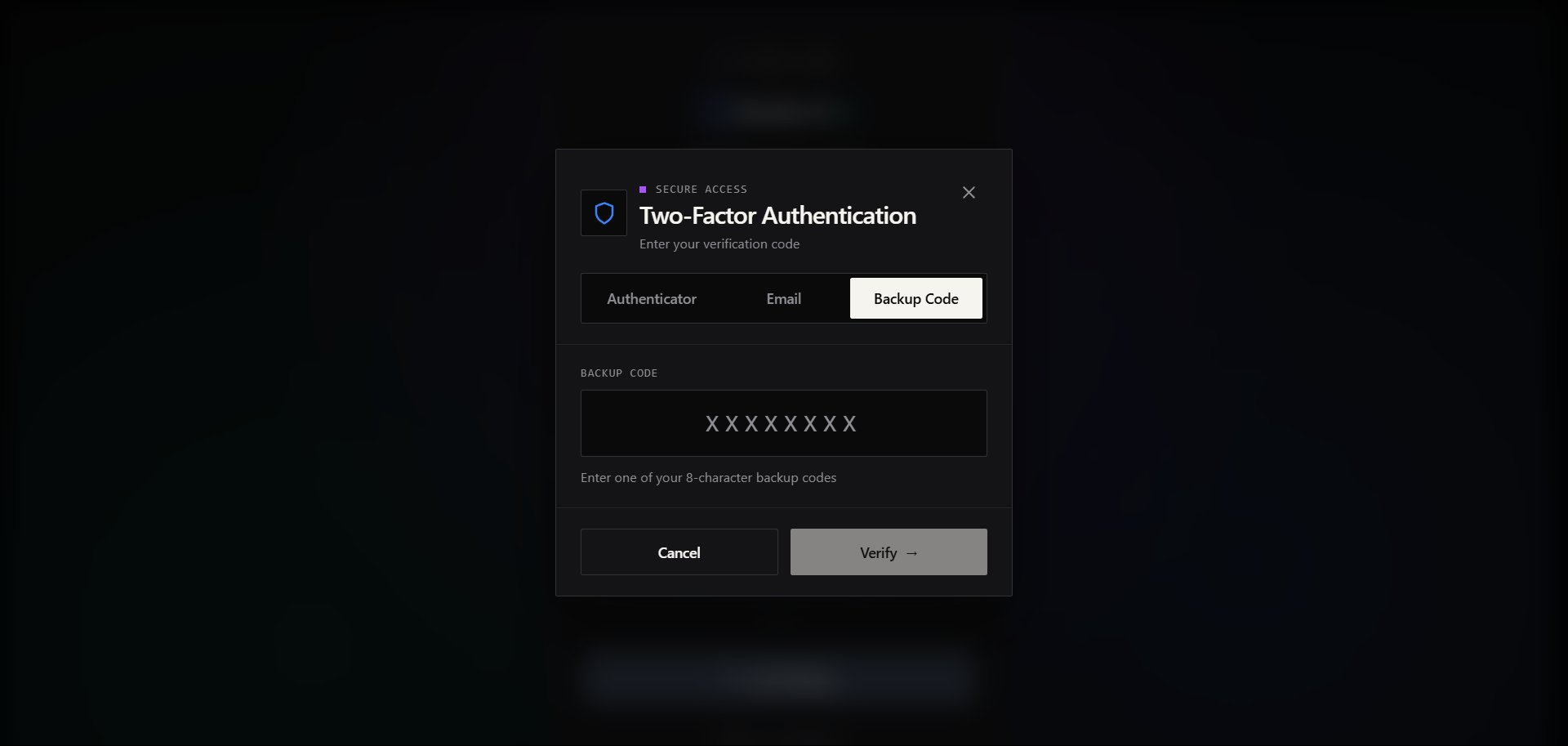
Once MFA is on, signing in shows a **Two-Factor Authentication** step after your email and password. You can verify in one of three ways — switch between them using the tabs at the top of the window.
### Authenticator app
Enter the 6-digit code from your authenticator app. This is the default method.
 ### Email code
Prefer a code by email? Switch to the **Email** tab and click **Send Email Code** — we'll email you a verification code to enter.
### Email code
Prefer a code by email? Switch to the **Email** tab and click **Send Email Code** — we'll email you a verification code to enter.
 ### Backup code
Lost access to your authenticator and email? Switch to the **Backup Code** tab and enter one of your 8-character backup codes. Each code works once.
### Backup code
Lost access to your authenticator and email? Switch to the **Backup Code** tab and enter one of your 8-character backup codes. Each code works once.
 ## Backup codes
Backup codes are a fallback if you lose access to your authenticator app.
In **Settings** → **Profile Settings**, you can generate and download new backup codes.
## Can I disable MFA?
You can disable MFA in **Settings** → **Profile Settings** in some cases.
If Stripe Connect is enabled for your account, MFA may be required (and cannot be disabled while Stripe Connect is active — see the [Stripe Connect](/partner-portal/settings/stripe-connect) doc).
## What the Security section looks like
Under **Settings → Profile Settings**, scroll to **Security Settings**. This is where your password, MFA, and backup codes live.
## Backup codes
Backup codes are a fallback if you lose access to your authenticator app.
In **Settings** → **Profile Settings**, you can generate and download new backup codes.
## Can I disable MFA?
You can disable MFA in **Settings** → **Profile Settings** in some cases.
If Stripe Connect is enabled for your account, MFA may be required (and cannot be disabled while Stripe Connect is active — see the [Stripe Connect](/partner-portal/settings/stripe-connect) doc).
## What the Security section looks like
Under **Settings → Profile Settings**, scroll to **Security Settings**. This is where your password, MFA, and backup codes live.
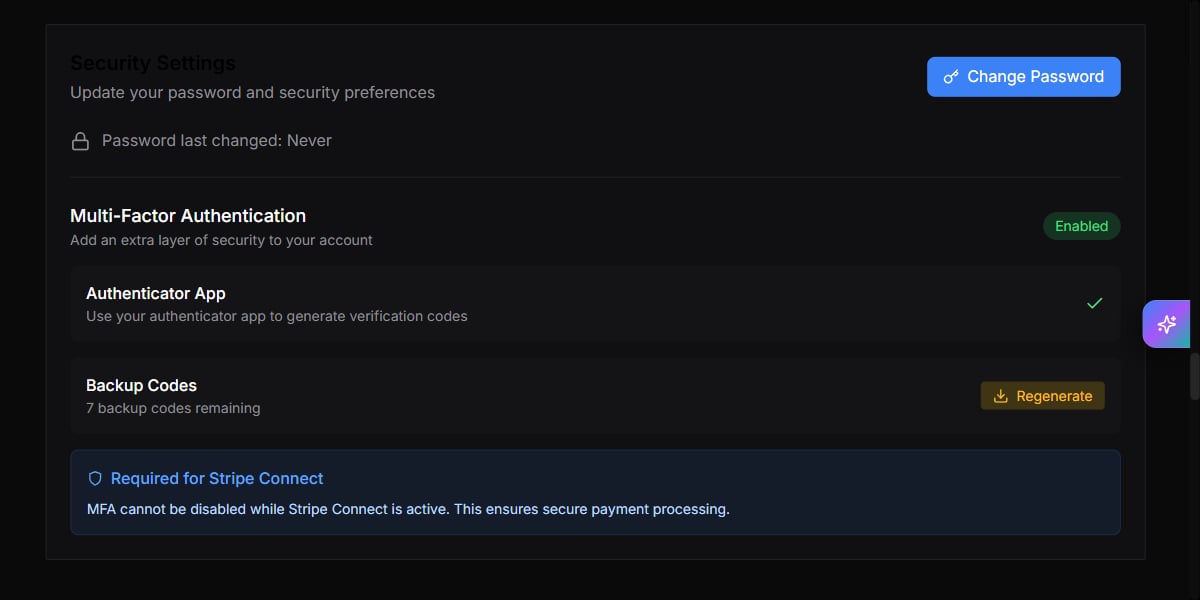 * **Authenticator App** — the second factor generated by your authenticator app.
* **Backup Codes** — one-time codes to use if you lose your authenticator. Use **Regenerate** to create a fresh set.
* If **Stripe Connect** is active, MFA stays on and can't be disabled.
* **Authenticator App** — the second factor generated by your authenticator app.
* **Backup Codes** — one-time codes to use if you lose your authenticator. Use **Regenerate** to create a fresh set.
* If **Stripe Connect** is active, MFA stays on and can't be disabled.